MultiOS USB
Boot operating systems directly from ISO/WIM images
One device with multiple ISO/WIM files. Easy to use: install once, add ISO/WIM files and boot computers from it The project is written primarily in Shell, distributed under the GNU General Public License v3.0 license, first published in 2020. Key topics include: bios, boot, bootable-usb, gpt, grub2.
MultiOS-USB
One device with multiple ISO/WIM files. Easy to use: install once, add ISO/WIM files and boot computers from it
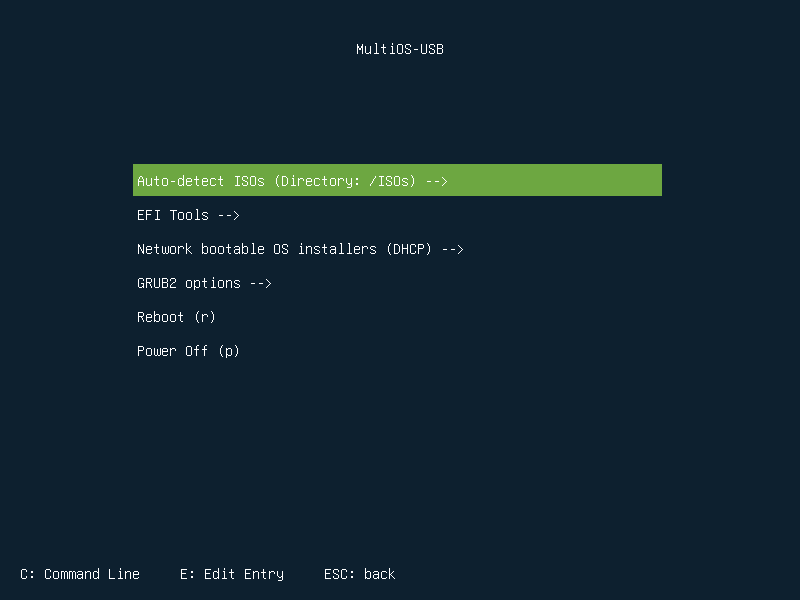
Features:
- BIOS and UEFI support
- Secure Boot support (boot, manage uefi keys)
- Load UEFI drivers
- Launch .efi executables and other boot loaders
- Boot Linux from .iso images
- Boot WinPE from bootable .wim images
- Boot Windows 10/11 installer from ISO (currently, SB must be disabled during installation)
- Boot Linux installer from network (experimental)
- Boot locally installed systems: Linux, Windows
- Automatically update configuration files
- Without background services
- exFAT file system support
- Automatic detection of compatible ISO images (GRUB loopback)
- Support for systems without loopback support
- Allows customisation of ISO boot menu (for example: custom kernel options)
- Support for USB, SSD, nvme, mmcblk, loop, nbd and virtual disks
- Support for x86, x86_64
Tested ISOs
A list of tested ISO images can be found here
Installation
SparkyLinux
sh# Refresh the package list and install MultiOS-USB sudo apt update sudo apt install multios-usb # Display available USB devices multios-usb -l # Install to the selected device (replace sdX with your target device) sudo multios-usb /dev/sdX
Nix/NixOS
nix# run without permanent install (flakes must be enabled) sudo nix run github:Mexit/MultiOS-USB -- /dev/sdX # create shell with MultiOS-USB available nix shell github:Mexit/MultiOS-USB
Arch Linux
sh# install using AUR helper like yay or aura yay -S multios-usb-bin # or install by cloning and executing makepkg -si git clone https://aur.archlinux.org/multios-usb-bin.git cd multios-usb-bin/ makepkg -si # for usage instructions see SparkyLinux (usage is the same)
From GitHub - Linux console
Go to Releases, download the latest version and unpack the downloaded archive.
Check and install the required packages (in most cases they should be installed by default):
- tar, bzip2, xz
- sgdisk, wipefs
- mkfs.fat, mkfs.exfat, ...
Go to the directory where you extracted the files and run the following at the console
sh./multios-usb.sh -l
This command will show you the USB devices available on your system.
To install MultiOS-USB, type the following command, replacing /dev/sdX with your chosen device path.
For example:
shsudo ./multios-usb.sh /dev/sdX
From GitHub - image based installation (experimental)
Recommended installation method for Windows. Go to Releases and download the appropriate file.
Installation details can be found here and in the downloaded archive.
First use
After installation, copy your ISO files to the /ISOs directory and boot your computer from USB.
You can also add your own configuration files to the /MultiOS-USB/config_priv directory. They will not be deleted during the automatic MultiOS-USB update.
If you want to change the configuration for a given ISO - copy the one you have chosen from the config folder, paste into config_priv and update it according to your needs.
The updated configuration will be detected automatically.
On the first boot with Secure Boot enabled on each new computer, a MultiOS USB certificate must be installed.
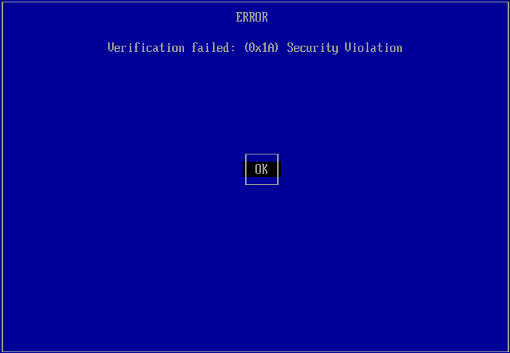
Press Enter
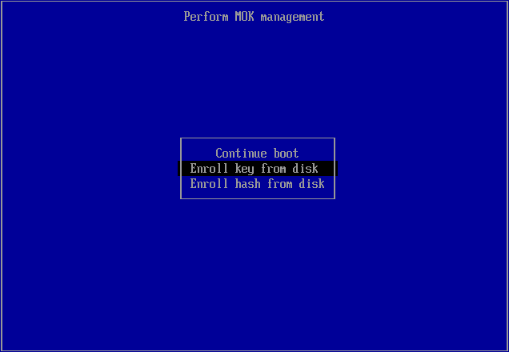
Select: Enroll key from disc
Select MultiOS-EFI as partition, then browse to the EFI/cert directory and select MultiOS-USB.cer, Continue and confirm (Yes) key enrolling.
You can also immediately add certificates (keys) from popular distributions in the same way.
If you want to add a certificate later, you can do it by selecting in the Main Menu:
EFI Tools --> and then Add UEFI key or hash.
Update MultiOS-USB:
You can add support for new operating systems. No need to reinstall.
Download zip or tar.gz archive and unpack MultiOS-USB repository
Automatic update
To update configuration files, simply type the following command, replacing /dev/sdX with your chosen device path.
sh./multios-usb.sh -u /dev/sdX
Manual update
- Remove all files and directories on your USB in
/MultiOS-USB/config/ - Copy the downloaded files and directories from
configto the above directory.
Project URLs
- https://gitlab.com/MultiOS-USB - full MultiOS-USB source code
- https://github.com/Mexit/MultiOS-USB - MultiOS-USB releases
Contributors
Showing top 9 contributors by commit count.

![dependabot[bot]](https://avatars.githubusercontent.com/in/29110?v=4)


Related Repositories

pbatard/rufus
The Reliable USB Formatting Utility

jart/cosmopolitan
build-once run-anywhere c library

Abdess/retrobios
Complete BIOS and firmware packs for RetroArch, Batocera, Recalbox, Lakka, RetroPie, EmuDeck, RetroBat, RetroDECK, RomM. Verified checksums, 6700+ files, 300+ emulators profiled from source code.

Limine-Bootloader/Limine
Modern, secure, portable, multiprotocol bootloader and boot manager.

coreboot/coreboot
Read-only mirror of https://review.coreboot.org/coreboot.git. Synced every hour. We don't handle Pull Requests.

archtaurus/RetroPieBIOS
Full BIOS collection for RetroPie