

Generator office
Yeoman generator for building Microsoft Office related projects.
This [Yeoman](http://yeoman.io) generator creates a Node.js [Office Add-in](https://learn.microsoft.com/office/dev/add-ins) project that can be managed with Visual Studio Code or any other editor. You can use it to create Office Add-ins for: The project is written primarily in TypeScript, distributed under the MIT License license, first published in 2015. Key topics include: add-ins, office, yeoman-generator, yo-office.
Yeoman generator for Office Add-ins - YO OFFICE!


This Yeoman generator creates a Node.js Office Add-in project that can be managed with Visual Studio Code or any other editor. You can use it to create Office Add-ins for:
- Excel
- OneNote
- Outlook
- PowerPoint
- Project
- Word
In addition you can use it to create add-ins that use single sign-on or Excel custom functions.
Like other Yeoman generators, this generator simply creates the scaffolding of files for your Office Add-in project. You can choose to create Office Add-in projects using plain HTML, CSS & JavaScript, or using React, and can choose between JavaScript and Typescript as well.
Note: While you can also use Visual Studio to create Office Add-in projects, the Yeoman generator provides more options in terms of the types of projects you can create. For example:
- The Yeoman generator can create Office Add-in projects that use plain HTML, CSS & JavaScript, or React; whereas Visual Studio can only create Office Add-in projects that use plain HTML, CSS & JavaScript.
- The Yeoman generator can create Office Add-ins projects that use either JavaScript or TypeScript; whereas Visual Studio only creates JavaScript projects which you would need to convert manually if you want to use TypeScript.
- The Yeoman generator can create add-ins for Excel, OneNote, Outlook, PowerPoint, Project, and Word; whereas Visual Studio can only create add-ins for Excel, Outlook, PowerPoint, and Word.
For detailed information about installing and using the Yeoman generator to create Office Add-ins, see Create Office Add-in projects using the Yeoman Generator.
The generator is normally used in interactive mode, but you can use command line arguments and options as described in the sections below.
Usage
bashyo office [arguments] [options]
Command Line Arguments
The following command line arguments are supported. If using the command line arguments, you must use them in the order cited below, or the generator will prompt you for the values.
Example
bashyo office --projectType react --name "New Web AddIn" --host word --ts true
output_-----_ ╭──────────────────────────╮ | | │ Welcome to the Office │ |--(o)--| │ Add-in generator, by │ `---------´ │ @OfficeDev! Let's create │ ( _´U`_ ) │ a project together! │ /___A___\ /╰──────────────────────────╯ | ~ | __'.___.'__ ´ ` |° ´ Y `
--projectType
Specifies the project type to create.
| Project Type | Description |
|---|---|
| taskpane | Task Pane add-in using HTML |
| react | Task Pane add-in using the React framework |
| excel-functions | Task Pane add-in with Excel Custom Functions |
| single-sign-on | Taskpane add-in supporting single-sign-on |
| nested-app-auth | Taskpane add-in supporting Nested App Auth single sign-on (preview) |
| manifest | Manifest and related files for an Office Add-in |
- Type: String
- Optional
--name
Title of the project - this is the display name that is written the manifest.xml file.
- Type: String
- Optional
Note: The Windows command prompt requires this argument to be in quotes (e.g. "My Office Add-in")
--host
The Microsoft Office client application that can host the add-in. The supported arguments include Excel (excel), OneNote (onenote), Outlook (outlook), PowerPoint (powerpoint), Project (project), and Word (word).
- Type: String
- Optional
Command Line Options
The following command line options are supported. If these are not specified, the generator will prompt you for the values before scaffolding the project. The options should be specified after the projectType, name and host arguments.
Specifying --output tells the generator to create the project in a specific location. If the output parameter is not specified, the project will be created in the current directory. If the output option specifies a non-empty folder,
the generator will inform you so you don't accidentally overwrite existing files.
- Type: String
- Optional
Specifying --js tells the generator to use JavaScript.
-
Type: Boolean
-
Default: False
-
Optional
Specifying
--tstells the generator to use TypeScript. -
Type: Boolean
-
Default: False
-
Optional
Specifying
--detailstells the generator to provide detailed help, including all the accepted values for each project type and host, -
Type: Boolean
-
Default: False
-
Optional
--skip-install
After scaffolding the project, the generator (and all sub generators) run all package management install commands such as npm install & typings install. Specifying --skip-install tells the generator to skip this step.
- Type: Boolean
- Default: False
- Optional
Running the Generated Site
Launch the local HTTPS site on https://localhost:3000 by simply typing the following command in your console:
bashnpm start
Note: Office Add-ins should use HTTPS, not HTTP, even when you are developing. If you are prompted to install a certificate after you run
npm start, accept the prompt to install the certificate that the Yeoman generator provides.
Next, sideload the add-in in an Office application. See Sideload an Office Add-in for testing.
Validate manifest.xml
As you modify your manifest.xml file, use the included Office Toolbox to ensure that your XML file is correct and complete. It will also give you information on against what platforms to test your add-ins before submitting to the store.
To run Office Add-in Validator, use the following command in your project directory:
bashnpm run validate
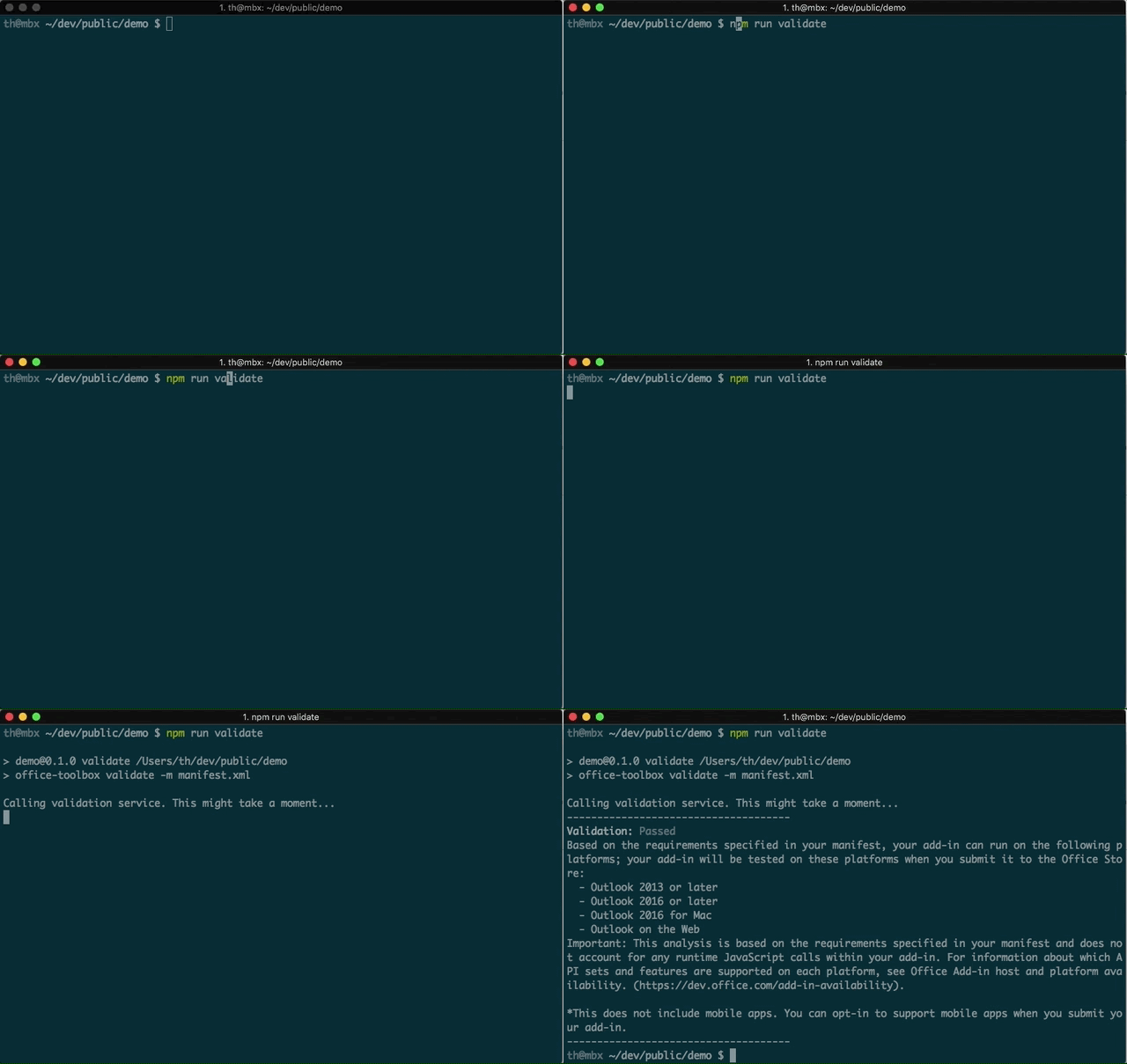
For more information on manifest validation, refer to our add-in manifests documentation.
Contributing
Contributing Guidelines
If you are interested in contributing, please start by reading the Contributing Guidelines.
Development
Prerequisites
Ensure you have Node.js (version 8.0.0 or later) installed.
Install Yeoman.
bashnpm install -g yo
Initialize the repo
bashgit clone https://github.com/OfficeDev/generator-office.git cd generator-office npm install
Make your desired changes
- Project templates can be found under src/app/templates
- Generator script can be found at src/app/index.ts
Build and link your changes
bashnpm run build npm link cd .. yo office
At this point, yo office will be running with your custom built office-generator changes.
Data usage
Yo Office collects anonymized usage data and sends it to Microsoft. This allows us to understand how Yo Office is used and how to improve it.
For more details on what we collect and how to turn it off, see our Data usage notice
Copyright (c) 2017 Microsoft Corporation. All rights reserved.
This project has adopted the Microsoft Open Source Code of Conduct. For more information, see the Code of Conduct FAQ or contact opencode@microsoft.com with any additional questions or comments.
Contributors
Showing top 12 contributors by commit count.


![dependabot[bot]](https://avatars.githubusercontent.com/in/29110?v=4)

