

Xp discord theme
A Windows XP style Discord theme.
[light]: https://saltssaumure.github.io/xp-discord-theme/preview/exponent1.png [dark]: https://saltssaumure.github.io/xp-discord-theme/preview/exponent2.png [customised]: https://saltssaumure.github.io/xp-discord-theme/preview/exponent3.png [withSC]: https://saltssaumure.github.io/xp-discord-theme/preview/withSystemColor.png The project is written primarily in SCSS, distributed under the GNU Affero General Public License v3.0 license, first published in 2022. Key topics include: betterdiscord, betterdiscord-theme, discord-theme, replugged, replugged-theme.
Exponent Discord Theme




A Windows XP style Discord theme. Recommended for use with SystemColor.
| Light mode | Dark mode | With SystemColor |
|---|---|---|
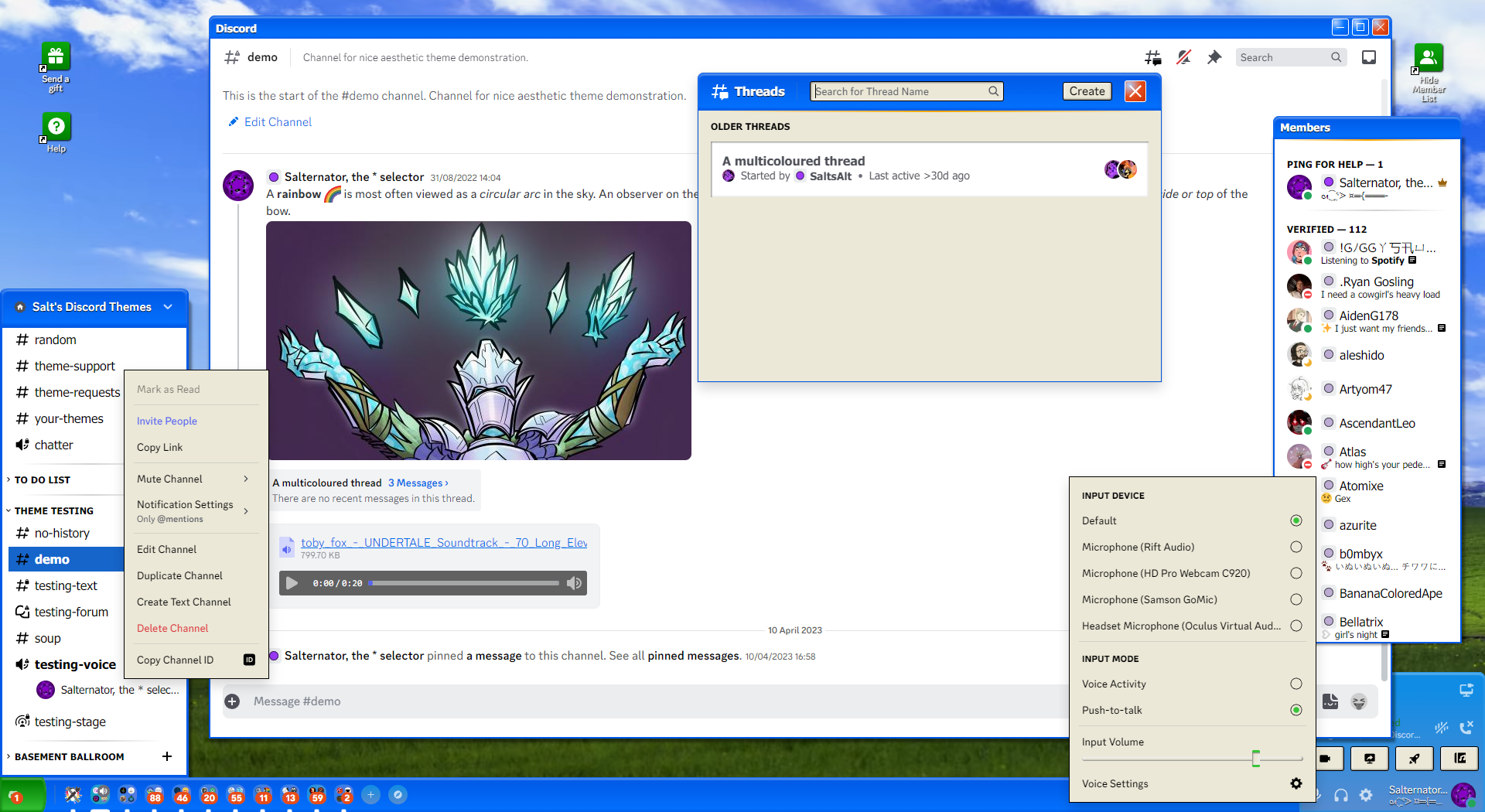 | 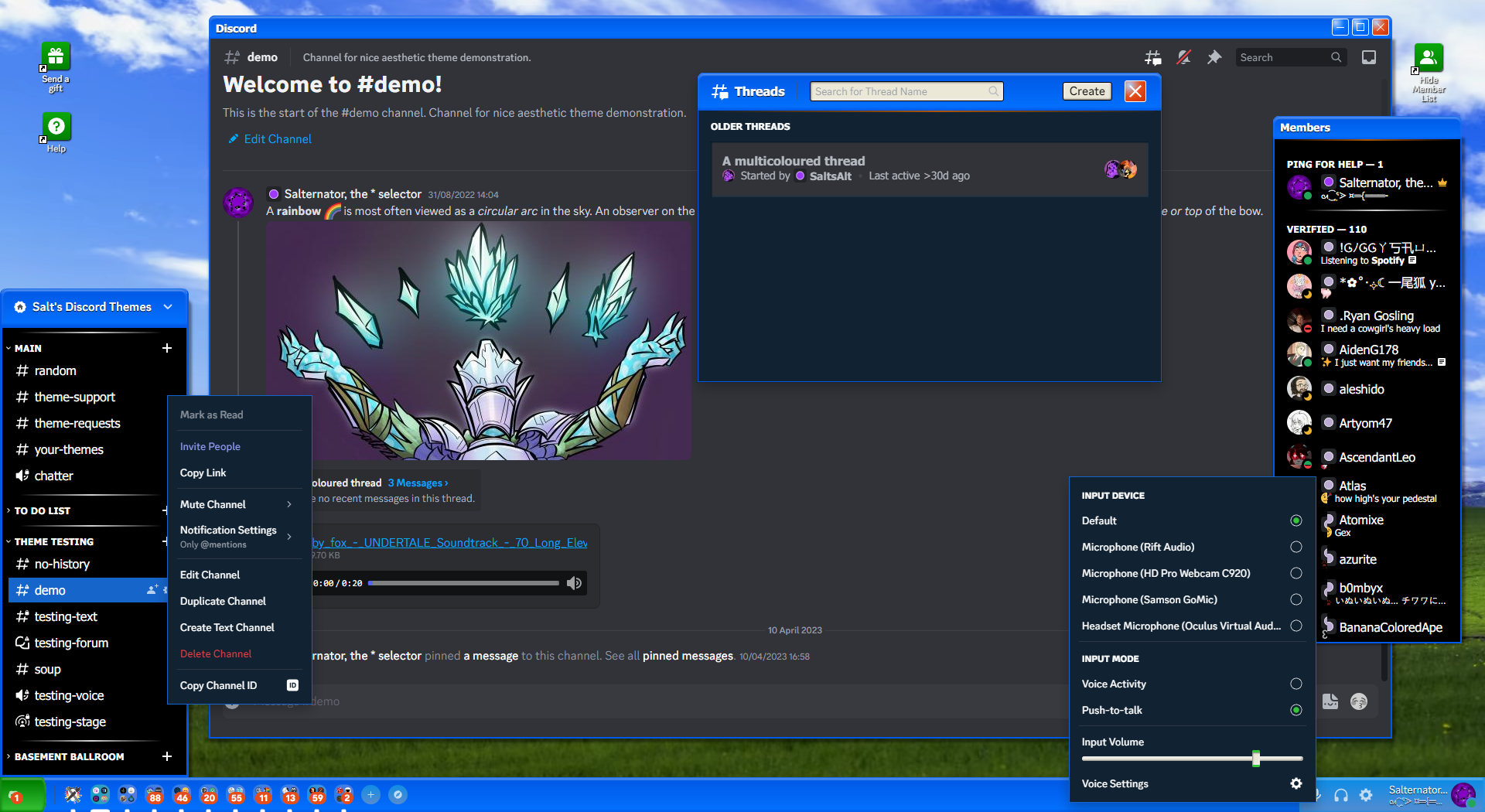 | 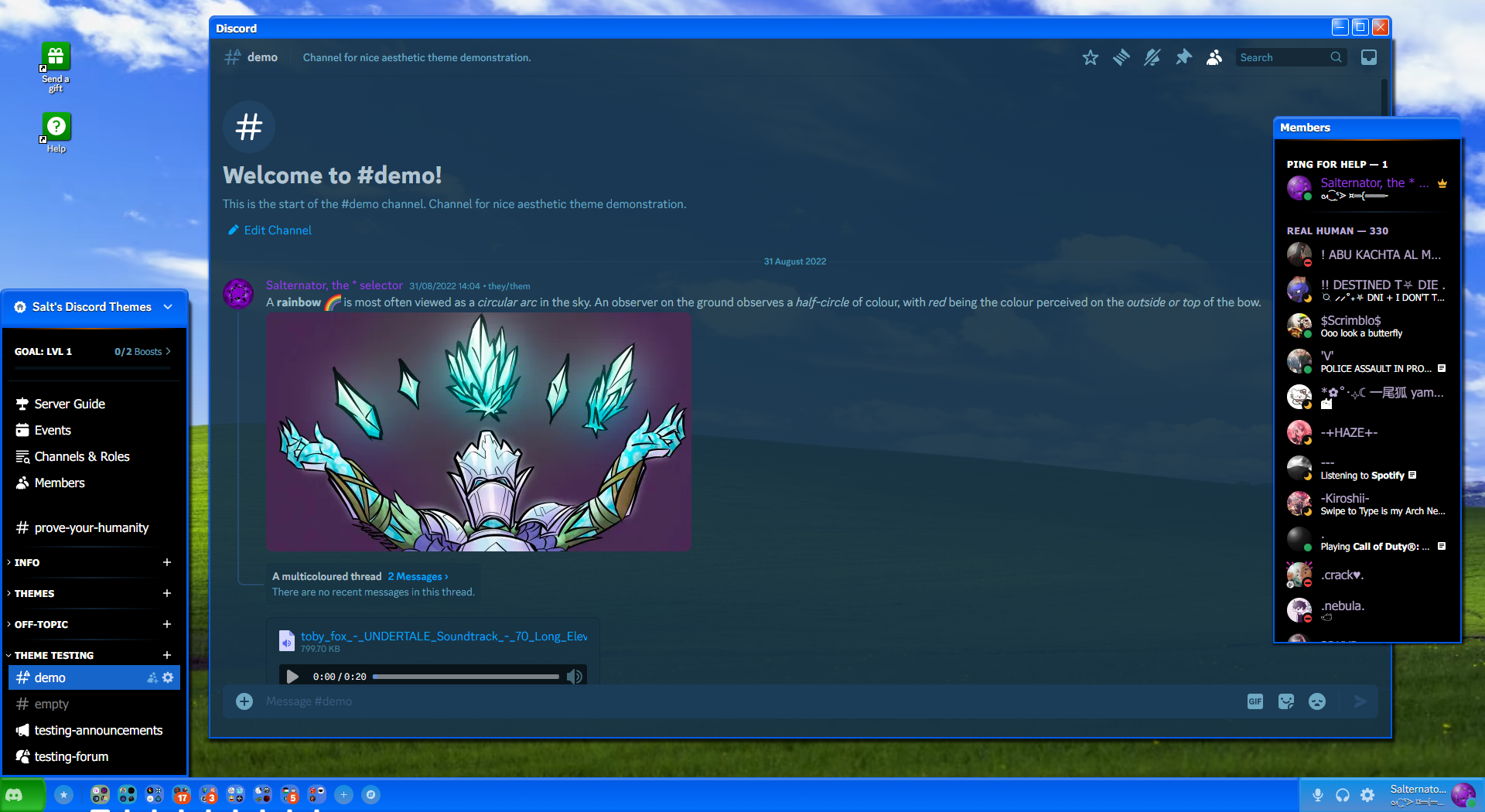 |
Installation
BetterDiscord
<details> <summary>Click to expand</summary>- Download
Exponent.theme.css: - Place the file in the themes folder:
Settings>BetterDiscord>Themes>Open Themes Folder
- Toggle on the theme card.
Replugged
<details> <summary>Click to expand</summary>Automatic
- Click to install:
Manual
- Download
net.saltssaumure.Exponent.asar: - Place the file in the themes folder:
Settings>Replugged>Themes>Open Themes Folder
- Click
Load Missing Themesand toggle on the theme card.
Vencord
<details> <summary>Click to expand</summary>Local
- Download
Exponent.theme.css: - Place the file in the themes folder:
Settings>Vencord>Themes>Local Themes>Open Themes Folder
- Click
Load missing Themesand toggle on the theme card.
Online
- Paste the link in
Settings>Vencord>Themes>Online Themes:https://saltssaumure.github.io/xp-discord-theme/Exponent.theme.css
Customisation
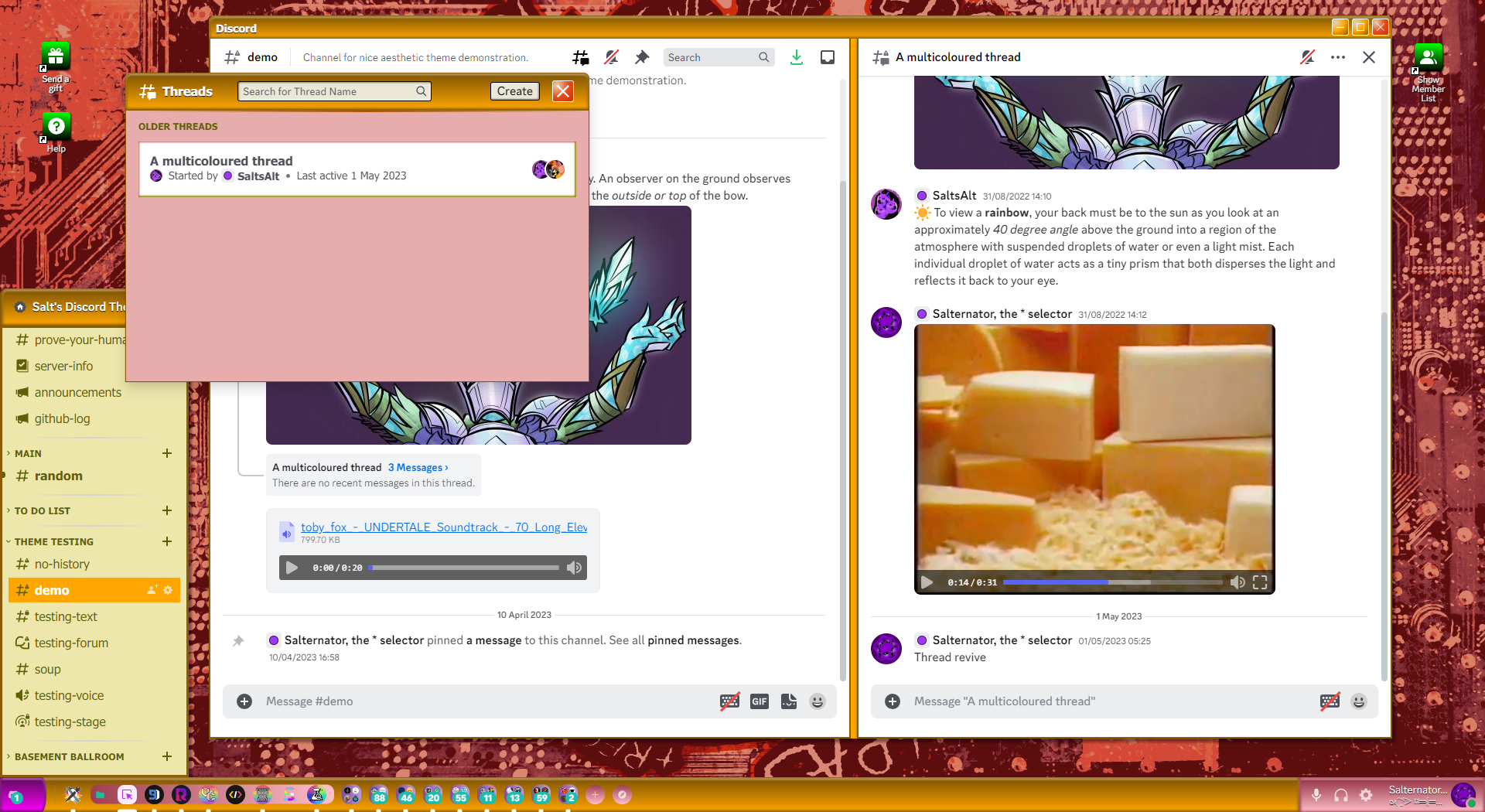
| Variable name | Description | Valid values | Default value |
|---|---|---|---|
--xp-background-image | Background image | Any image link encased in url(). | url(https://saltssaumure.github.io/xp-discord-theme/img/bliss.avif) |
--xp-background-color | Background colour | Any colour. | #003300 |
--xp-window-color-1, -2 | Window titlebar colours | Any colour. | #005AE7, #0372FF |
--xp-taskbar-color-1, -2, -3 | Taskbar control colours | Any colour. | #108CE4, #578CD0, #1665CA |
--xp-start-color-1, -2 | Start button colours | Any colour. | #008000, #38C438 |
--xp-shortcut-color-1, -2 | Shortcut icon colours | Any colour. | #0CA80C, #008000 |
--xp-ping-color-1, -2 | Ping bubble colours | Any colour. | #E64D1C, #C73207 |
--xp-tooltip-color-1, -2 | Tooltip colours | Any colour. | #F0EFED, #EBE8D7 |
--xp-avatar-shine | Toggle avatar shine | on or off | on |
--bsod-color | BSOD background colour | Any colour. | navy |
--bsod-text | BSOD text | Any text. Use \A for new lines. | Read here. |
--xp-bg-color | Panel background colour | Any colour. | #000 (dark) / #FFF (light) |
--xp-set-color | Panel settings icon colour | Any colour, preferably translucent. | #FFFFFFB3 (dark) / #000000B3 (light) |
--xp-hover-color | Panel hovered item colour | Any colour. | #102030 (dark) / #D3D3D3 (light) |
--xp-zing-color | Panel top decoration colour | Any colour. | #A05000 (dark) / #FFA500 (light) |
--xp-txt-color | Panel text colour | Any colour. | #FFF (dark) / #000 (light) |
--xp-bg-bright-color | Button highlight colour | Any colour. | #203040 (dark) / #F0EFED (light) |
--xp-bg-tint-color | Button background colour | Any colour. | #202020 (dark) / #EBE8D7 (light) |
--xp-bg-shade-color | Button shadow colour | Any colour. | #101010 (dark) / #808080 (light) |
--xp-border-color | Button/panel border colour | Any colour. | #1665CA (dark) / #000000 (light) |
BetterDiscord
<details> <summary>Click to expand</summary>- Open
Settings>BetterDiscord>Themes. - Click the pencil icon on this theme.
- Edit the variable values and save changes.
Replugged
<details> <summary>Click to expand</summary>- Enable
Automatically Apply Quick CSSinSettings>Replugged>General. - Open
Settings>Replugged>Quick CSS. - Copy and paste lines 15-57 of
Exponent.theme.css. - Edit the variable values and save.
Vencord
<details> <summary>Click to expand</summary>Local
Open Themes FolderinSettings>Vencord>Themes>Local Themes- Open
Exponent.theme.csswith your favourite text editor. - Edit the variable values and save.
Online
Enable Custom CSSinSettings>Vencord>Vencordand clickOpen QuickCSS File.- Copy and paste lines 15-57 of
Exponent.theme.css. - Edit the variable values.
License
Copyright (c) 2022-2024 Saltssaumure
This theme is free software: you can redistribute it and/or modify it under the terms of the GNU Affero General Public License as published by the Free Software Foundation, either version 3 of the License, or (at your option) any later version.
This theme is distributed in the hope that it will be useful, but WITHOUT ANY WARRANTY; without even the implied warranty of MERCHANTABILITY or FITNESS FOR A PARTICULAR PURPOSE. See the GNU Affero General Public License for more details.
Credits
Themes
- HorizontalServerList by DiscordStyles (Gibbu) - MIT license
Assets
- Bliss by Microsoft (Charles O'Rear)
Questions or suggestions?
- Post an issue on GitHub.
- Post in
#theme-supporton my support server.
Contributors
Showing top 1 contributor by commit count.

Related Repositories

BetterDiscord/BetterDiscord
Better Discord enhances Discord desktop app with new features.

mwittrien/BetterDiscordAddons
A series of plugins and themes for BetterDiscord.
BetterDiscord/Installer
A simple standalone program which automates the installation, removal and maintenance of BetterDiscord.

refact0r/midnight-discord
a dark, customizable discord theme.

Jiiks/BetterDiscordApp
Better Discord App enhances Discord desktop app with new features.

riolubruh/YABDP4Nitro
Yet Another BetterDiscord Plugin for Nitro features. Unlock screensharing modes, use cross-server and gif emotes and much more!