

ERAM
Open Source RAM Disk
ERAM v2.30 is an Opensource RAM Disk made by Hideaki Okubo (okubo at msh.biglobe.ne.jp) with the source code comments translated by Katayama Hirofumi MZ (katayama.hirofumi.mz at gmail.com) and some modifications made by me thanks to help from a member of community.osr.com. It has a size limit of 4 GB that uses page/non-paged/external RAM. You can use it for storing temp files, browser cache, etc. in order to speed up the programs that use those files. The project is written primarily in C, distributed under the MIT License license, first published in 2016. Key topics include: caching, disk, driver, eram, ramdisk.
ERAM
ERAM v2.30 is an Opensource RAM Disk made by Hideaki Okubo (okubo at msh.biglobe.ne.jp) with the source code comments translated by Katayama Hirofumi MZ (katayama.hirofumi.mz at gmail.com) and some modifications made by me thanks to help from a member of community.osr.com. It has a size limit of 4 GB that uses page/non-paged/external RAM. You can use it for storing temp files, browser cache, etc. in order to speed up the programs that use those files.
Install Instructions
- Download from the Releases section (available at https://github.com/Zero3K/ERAM/releases)
x86 (32-bit)
- Run the
ERAM_x86.exe. - Follow the instructions.
x64 (64-bit)
- Run the
ERAM_x64.exe
(you might have to run the Installer with Driver Signature Enforcement Disabled for it to install without any errors). - Follow the instructions.
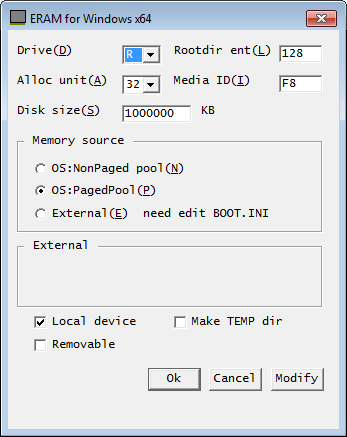
After installing, the RAM Disk will be available as the R: or Z: drive with a size of 1 GB (for 32-bit OSes) and 4 GB (for 64-bit OSes) which can be changed as you see fit by running eram.cpl by pressing <kbd>Win</kbd> + <kbd>R</kbd>.
Build Instructions -
- Download WDK (Windows Driver Kit) 7.1.0 from https://www.microsoft.com/en-us/download/details.aspx?id=11800.
- Extract the ISO using 7-Zip, etc. to a directory of your choosing.
- Run the KitSetup.exe located in the directory it was extracted to.
- Click Full Development Environment.
- Click OK.
- After the install has completed, you can find the Build Environments in the Start Menu in Windows Driver Kits\WDK 7600.16385.1\Build Environments.
- Open the proper Environment depending on what OS and CPU architecture you are building for (Only the Checked Build Environment works for now).
- Change the directory to the location of the source code (for example, cd C:\ERAM).
- Type build and press Enter.
Benchmarks -
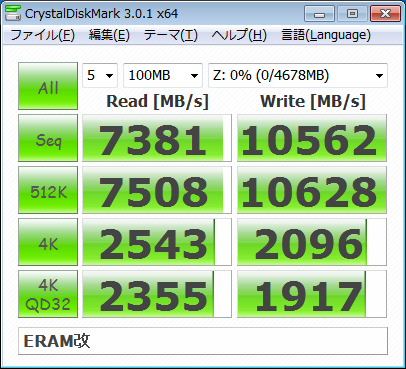
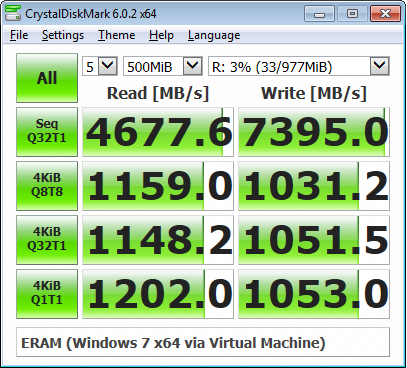
Screenshots -
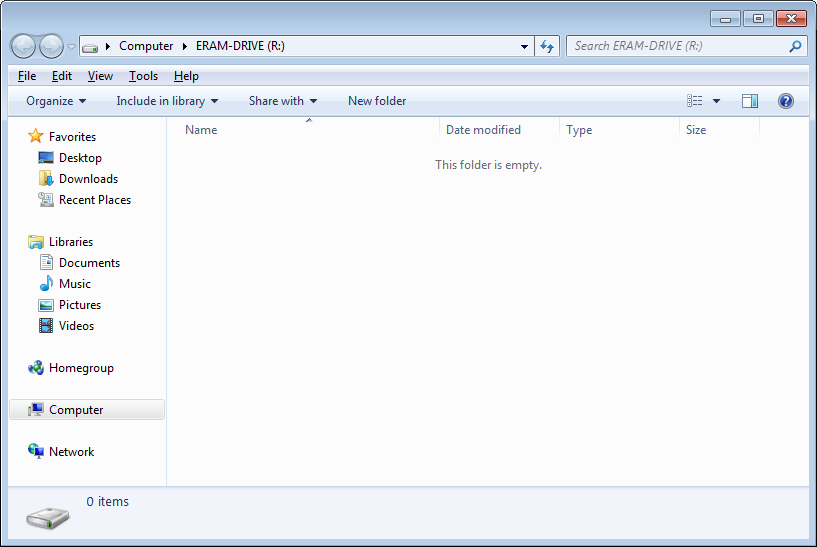
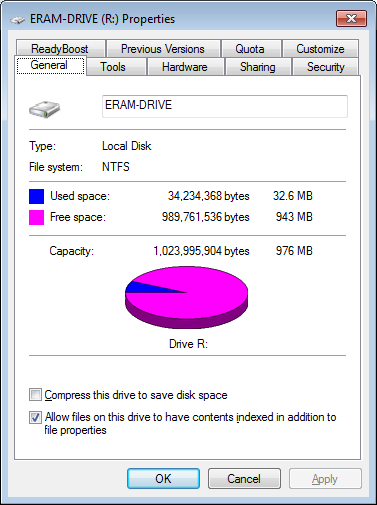
Original Developer's Site -
Contributors
Showing top 5 contributors by commit count.


![mend-bolt-for-github[bot]](https://avatars.githubusercontent.com/in/16809?v=4)
Related Repositories

redis/redis
For developers, who are building real-time data-driven applications, Redis is the preferred, fastest, and most feature-rich cache, data structure server, and document and vector query engine.

dagger/dagger
Automation engine to build, test and ship any codebase. Runs locally, in CI, or directly in the cloud

allegro/bigcache
Efficient cache for gigabytes of data written in Go.

haproxy/haproxy
HAProxy Load Balancer's development branch (mirror of git.haproxy.org)

hazelcast/hazelcast
Hazelcast is a unified real-time data platform combining stream processing with a fast data store, allowing customers to act instantly on data-in-motion for real-time insights.

isaacs/node-lru-cache
A fast cache that automatically deletes the least recently used items