

BKAsciiImage
Convert UIImage to ASCII art
https://itunes.apple.com/app/cmd.fm-radio-for-geeks-hackers/id935765356 The project is written primarily in Objective-C, distributed under the MIT License license, first published in 2015. Key topics include: ascii-art, converter, image-processing, ios, objective-c.
BKAsciiImage


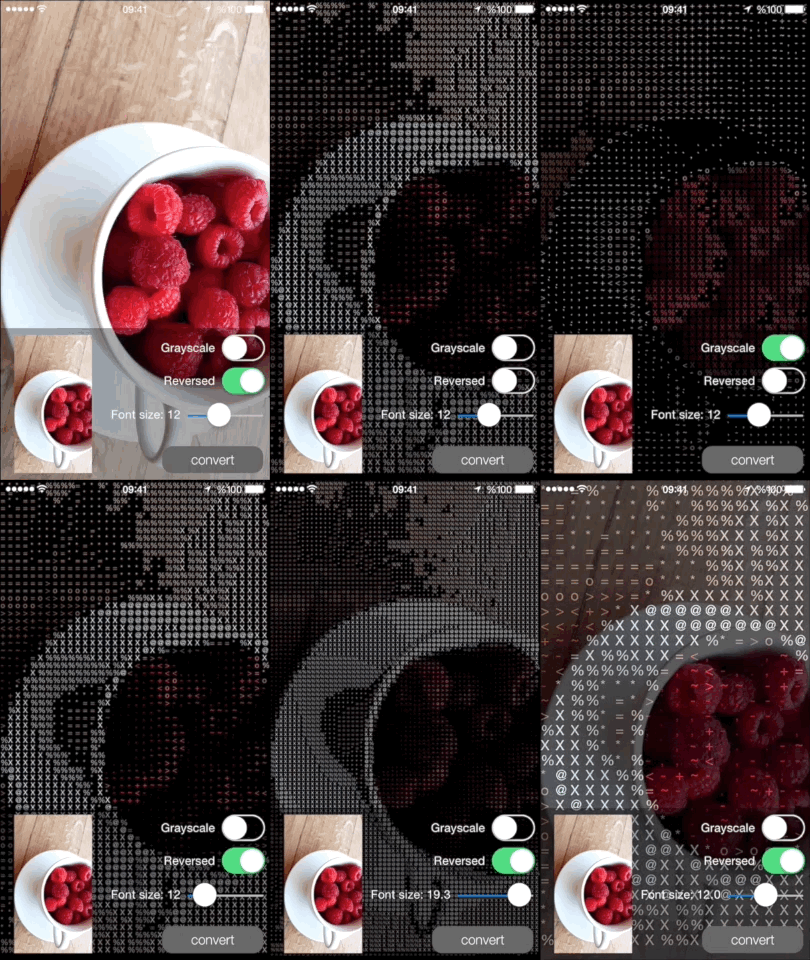
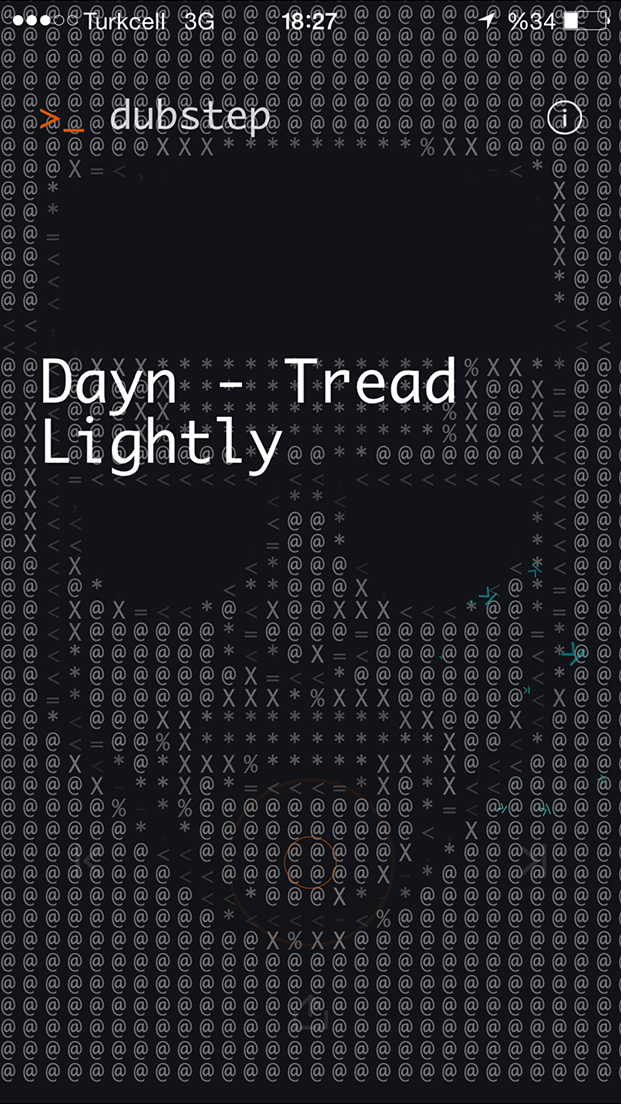
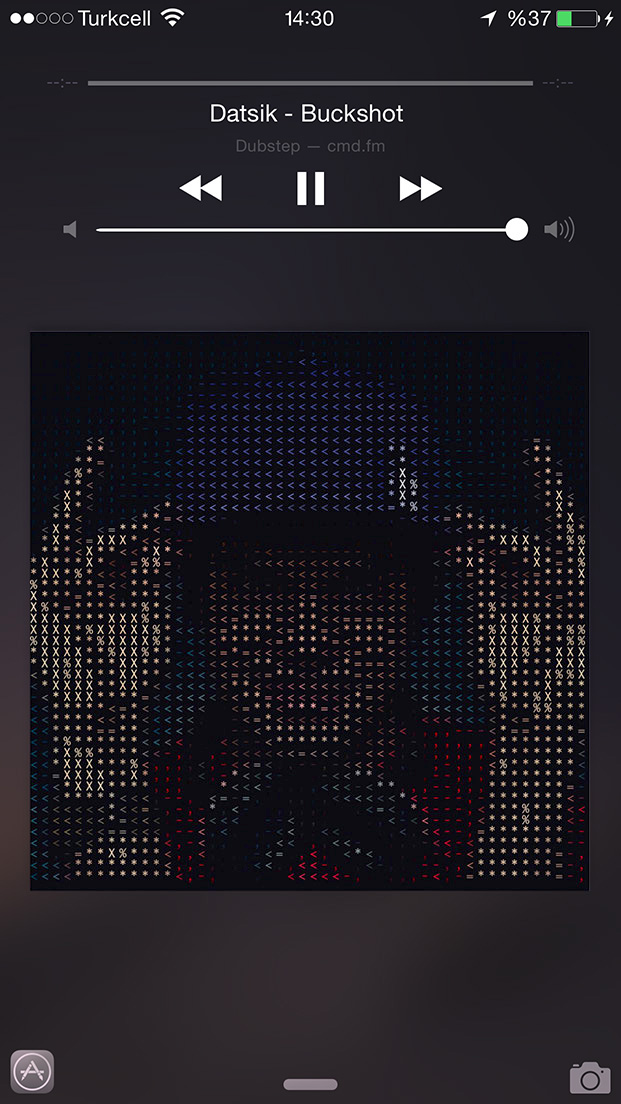
As seen on Cmd.fm iOS App
https://itunes.apple.com/app/cmd.fm-radio-for-geeks-hackers/id935765356
Installation
BKAsciiImage is available through CocoaPods. To install it, simply add the following line to your Podfile:
rubypod "BKAsciiImage"
Usage
Using BKAsciiConverter class
Import BKAsciiConverter header file
objective#import <BKAsciiImage/BKAsciiConverter.h>
Create a BKAsciiConverter instance
objectiveBKAsciiConverter *converter = [BKAsciiConverter new];
Convert synchronously
objectiveUIImage *inputImage = [UIImage imageNamed:@"anImage"]; UIImage *asciiImage = [converter convertImage:inputImage];
Convert in the background providing a completion block.
Completion block will be called on the main thread.
objective[converter convertImage:self.inputImage completionHandler:^(UIImage *asciiImage) { // do whatever you want with the resulting asciiImage }];
Convert to NSString
objectiveNSLog(@"%@",[converter convertToString:self.inputImage]); // asynchronous [converter convertToString:self.inputImage completionHandler:^(NSString *asciiString) { NSLog(@"%@",asciiString); }];
Converter options
objectiveconverter.backgroundColor = [UIColor whiteColor]; // default: Clear color. Image background is transparent converter.grayscale = YES; // default: NO converter.font = [UIFont fontWithName:@"Monaco" size:13.0]; // default: System font of size 10 converter.reversedLuminance = NO; // Reverses the luminance mapping. Reversing gives better results on a dark bg. default: YES converter.columns = 50; // By default columns is derived by the font size if not set explicitly
Using UIImage category
Import header file
objective#import <BKAsciiImage/UIImage+BKAscii.h>
Use the provided category methods
objectiveUIImage *inputImage = [UIImage imageNamed:@"anImage"]; [inputImage bk_asciiImageCompletionHandler:^(UIImage *asciiImage) { }]; [inputImage bk_asciiStringCompletionHandler:^(NSString *asciiString) { }]; [inputImage bk_asciiImageWithFont: [UIFont fontWithName:@"Monaco" size:13.0] bgColor: [UIColor redColor]; columns: 30 reversed: YES grayscale: NO completionHandler: ^(NSString *asciiString) { // do whatever you want with the resulting asciiImage }];
Advanced usage
By default luminance values are mapped to strings using
objectiveNSDictionary *dictionary = @{ @1.0: @" ", @0.95:@"`", @0.92:@".", @0.9 :@",", @0.8 :@"-", @0.75:@"~", @0.7 :@"+", @0.65:@"<", @0.6 :@">", @0.55:@"o", @0.5 :@"=", @0.35:@"*", @0.3 :@"%", @0.1 :@"X", @0.0 :@"@" };
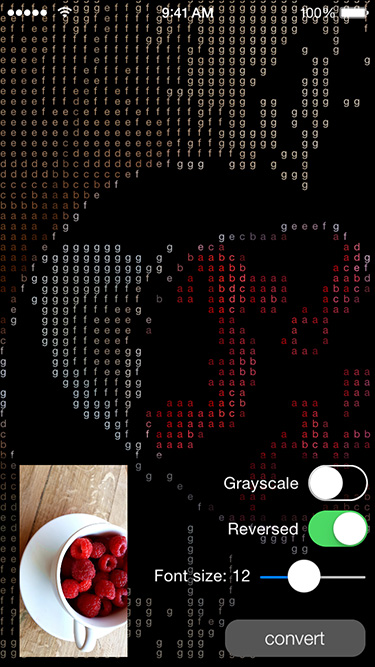
You can instantiate a converter with your own mapping dictionary
objectiveNSDictionary *dictionary = @{ @1.0: @" ", @0.7 :@"a", @0.65:@"b", @0.6 :@"c", @0.55:@"d", @0.5 :@"e", @0.35:@"f", @0.3 :@"g", @0.1 :@" ", @0.0 :@" " }; BKAsciiConverter *converter = [[BKAsciiConverter alloc] initWithDictionary:dictionary]; UIImage *inputImage = [UIImage imageNamed:@"anImage"]; UIImage *asciiImage = [converter convertImage:inputImage];
Author
Barış Koç, https://github.com/bkoc
License
BKAsciiImage is available under the MIT license. See the LICENSE file for more info.
Contributors
Showing top 1 contributor by commit count.

Related Repositories

chubin/wttr.in
:partly_sunny: The right way to check the weather

ArthurSonzogni/FTXUI
:computer: C++ Functional Terminal User Interface. :heart:

rastapasta/mapscii
🗺 MapSCII is a Braille & ASCII world map renderer for your console - enter => telnet mapscii.me <= on Mac (brew install telnet) and Linux, connect with PuTTY on Windows

schachmat/wego
weather app for the terminal

vietnh1009/ASCII-generator
ASCII generator (image to text, image to image, video to video)

peterbrittain/asciimatics
A cross platform package to do curses-like operations, plus higher level APIs and widgets to create text UIs and ASCII art animations