

Monocart reporter
A playwright test reporter (Node.js)
Preview: [https://cenfun.github.io/monocart-reporter](https://cenfun.github.io/monocart-reporter) The project is written primarily in JavaScript, distributed under the MIT License license, first published in 2021. Key topics include: chart, code, comments, coverage, discord.
Monocart Reporter




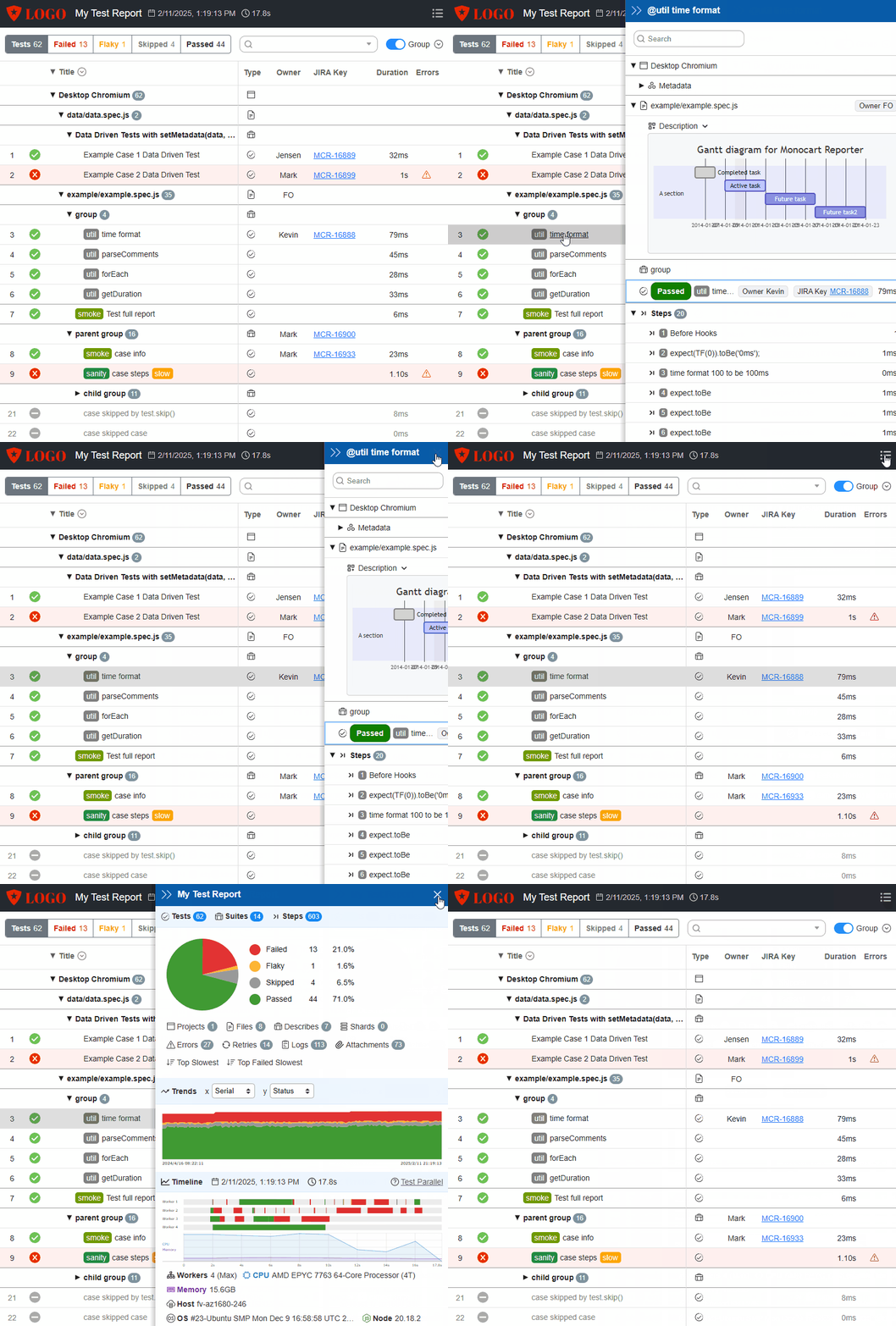
Preview: https://cenfun.github.io/monocart-reporter
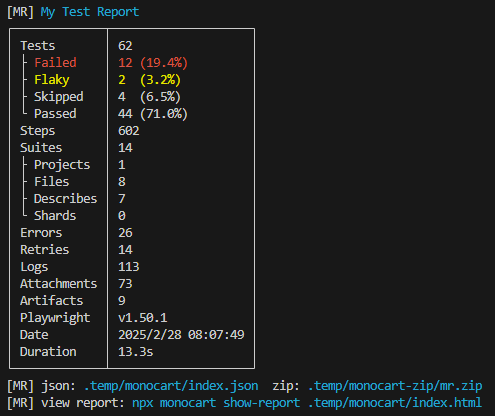
- A Playwright Test Reporter (Node.js)
- A
Tree Gridstyle test reporter - Support processing big data with high performance
- Design for customization and extensibility
- Interactive report with grouping and ultra-fast filter
- Timeline Workers Graph
- Monitor CPU and Memory Usage
- Export Data (json)
- A
- Install
- Playwright Config
- Examples
- Tutorial
- Output
- Reporter Options
- View Trace Online
- Custom Fields Report
- Style Tags
- Metadata
- Trend Chart
- Code Coverage Report
- Attach Markdown/Mermaid
- Attach Lighthouse Audit Report
- Attach Network Report
- Global State Management
- Merge Shard Reports
- onEnd Hook
- onData Hook
- Integration Examples
- Contributing
- Changelog
Install
shnpm i -D monocart-reporter
Playwright Config
Note: Most examples use
CommonJSby default, please move to ESM according to your needs.
js// playwright.config.js module.exports = { reporter: [ ['list'], ['monocart-reporter', { name: "My Test Report", outputFile: './monocart-report/index.html' }] ] };
Playwright Docs https://playwright.dev/docs/test-reporters
Examples
Tutorial
- Playwright + Monocart = Next-Level Custom Reports! | Step-by-Step Tutorial!
- Optimising Playwright Reporting Through Monocart
- Leveraging Playwright's Powerful End-to-End Testing, MongoDB, Data Fixtures for Live Execution Insights
Output
- path-to/your-filename.html
Single HTML file (data compressed), easy to transfer/deploy or open directly anywhere
Note: All attachments (screenshots images/videos) will be linked with relative path in report.
- path-to/your-filename.json (requires option
jsonis true)
Separated data file which can be used for debugging or data provider (It's included in the above HTML and compressed). - path-to/your-filename.zip (requires option
zipis true)
Zip file for merging reports- custom zip options
js{ // zip: true, // zip: `${YourOutputDir}/monocart-shard-${your-shard-number}.zip`, zip: { // custom zip `outputFile`, defaults to reporter `outputFile` but uses `.zip` extension outputFile: `${YourOutputDir}/monocart-shard-${your-shard-number}.zip`, // clean other report files except for zip file, defaults to false clean: true } }
Reporter Options
- Default options: lib/default/options.js
- Options declaration see
MonocartReporterOptionslib/index.d.ts
View Trace Online
The Trace Viewer requires that the trace file must be loaded over the http:// or https:// protocols without CORS issue.
- Start a local web server with following CLI:
sh# serve and open report npx monocart show-report <path-to-report> # serve report npx monocart serve-report <path-to-report>
The server add the http header Access-Control-Allow-Origin: * to allow requesting from any origin, it works with http://localhost:port/ or http://127.0.0.1:port/
- To successfully work with other
IPordomain, you can start web server withhttps:
shnpx monocart show-report <path-to-report> --ssl <path-to-key,path-to-cert>
For example: npx monocart show-report monocart-report/index.html --ssl ssl/key.pem,ssl/cert.pem
You can create and install local CA with mkcert
- Using your own trace viewer url with option
traceViewerUrl:
js// reporter options { name: "My Test Report", outputFile: './monocart-report/index.html', // defaults to 'https://trace.playwright.dev/?trace={traceUrl}' traceViewerUrl: 'https://your-own-trace-viewer-url/?trace={traceUrl}' }
Custom Fields Report
You can add custom fields to the report. for example: Owner, JIRA Key etc.
- First, you need to add Custom Columns for the fields.
- Then, collect data for these fields
Custom Columns
The report will be displayed in a Tree Grid. The columns function is used to customize the grid columns. The column properties following:
id(String) Column id (required)name(String) Column name, shows in grid headeralign(String) left (default), center, rightwidth(Number) Column widthminWidth,maxWidth(Number) Default to 81 ~ 300styleMap(Object, String) Column style (css)formatter(Function) column formatter. Arguments: value, rowItem, columnItem, cellNodesortable(Boolean) Column sortable when click column header nameresizable(Boolean) Column width resizablesearchable(Boolean) Specifies whether the column is searchablemarkdown(Boolean) Specifies whether the column needs to use markdown conversiondetailed(Boolean) Specifies whether the column needs to display the layout in detail (horizontal)- more properties columnProps
js// playwright.config.js module.exports = { reporter: [ ['monocart-reporter', { name: "My Test Report", outputFile: './monocart-report/index.html', // custom columns columns: (defaultColumns) => { // insert custom column(s) before a default column const index = defaultColumns.findIndex((column) => column.id === 'duration'); defaultColumns.splice(index, 0, { // define the column in reporter id: 'owner', name: 'Owner', align: 'center', searchable: true, styleMap: { 'font-weight': 'normal' } }, { // another column for JIRA link id: 'jira', name: 'JIRA Key', width: 100, searchable: true, styleMap: 'font-weight:normal;', formatter: (v, rowItem, columnItem) => { const key = rowItem[columnItem.id]; return `<a href="https://your-jira-url/${key}" target="_blank">${v}</a>`; } }); } }] ] };
Column Formatter
Note: The
formatterfunction will be serialized into string via JSON, so closures, contexts, etc. will not work!
js// playwright.config.js module.exports = { reporter: [ ['monocart-reporter', { name: "My Test Report", outputFile: './monocart-report/index.html', columns: (defaultColumns) => { // duration formatter const durationColumn = defaultColumns.find((column) => column.id === 'duration'); durationColumn.formatter = function(value, rowItem, columnItem) { if (typeof value === 'number' && value) { return `<i>${value.toLocaleString()} ms</i>`; } return value; }; // title formatter // Note: The title shows the tree style, it is a complicated HTML structure // it is recommended to format title base on previous. const titleColumn = defaultColumns.find((column) => column.id === 'title'); titleColumn.formatter = function(value, rowItem, columnItem, cellNode) { const perviousFormatter = this.getFormatter('tree'); const v = perviousFormatter(value, rowItem, columnItem, cellNode); if (rowItem.type === 'step') { return `${v}<div style="position:absolute;top:0;right:5px;">✅</div>`; } return v; }; } }] ] };
Searchable Fields
js// playwright.config.js module.exports = { reporter: [ ['monocart-reporter', { name: "My Test Report", outputFile: './monocart-report/index.html', columns: (defaultColumns) => { const locationColumn = defaultColumns.find((column) => column.id === 'location'); locationColumn.searchable = true; } }] ] };
Custom Fields in Comments
The code comments are good enough to provide extra information without breaking existing code, and no dependencies, clean, easy to read, etc.
- First, enable option
customFieldsInCommentstotrue
js// playwright.config.js module.exports = { reporter: [ ['monocart-reporter', { // enable/disable custom fields in comments. Defaults to true. customFieldsInComments: true }] ] };
- Then, add comments for the tests
Note: Each comment item must start with
@which is similar to JSDoc.
For example, adding owner and jira to the cases, steps, and suites. or updating the value if the field exists like title
js/** * for file (comment file in the first line) * @owner FO */ const { test, expect } = require('@playwright/test'); /** * for case * @owner Kevin * @jira MCR-16888 */ test('case title', () => { }); /** * @description multiple lines text description multiple lines text description multiple lines text description * @jira MCR-16888 */ test('case description', () => { }); /** * for describe suite * @owner Mark * @jira MCR-16900 */ test.describe('suite title', () => { test('case title', ({ browserName }, testInfo) => { /** * rewrite assert step title "expect.toBe" to * @title my custom assert step title * @annotations important */ expect(testInfo).toBe(test.info()); // @owner Steve await test.step('step title', () => { }); }); }); /** * rewrite "beforeAll hook" title to * @title do something before all */ test.beforeAll(() => { }); /** * rewrite "beforeEach hook" title to * @title do something before each */ test.beforeEach(() => { });
Create Diagrams and Visualizations with Mermaid
- Enable Mermaid
js// playwright.config.js module.exports = { reporter: [ ['monocart-reporter', { name: "My Test Report", outputFile: './monocart-report/index.html', mermaid: { // mermaid script url, using mermaid CDN: https://www.jsdelivr.com/package/npm/mermaid scriptSrc: 'https://cdn.jsdelivr.net/npm/mermaid@latest/dist/mermaid.min.js', // mermaid config: https://mermaid.js.org/config/schema-docs/config.html config: { startOnLoad: false } } }] ] };
- Write Mermaid code in markdown:
js/** * @description Sequence diagram for Monocart Reporter ```mermaid flowchart LR A[Hard] -->|Text| B(Round) B --> C{Decision} C -->|One| D[Result 1] C -->|Two| E[Result 2] ``` */ test('case description', () => { });
see Mermaid doc
Custom Fields with setMetadata()
Using comments is only applicable to statically created tests, while using API setMetadata() can be applicable to all situations, which is including dynamically created tests.
jsconst { test } = require('@playwright/test'); const { setMetadata } = require('monocart-reporter'); test.describe('Data Driven Tests with setMetadata(data, testInfo)', () => { const list = [{ title: 'Example Case 1 Data Driven Test', owner: 'Jensen', jira: 'MCR-16889', }, { title: 'Example Case 2 Data Driven Test', owner: 'Mark', jira: 'MCR-16899' }]; list.forEach((item, i) => { test(item.title, () => { setMetadata({ owner: item.owner, jira: item.jira }, test.info()); //expect(1).toBe(1); }); }); });
Custom Data Visitor
The visitor function will be executed for each row item (suite, case and step). Arguments:
datadata item (suite/case/step) for reporter, you can rewrite some of its properties or add moremetadataoriginal data object from Playwright test, could be one of Suite, TestCase or TestStep
Collect Data from the Title
For example, we want to parse out the jira key from the title:
jstest('[MCR-123] collect data from the title', () => { });
You can simply use regular expressions to parse and get jira key:
js// playwright.config.js module.exports = { reporter: [ ['monocart-reporter', { name: "My Test Report", outputFile: './monocart-report/index.html', visitor: (data, metadata) => { // [MCR-123] collect data from the title const matchResult = metadata.title.match(/\[(.+)\]/); if (matchResult && matchResult[1]) { data.jira = matchResult[1]; } } }] ] };
multiple matches example: collect-data
Collect Data from the Annotations
It should be easier than getting from title. see custom annotations via test.info().annotations
jstest('collect data from the annotations', () => { test.info().annotations.push({ type: "jira", description: "MCR-123" }) });
js// playwright.config.js module.exports = { reporter: [ ['monocart-reporter', { name: "My Test Report", outputFile: './monocart-report/index.html', visitor: (data, metadata) => { // collect data from the annotations if (metadata.annotations) { const jiraItem = metadata.annotations.find((item) => item.type === 'jira'); if (jiraItem && jiraItem.description) { data.jira = jiraItem.description; } } } }] ] };
Remove Secrets and Sensitive Data
The report may hosted outside of the organization’s internal boundaries, security becomes a big issue. Any secrets or sensitive data, such as usernames, passwords, tokens and API keys, should be handled with extreme care. The following example is removing the password and token from the report data with the string replacement in
visitorfunction.
js// playwright.config.js module.exports = { reporter: [ ['monocart-reporter', { name: "My Test Report", outputFile: './monocart-report/index.html', visitor: (data, metadata) => { const mySecrets = [process.env.PASSWORD, process.env.TOKEN]; mySecrets.forEach((secret) => { // remove from title data.title = data.title.replace(secret, '***'); // remove from logs if (data.logs) { data.logs = data.logs.map((item) => item.replace(secret, '***')); } // remove from errors if (data.errors) { data.errors = data.errors.map((item) => item.replace(secret, '***')); } }); } }] ] };
see example: remove-secrets
Style Tags
- Add tag to test/describe title ( starts with
@)
jstest('test title @smoke @critical', () => { }); test.describe('describe title @smoke @critical', () => { }); // new syntax for tag in playwright v1.42.0 test('test title', { tag: ['@smoke', '@critical'] }, () => { }); test.describe('describe title', { tag: ['@smoke', '@critical'] }, () => { });
- Custom tag style
js// playwright.config.js module.exports = { reporter: [ ['monocart-reporter', { name: "My Test Report", outputFile: './monocart-report/index.html', tags: { smoke: { style: { background: '#6F9913' }, description: 'This is Smoke Test' }, critical: { background: '#c00' } } }] ] };
- Put style tags in new column
jsmodule.exports = { reporter: [ ['list'], ['monocart-reporter', { name: "My Test Report", outputFile: './monocart-report/index.html', tags: { // ... }, columns: (defaultColumns) => { // disable title tags defaultColumns.find((column) => column.id === 'title').titleTagsDisabled = true; // add tags column const index = defaultColumns.findIndex((column) => column.id === 'type'); defaultColumns.splice(index, 0, { id: 'tags', name: 'Tags', width: 150, formatter: 'tags' }); } }] ] };
see example
Metadata
All metadata will be listed in the report in a key/value format.
- Global level
metadata
js// playwright.config.js module.exports = { globalSetup: require.resolve('./common/global-setup.js'), metadata: { product: 'Monocart', env: 'STG', type: 'Regression', executor: 'Mono', // test home page object model url: 'https://www.npmjs.org/package/monocart-reporter' }, reporter: [ ['monocart-reporter', { name: "My Test Report", outputFile: './monocart-report/index.html' }] ] };
- Project level
metadata
js// playwright.config.js module.exports = { projects: [ { name: 'Desktop Chromium', use: { browserName: 'chromium' }, metadata: { projectData: 'project level metadata', owner: 'PO', link: 'https://github.com/cenfun/monocart-reporter' } } ] }
- Collect metadata in global setup or teardown
js// ./common/global-setup.js import { chromium } from '@playwright/test'; export default async (config) => { const metadata = config.metadata; // collect data and save to global metadata const browser = await chromium.launch(); const chromiumVersion = await browser.version(); metadata.chromiumVersion = chromiumVersion; };
-
Collect metadata in a test
Playwright Test runs tests in parallel with isolate test data by default, so we need to utilize global state management to collect metadata in a test.
- Enable global state, see Setup Global State
- Update global state in a test
jsconst { test } = require('@playwright/test'); const { useState } = require('monocart-reporter'); const state = useState({ // port: 8130 }); test('test metadata url', async ({ page }) => { const url = await page.evaluate(() => window.location.href); await state.set('url', url); });
Trend Chart
Note: The trend chart requires historical data generally stored in the server database. There is a serverless solution which is connecting and collecting historical trend data from previous report data before test every time.
- If a report is generated in the same place every time, you can simply connect the data with the report JSON path (the data is not 100% safe if there is any runtime error, the previous output dir will be empty by Playwright but the reporter processing not finish)
js// playwright.config.js module.exports = { reporter: [ ['monocart-reporter', { name: "My Test Report", outputFile: './monocart-report/index.html', // connect previous report data for trend chart trend: './monocart-report/index.json' }] ] };
- Recommended: resolve the data by yourself (could be requested from the server), required data fields:
date(Number) the previous test date in millisecondsduration(Number) the previous test durationsummary(Object) the previous test summarytrends(Array) historical data list, but except the previous self
js// playwright.config.js module.exports = { reporter: [ ['monocart-reporter', { name: "My Test Report", outputFile: './monocart-report/index.html', // connect previous report data for trend chart trend: async () => { const previousReportData = await readDataFromSomeWhere("path-to/report.json"); // do some data filtering to previous trends previousReportData.trends = previousReportData.trends.filter((item) => { // remove data a week ago return item.date > (Date.now() - 7 * 24 * 60 * 60 * 1000) }); return previousReportData; } }] ] };
Code Coverage Report
The reporter integrates monocart-coverage-reports for coverage reports, there are two APIs:
addCoverageReport(data, testInfo)Add coverage to global coverage report from a test. see Global Coverage ReportattachCoverageReport(data, testInfo, options)Attach a coverage report to a test. Arguments:datasame as abovetestInfosame as aboveoptions(Object) see Coverage Options
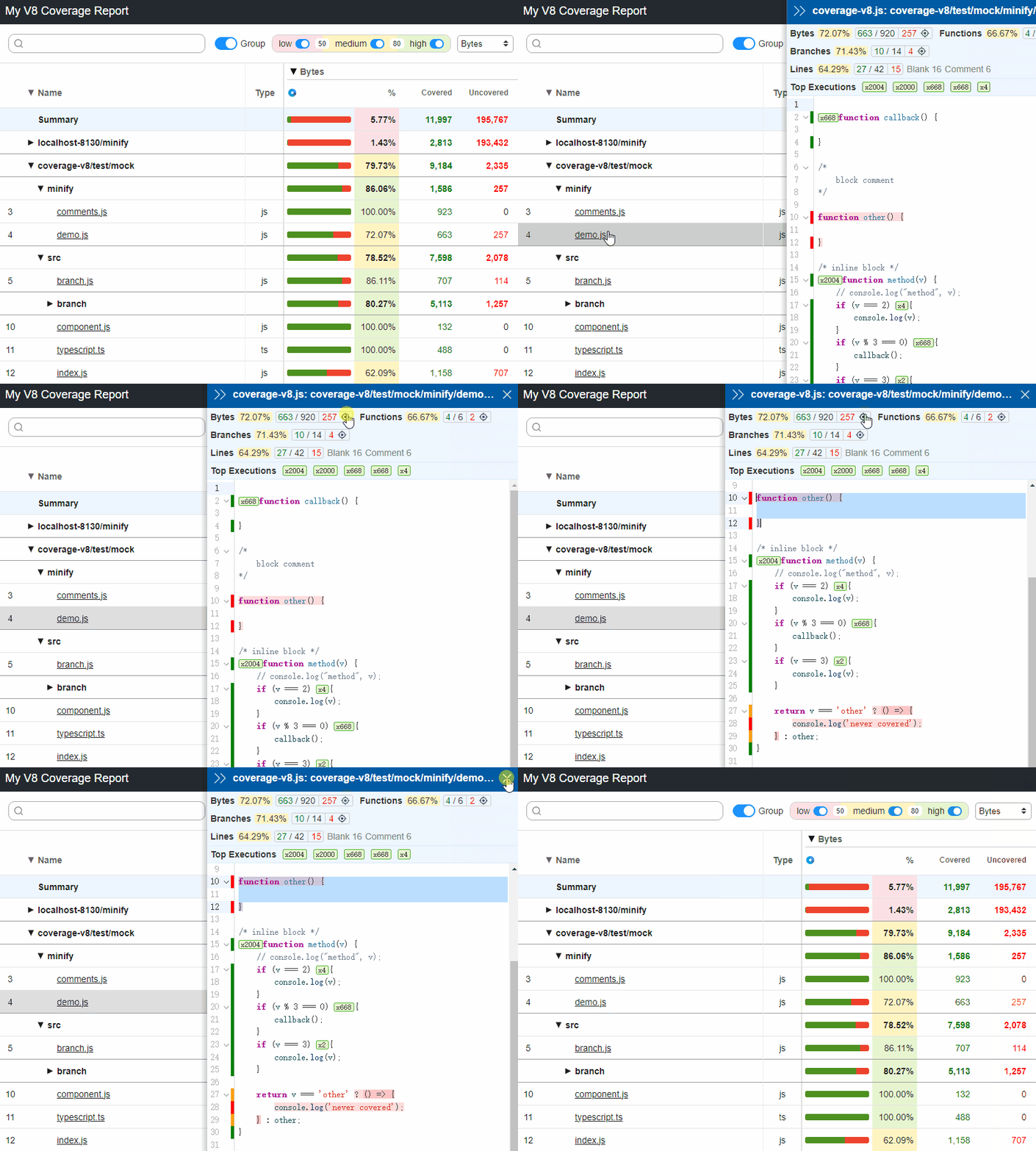
Global Coverage Report
The global coverage report will merge all coverages into one global report after all the tests are finished.
- The global coverage options see Coverage Options
js// playwright.config.js module.exports = { reporter: [ ['monocart-reporter', { name: "My Test Report", outputFile: './monocart-report/index.html', // global coverage report options coverage: { entryFilter: (entry) => true, sourceFilter: (sourcePath) => sourcePath.search(/src\/.+/) !== -1, } }] ] };
- Adding coverage data for each test with automatic fixtures
js// fixtures.js for v8 coverage import { test as testBase, expect } from '@playwright/test'; import { addCoverageReport } from 'monocart-reporter'; const test = testBase.extend({ autoTestFixture: [async ({ page }, use) => { // NOTE: it depends on your project name const isChromium = test.info().project.name === 'Desktop Chromium'; // console.log('autoTestFixture setup...'); // coverage API is chromium only if (isChromium) { await Promise.all([ page.coverage.startJSCoverage({ resetOnNavigation: false }), page.coverage.startCSSCoverage({ resetOnNavigation: false }) ]); } await use('autoTestFixture'); // console.log('autoTestFixture teardown...'); if (isChromium) { const [jsCoverage, cssCoverage] = await Promise.all([ page.coverage.stopJSCoverage(), page.coverage.stopCSSCoverage() ]); const coverageList = [... jsCoverage, ... cssCoverage]; // console.log(coverageList.map((item) => item.url)); await addCoverageReport(coverageList, test.info()); } }, { scope: 'test', auto: true }] }); export { test, expect };
- Adding server side coverage on global teardown
For example, a Node.js web server start at the beginning of the test with the env
NODE_V8_COVERAGE=dir, the V8 coverage data will be saved todirwith calling APIv8.takeCoverage()manually or terminating server gracefully. On global teardown, reading all fromdirand adding them to global coverage report. For Node.js, the V8 coverage data requires appending source manually.
js// global-teardown.js import fs from 'fs'; import path from 'path'; import { fileURLToPath } from 'url'; import { addCoverageReport } from 'monocart-reporter'; export default async (config) => { const dir = "your-v8-coverage-data-dir"; const files = fs.readdirSync(dir); for (const filename of files) { const content = fs.readFileSync(path.resolve(dir, filename)).toString('utf-8'); const json = JSON.parse(content); let coverageList = json.result; coverageList = coverageList.filter((entry) => entry.url && entry.url.startsWith('file:')); // appending source coverageList.forEach((entry) => { entry.source = fs.readFileSync(fileURLToPath(entry.url)).toString('utf8'); }); // there is no test info on teardown, just mock one with required config const mockTestInfo = { config }; await addCoverageReport(coverageList, mockTestInfo); } }
see Collecting V8 Coverage Data from Node.js
Coverage Options
- Default options
- Available Reports
- Using entryFilter and sourceFilter to filter the results for V8 report
- Checking thresholds with onEnd Hook
- More details see monocart-coverage-reports
Coverage Examples
- For Playwright component testing:
- nextjs-with-playwright
- code-coverage-with-monocart-reporter
Attach Markdown/Mermaid
jstest.info().attach('text/markdown:', { contentType: 'text/markdown', body: `### My Markdown Title - item 1 - item 2` }); test.info().attach('text/mermaid:', { contentType: 'text/mermaid', body: ` flowchart LR id ` });
Attach Lighthouse Audit Report
Attach an audit report with API attachAuditReport(runnerResult, testInfo). Arguments:
runnerResultlighthouse result. see lighthousetestInfosee TestInfo
jsconst { test, chromium } = require('@playwright/test'); const { attachAuditReport } = require('monocart-reporter'); const lighthouse = require('lighthouse/core/index.cjs'); test('attach lighthouse audit report', async () => { const port = 9222; const browser = await chromium.launch({ args: [`--remote-debugging-port=${port}`] }); const options = { // logLevel: 'info', // onlyCategories: ['performance', 'best-practices', 'seo'], output: 'html', port }; const url = 'https://github.com/cenfun/monocart-reporter'; const runnerResult = await lighthouse(url, options); await browser.close(); await attachAuditReport(runnerResult, test.info()); });
Attach Network Report
Attach a network report with API attachNetworkReport(har, testInfo). Arguments:
harHAR path (String) or HAR file buffer (Buffer). see HAR 1.2 SpectestInfosee TestInfo
Generate HAR with recordHar option in browser.newContext() (see example: report-network.spec.js preview report)
jsconst fs = require('fs'); const path = require('path'); const { test } = require('@playwright/test'); const { attachNetworkReport } = require('monocart-reporter'); let context; test.describe('attach network report 1', () => { const harPath = path.resolve('.temp/network-report1.har'); if (fs.existsSync(harPath)) { // remove previous fs.rmSync(harPath); } test('first, open page', async ({ browser }) => { context = await browser.newContext({ recordHar: { path: harPath } }); const page = await context.newPage(); await page.goto('https://github.com/cenfun/monocart-reporter'); }); test('next, run test cases', async () => { }); test('finally, attach HAR', async () => { // Close context to ensure HAR is saved to disk. await context.close(); await attachNetworkReport(harPath, test.info()); }); });
Generate HAR with playwright-har
jsimport { test } from '@playwright/test'; import { attachNetworkReport } from 'monocart-reporter'; import { PlaywrightHar } from 'playwright-har'; const harPath = path.resolve('.temp/network-report2.har'); if (fs.existsSync(harPath)) { // remove previous fs.rmSync(harPath); } test('first, open page', async ({ browser }) => { const context = await browser.newContext(); const page = await context.newPage(); playwrightHar = new PlaywrightHar(page); await playwrightHar.start(); await page.goto('https://github.com/cenfun/monocart-reporter'); }); test('next, run test cases', async () => { }); test('finally, attach HAR', async () => { await playwrightHar.stop(harPath); await attachNetworkReport(harPath, test.info()); });
Preview Network HTML Report
Global State Management
When tests are executed in isolation mode, the reporter and each test may run in a different process, they cannot share data with each other. we can start a local WebSocket server to serve the global data, and read/write the global data with useState API from a test.
Setup Global State
jsmodule.exports = { reporter: [ ['list'], ['monocart-reporter', { name: "My Test Report", outputFile: './monocart-report/index.html', state: { data: { count: 0 }, server: { // port: 8130 }, onClose: (data, config) => { // save state data to global metadata Object.assign(config.metadata, data); } } }] ] };
Get, Set, and Remove Global Data
jsconst { test } = require('@playwright/test'); const { useState } = require('monocart-reporter'); test('state test', async ({ browserName }) => { const state = useState({ // port: 8130 }); const count = await state.get('count'); console.log('count', count); await state.set('count', count + 1); await state.set({ browser: browserName, someKey: 'some value' }); const [browser, someKey] = await state.get('browser', 'someKey'); console.log(browser, someKey); await state.remove('someKey'); const all = await state.get(); console.log(all); });
Send and Receive Messages between Processes
- send message and receive response from a test (child process)
jsconst { test } = require('@playwright/test'); const { useState } = require('monocart-reporter'); test('state test send message', async () => { const state = useState({ // port: 8130 }); const response = await state.send({ testId: test.info().testId, data: 'my test data' }); console.log('receive response on client', response); });
- receive message and send response from global state (main process)
jsmodule.exports = { reporter: [ ['list'], ['monocart-reporter', { name: "My Test Report", outputFile: './monocart-report/index.html', state: { onReceive: function(message) { const test = this.getTest(message.testId); if (test) { // current test } console.log('receive message on server', message); return { data: 'my response data' }; } } }] ] };
see example: Allow specified test cases to run in sequence mode with lock/unlock state
Merge Shard Reports
There will be multiple reports to be generated if Playwright test executes in sharding mode. for example:
shnpx playwright test --shard=1/3 npx playwright test --shard=2/3 npx playwright test --shard=3/3
There are 3 reports will be generated.
Using merge API to merge all reports into one
Note: One more suite level "shard" will be added, its title will be the machine hostname, and the summary will be restated. All attachments will be copied to the merged output directory.
jsimport { merge } from 'monocart-reporter'; // json file path const reportDataList = [ 'path-to/shard1/index.json', 'path-to/shard2/index.json', 'path-to/shard3/index.json' // Or load zip file directly if the output files is zipped with option `zip` is true // 'path-to/shard1/index.zip', // 'path-to/shard2/index.zip', // 'path-to/shard3/index.zip' ]; await merge(reportDataList, { name: 'My Merged Report', outputFile: 'merged-report/index.html', onEnd: async (reportData, helper) => { // send email or third party integration } });
see Output for zip options
Note: The coverage reports will be merged automatically if we specify the
rawreport in coverage options:
js// global coverage options coverage: { reports: [ // for merging coverage reports 'raw' // we can merge and zip the raw report files // ['raw', { merge: true, zip: true }] ] }
see example merge.js
Using merge CLI
shnpx monocart merge <glob-patterns> # -o --outputFile npx monocart merge path-to/shard*/index.json -o merged-reports/index.html # -c --config npx monocart merge path-to/shard*/my-report.zip -c mr.config.js # NOTE: The asterisk(*) is a special character which is interpreted by some operating systems # For example: Mac and Linux, please put it in quotes, but NOT for Windows npx monocart merge 'path-to/shard*/*.zip'
The default config files (In order of priority)
- mr.config.js
- mr.config.cjs
- mr.config.mjs
- mr.config.json
- mr.config.ts
Preload for TypeScript config file:
- It requires node 18.19.0+
- Installing tsx:
npm i -D tsx - Using the
--import tsxflag - see comment
onEnd Hook
The onEnd function will be executed after report generated. Arguments:
reportDataall report data, properties:name(String) report namedate(Number) start date in millisecondsdateH(String) human-readable dateduration(Number) test duration in millisecondsdurationH(String) human-readable durationsummary(Object) test summary, includestests,suites,steps, etc.rowsandcolumns(Array) all rows and columns data, both are tree structure, see detailtags(Object) tag collectionmetadata(Object) metadata collectionsystem(Object) system informationtrends(Array) historical trend datacaseTypesandsuiteTypes(Array)cwd,outputDirandoutputFile(String)htmlPath,jsonPathandsummaryTable(String)- ...
helperAPIs:helper.find(callback)Find item like arrayfindfunction.helper.filter(callback)Filter list like arrayfilterfunction.helper.forEach(callback)Iterate all rows of data (suites/cases/steps), returnbreakwill break the iteration.helper.sendEmail(emailOptions)
js// playwright.config.js module.exports = { reporter: [ ['monocart-reporter', { name: "My Test Report", outputFile: './monocart-report/index.html', // async hook after report data generated onEnd: async (reportData, helper) => { // console.log(reportData.summary); // find a test by title const myCase = helper.find((item, parent) => item.type === 'case' && item.title.includes('inline tag')); console.log(myCase && myCase.title); // find a suite by title const mySuite = helper.find((item, parent) => item.type === 'suite' && item.title.includes('new syntax')); console.log(mySuite && mySuite.title); // filter failed cases const failedCases = helper.filter((item, parent) => item.type === 'case' && item.caseType === 'failed'); console.log(failedCases.map((it) => it.title)); // Iterate all items helper.forEach((item, parent) => { // do something }); } }] ] };
onData hook
The onData function will be executed after report data generated (before onEnd).
js// playwright.config.js module.exports = { reporter: [ ['monocart-reporter', { name: "My Test Report", outputFile: './monocart-report/index.html', onData: (reportData) => { // console.log('onData', reportData); reportData.name = 'My New Report Name'; } }] ] };
Integration Examples
By using the onEnd hook, we can integrate Playwright report with any other tools, such as:
- Testrail
- Qase
- Jira + Zephyr
- Jira + Xray
- Slack
- Discord
- Teams
- BrowserStack
- Github Actions Summary
- Dingtalk/Weixin/Feishu
See playwright-reporter-integrations
Contributing
sh# Node.js 20+ npm install starfall-cli -g npm install npm run build npm run test npm run dev
Dependencies
- UI Framework Vue 3
- Lightweight UI Components vine-ui
- High Performance Grid turbogrid
- String compress/decompress lz-utils
- Coverage Reporter monocart-coverage-reports
Contributors
Showing top 5 contributors by commit count.




Related Repositories

d3/d3
Bring data to life with SVG, Canvas and HTML. :bar_chart::chart_with_upwards_trend::tada:

chartjs/Chart.js
Simple HTML5 Charts using the <canvas> tag

PhilJay/MPAndroidChart
A powerful 🚀 Android chart view / graph view library, supporting line- bar- pie- radar- bubble- and candlestick charts as well as scaling, panning and animations.

helm/helm
The Kubernetes Package Manager

recharts/recharts
Redefined chart library built with React and D3

airbnb/visx
🐯 visx | visualization components