

Login action
GitHub Action to login against a Docker registry
* [Usage](#usage) * [Docker Hub](#docker-hub) * [GitHub Container Registry](#github-container-registry) * [GitLab](#gitlab) * [Azure Container Registry (ACR)](#azure-container-registry-acr) * [Google Container Registry (GCR)](#google-container-registry-gcr) * [Google Artifact Registry (GAR)](#google-artifact-registry-gar) * [AWS Elastic Container Registry (ECR)](#aws-elastic-container-registry-ecr) * [AWS Public Elastic Container Registry (ECR)](#aws-public-elastic-container-registry-ecr) * [OCI... The project is written primarily in TypeScript, distributed under the Apache License 2.0 license, first published in 2020. It has gained significant community traction with 1,438 stars and 298 forks on GitHub. Key topics include: aws-ecr, azure, docker, docker-registry, dockerhub.





About
GitHub Action to login against a Docker registry.
- Usage
- Docker Hub
- GitHub Container Registry
- GitLab
- Azure Container Registry (ACR)
- Google Container Registry (GCR)
- Google Artifact Registry (GAR)
- AWS Elastic Container Registry (ECR)
- AWS Public Elastic Container Registry (ECR)
- OCI Oracle Cloud Infrastructure Registry (OCIR)
- Quay.io
- DigitalOcean
- Authenticate to multiple registries
- Set scopes for the authentication token
- Customizing
- Contributing
Usage
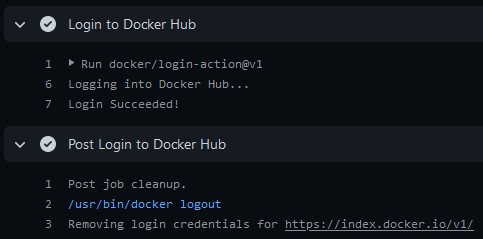
Docker Hub
When authenticating to Docker Hub with GitHub Actions,
use a personal access token.
Don't use your account password.
yamlname: ci on: push: branches: main jobs: login: runs-on: ubuntu-latest steps: - name: Login to Docker Hub uses: docker/login-action@v4 with: username: ${{ vars.DOCKERHUB_USERNAME }} password: ${{ secrets.DOCKERHUB_TOKEN }}
GitHub Container Registry
To authenticate to the GitHub Container Registry,
use the GITHUB_TOKEN
secret.
yamlname: ci on: push: branches: main jobs: login: runs-on: ubuntu-latest steps: - name: Login to GitHub Container Registry uses: docker/login-action@v4 with: registry: ghcr.io username: ${{ github.actor }} password: ${{ secrets.GITHUB_TOKEN }}
You may need to manage write and read access of GitHub Actions
for repositories in the container settings.
You can also use a personal access token (PAT)
with the appropriate scopes.
GitLab
yamlname: ci on: push: branches: main jobs: login: runs-on: ubuntu-latest steps: - name: Login to GitLab uses: docker/login-action@v4 with: registry: registry.gitlab.com username: ${{ vars.GITLAB_USERNAME }} password: ${{ secrets.GITLAB_PASSWORD }}
If you have Two-Factor Authentication
enabled, use a Personal Access Token
instead of a password.
Azure Container Registry (ACR)
Service principal
Create a service principal
with access to your container registry through the Azure CLI
and take note of the generated service principal's ID (also called client ID)
and password (also called client secret).
yamlname: ci on: push: branches: main jobs: login: runs-on: ubuntu-latest steps: - name: Login to ACR uses: docker/login-action@v4 with: registry: <registry-name>.azurecr.io username: ${{ vars.AZURE_CLIENT_ID }} password: ${{ secrets.AZURE_CLIENT_SECRET }}
[!NOTE]
Replace<registry-name>with the name of your registry.
OpenID Connect (OIDC)
To authenticate with OpenID Connect, configure a federated identity credential
for GitHub Actions and use the Azure Login
action to sign in to Azure. Then expose an ACR access token and pass it to this
action as the password.
yamlname: ci on: push: branches: main permissions: contents: read id-token: write jobs: login: runs-on: ubuntu-latest steps: - name: Login to Azure uses: azure/login@v3 with: client-id: ${{ vars.AZURE_CLIENT_ID }} tenant-id: ${{ vars.AZURE_TENANT_ID }} subscription-id: ${{ vars.AZURE_SUBSCRIPTION_ID }} - name: Get ACR access token id: acr-token run: | ACR_TOKEN=$(az acr login --name <registry-name> --expose-token --output tsv --query accessToken) echo "::add-mask::$ACR_TOKEN" # mask the token in workflow logs echo "token=$ACR_TOKEN" >> "$GITHUB_OUTPUT" - name: Login to ACR uses: docker/login-action@v4 with: registry: <registry-name>.azurecr.io username: 00000000-0000-0000-0000-000000000000 password: ${{ steps.acr-token.outputs.token }}
[!NOTE]
Replace<registry-name>with the name of your registry.
Google Container Registry (GCR)
[!NOTE]
Google Artifact Registry is the evolution of
Google Container Registry. As a fully-managed service with support for both
container images and non-container artifacts. If you currently use Google
Container Registry, use the information on this page
to learn about transitioning to Google Artifact Registry.
You can authenticate with workload identity federation or a service account.
Workload identity federation
Configure the workload identity federation for GitHub Actions in Google Cloud,
see here.
Your service account must have permission to push to GCR. Use the
google-github-actions/auth action to authenticate using workload identity as
shown in the following example:
yamlname: ci on: push: branches: main jobs: login: runs-on: ubuntu-latest steps: - name: Authenticate to Google Cloud id: auth uses: google-github-actions/auth@v3 with: token_format: access_token workload_identity_provider: <workload_identity_provider> service_account: <service_account> - name: Login to GCR uses: docker/login-action@v4 with: registry: gcr.io username: oauth2accesstoken password: ${{ steps.auth.outputs.access_token }}
[!NOTE]
Replace<workload_identity_provider>with configured workload identity
provider. For steps to configure, see here.Replace
<service_account>with configured service account in workload
identity provider which has access to push to GCR
Service account based authentication
Use a service account with permission to push to GCR and configure access control.
Download the key for the service account as a JSON file. Save the contents of
the file as a secret
named GCR_JSON_KEY in your GitHub repository. Set the username to _json_key.
yamlname: ci on: push: branches: main jobs: login: runs-on: ubuntu-latest steps: - name: Login to GCR uses: docker/login-action@v4 with: registry: gcr.io username: _json_key password: ${{ secrets.GCR_JSON_KEY }}
Google Artifact Registry (GAR)
You can authenticate with workload identity federation or a service account.
Workload identity federation
Your service account must have permission to push to GAR. Use the
google-github-actions/auth action to authenticate using workload identity as
shown in the following example:
yamlname: ci on: push: branches: main jobs: login: runs-on: ubuntu-latest steps: - name: Authenticate to Google Cloud id: auth uses: google-github-actions/auth@v3 with: token_format: access_token workload_identity_provider: <workload_identity_provider> service_account: <service_account> - name: Login to GAR uses: docker/login-action@v4 with: registry: <location>-docker.pkg.dev username: oauth2accesstoken password: ${{ steps.auth.outputs.access_token }}
[!NOTE]
Replace<workload_identity_provider>with configured workload identity
providerReplace
<service_account>with configured service account in workload
identity provider which has access to push to GCRReplace
<location>with the regional or multi-regional location
of the repository where the image is stored.
Service account based authentication
Use a service account with permission to push to GAR and configure access control.
Download the key for the service account as a JSON file. Save the contents of
the file as a secret
named GAR_JSON_KEY in your GitHub repository. Set the username to _json_key,
or _json_key_base64 if you use a base64-encoded key.
yamlname: ci on: push: branches: main jobs: login: runs-on: ubuntu-latest steps: - name: Login to GAR uses: docker/login-action@v4 with: registry: <location>-docker.pkg.dev username: _json_key password: ${{ secrets.GAR_JSON_KEY }}
[!NOTE]
Replace<location>with the regional or multi-regional location
of the repository where the image is stored.
AWS Elastic Container Registry (ECR)
Use an IAM user with the ability to push to ECR with AmazonEC2ContainerRegistryPowerUser managed policy for example.
Download the access keys and save them as AWS_ACCESS_KEY_ID and AWS_SECRET_ACCESS_KEY as secrets
in your GitHub repo.
yamlname: ci on: push: branches: main jobs: login: runs-on: ubuntu-latest steps: - name: Login to ECR uses: docker/login-action@v4 with: registry: <aws-account-number>.dkr.ecr.<region>.amazonaws.com username: ${{ vars.AWS_ACCESS_KEY_ID }} password: ${{ secrets.AWS_SECRET_ACCESS_KEY }}
If you need to log in to Amazon ECR registries associated with other accounts,
you can use the AWS_ACCOUNT_IDS environment variable:
yamlname: ci on: push: branches: main jobs: login: runs-on: ubuntu-latest steps: - name: Login to ECR uses: docker/login-action@v4 with: registry: <aws-account-number>.dkr.ecr.<region>.amazonaws.com username: ${{ vars.AWS_ACCESS_KEY_ID }} password: ${{ secrets.AWS_SECRET_ACCESS_KEY }} env: AWS_ACCOUNT_IDS: 012345678910,023456789012
[!NOTE]
Only available with AWS CLI version 1
You can also use the Configure AWS Credentials
action in combination with this action:
yamlname: ci on: push: branches: main jobs: login: runs-on: ubuntu-latest steps: - name: Configure AWS Credentials uses: aws-actions/configure-aws-credentials@v6 with: aws-access-key-id: ${{ vars.AWS_ACCESS_KEY_ID }} aws-secret-access-key: ${{ secrets.AWS_SECRET_ACCESS_KEY }} aws-region: <region> - name: Login to ECR uses: docker/login-action@v4 with: registry: <aws-account-number>.dkr.ecr.<region>.amazonaws.com
[!NOTE]
Replace<aws-account-number>and<region>with their respective values.
AWS Public Elastic Container Registry (ECR)
Use an IAM user with permission to push to ECR Public, for example using managed policies.
Download the access keys and save them as AWS_ACCESS_KEY_ID and
AWS_SECRET_ACCESS_KEY secrets
in your GitHub repository.
yamlname: ci on: push: branches: main jobs: login: runs-on: ubuntu-latest steps: - name: Login to Public ECR uses: docker/login-action@v4 with: registry: public.ecr.aws username: ${{ vars.AWS_ACCESS_KEY_ID }} password: ${{ secrets.AWS_SECRET_ACCESS_KEY }} env: AWS_REGION: <region>
[!NOTE]
Replace<region>with its respective value (defaultus-east-1).
OCI Oracle Cloud Infrastructure Registry (OCIR)
To push into OCIR in specific tenancy the username
must be placed in format <tenancy>/<username> (in case of federated tenancy use the format
<tenancy-namespace>/oracleidentitycloudservice/<username>).
For password create an auth token.
Save username and token as a secrets
in your GitHub repo.
yamlname: ci on: push: branches: main jobs: login: runs-on: ubuntu-latest steps: - name: Login to OCIR uses: docker/login-action@v4 with: registry: <region>.ocir.io username: ${{ vars.OCI_USERNAME }} password: ${{ secrets.OCI_TOKEN }}
[!NOTE]
Replace<region>with their respective values from availability regions
Quay.io
Use a Robot account with
permission to push to a Quay.io repository.
yamlname: ci on: push: branches: main jobs: login: runs-on: ubuntu-latest steps: - name: Login to Quay.io uses: docker/login-action@v4 with: registry: quay.io username: ${{ vars.QUAY_USERNAME }} password: ${{ secrets.QUAY_ROBOT_TOKEN }}
DigitalOcean Container Registry
Use your DigitalOcean registered email address and an API access token to authenticate.
yamlname: ci on: push: branches: main jobs: login: runs-on: ubuntu-latest steps: - name: Login to DigitalOcean Container Registry uses: docker/login-action@v4 with: registry: registry.digitalocean.com username: ${{ vars.DIGITALOCEAN_USERNAME }} password: ${{ secrets.DIGITALOCEAN_ACCESS_TOKEN }}
Authenticate to multiple registries
To authenticate against multiple registries, you can specify the login-action
step multiple times in your workflow:
yamlname: ci on: push: branches: main jobs: login: runs-on: ubuntu-latest steps: - name: Login to Docker Hub uses: docker/login-action@v4 with: username: ${{ vars.DOCKERHUB_USERNAME }} password: ${{ secrets.DOCKERHUB_TOKEN }} - name: Login to GitHub Container Registry uses: docker/login-action@v4 with: registry: ghcr.io username: ${{ github.actor }} password: ${{ secrets.GITHUB_TOKEN }}
You can also use the registry-auth input for raw authentication to
registries, defined as YAML objects. Each object have the same attributes as
current inputs (except logout):
[!WARNING]
We don't recommend using this method, it's better to use the action multiple
times as shown above.
yamlname: ci on: push: branches: main jobs: login: runs-on: ubuntu-latest steps: - name: Login to registries uses: docker/login-action@v4 with: registry-auth: | - username: ${{ vars.DOCKERHUB_USERNAME }} password: ${{ secrets.DOCKERHUB_TOKEN }} - registry: ghcr.io username: ${{ github.actor }} password: ${{ secrets.GITHUB_TOKEN }}
Set scopes for the authentication token
The scope input allows limiting registry credentials to a specific repository
or namespace scope when building images with Buildx.
This is useful in GitHub Actions to avoid overriding the Docker Hub
authentication token embedded in GitHub-hosted runners, which is used for
pulling images without rate limits. By scoping credentials, you can
authenticate only where needed (typically for pushing), while keeping
unauthenticated pulls for base images.
When scope is set, credentials are written to the Buildx configuration
instead of the global Docker configuration. This means:
- Authentication applies only to the specified scope
- The default Docker Hub credentials remain available for pulls
- Credentials are used only by Buildx during the build
[!IMPORTANT]
Credentials written to the Buildx configuration are only accessible by Buildx.
They are not available todocker pull,docker push, or any other Docker
CLI commands outside Buildx.
[!NOTE]
This feature requires Buildx version 0.31.0 or later.
yamlname: ci on: push: branches: main jobs: login: runs-on: ubuntu-latest steps: - name: Login to Docker Hub (scoped) uses: docker/login-action@v4 with: username: ${{ vars.DOCKERHUB_USERNAME }} password: ${{ secrets.DOCKERHUB_TOKEN }} scope: 'myorg/myimage@push' - name: Build and push uses: docker/build-push-action@v7 with: push: true tags: myorg/myimage:latest
In this example, base images are pulled using the embedded GitHub-hosted runner
credentials, while authenticated access is used only to push myorg/myimage.
Customizing
inputs
The following inputs can be used as step.with keys:
| Name | Type | Default | Description |
|---|---|---|---|
registry | String | docker.io | Server address of Docker registry. If not set then will default to Docker Hub |
username | String | Username for authenticating to the Docker registry | |
password | String | Password or personal access token for authenticating the Docker registry | |
scope | String | Scope for the authentication token | |
ecr | String | auto | Specifies whether the given registry is ECR (auto, true or false) |
logout | Bool | true | Log out from the Docker registry at the end of a job |
registry-auth | YAML | Raw authentication to registries, defined as YAML objects |
[!NOTE]
Theregistry-authinput cannot be used with other inputs exceptlogout.
Contributing
Want to contribute? Awesome! You can find information about contributing to
this project in the CONTRIBUTING.md
Contributors
Showing top 12 contributors by commit count.

![dependabot[bot]](https://avatars.githubusercontent.com/in/29110?v=4)
![github-actions[bot]](https://avatars.githubusercontent.com/in/15368?v=4)



![securityeng-bot[bot]](https://avatars.githubusercontent.com/in/1553093?v=4)


Related Repositories

elgohr/Publish-Docker-Github-Action
A Github Action used to build and publish Docker images

upmc-enterprises/registry-creds
Allow for AWS ECR, Google Registry, & Azure Container Registry credentials to be refreshed inside your Kubernetes cluster via ImagePullSecrets

xelalexv/dregsy
Keep container registries in sync

stacksimplify/aws-fargate-ecs-masterclass
AWS Fargate & Elastic Container Service Masterclass - Course

CircleCI-Public/circleci-demo-aws-ecs-ecr
A demo project for deployment to AWS ECS from ECR on CircleCI 2.0.

devteds/e9-cloudformation-docker-ecs
Docker on Amazon ECS with AWS Fargate using CloudFormation. https://devteds.com/episodes/9-docker-on-amazon-ecs-using-cloudformation