

Vscode fortran support
Fortran language support for Visual Studio Code
Key Features • Get Started • LSP • Lint • Debug • Format • Snippets • Donate The project is written primarily in TypeScript, distributed under the MIT License license, first published in 2017. Key topics include: debugger, formatting, fortls, fortran, language-server-client.





Key Features
- Syntax highlighting (Free and Fixed forms)
- Hover support, Signature help and Auto-completion
- GoTo/Peek implementation and Find/Peek references
- Project-wide and Document symbol detection and Renaming
- Native Language Server integration with
fortls - Linting support: GNU's
gfortran, Intel'sifort,ifx, NAG'snagfor - Interactive Debugger with UI
- Formatting with findent or fprettify
- Code snippets (more can be defined by the user see)
Get Started & Seek Support
<p align="left"> <a href="https://fortran-lang.org/learn/"><img src="assets/png/readme.tutorial.png"/></a> <a href="https://fortran-lang.discourse.group/c/help/vscode/"><img src="assets/png/readme.github.png"/></a> <a href="https://fortran-lang.discourse.group/"><img src="assets/png/readme.discourse.png"/></a> </p>Useful Tools
<p align="left"> <a href="https://fortls.fortran-lang.org"><img src="assets/png/readme.fortls.png"/></a> <a href="https://fpm.fortran-lang.org"><img src="assets/png/readme.fpm.png"/></a> <a href="https://github.com/fortran-lang/stdlib"><img src="assets/png/readme.stdlib.png"/></a> </p>Language Server integration
The Fortran Language Server fortls is responsible
for providing a lot of the higher level, IDE functionality. By default,
Modern Fortran will attempt to use it for hover, autocompletion, symbols and Go to & Peeking into definitions.
Allow for fortls to be automatically installed with pip or Anaconda and
if the location where fortls is installed is not in your PATH point VS Code
to the fortls location by setting
json{ "fortran.fortls.path": "/custom/path/to/fortls" }
For more about the Language Server's capabilities please refer to the
documentation of fortls.
Linting
Linting allows for compiler error and warning detection while coding
without the user having to compile.
| Vendor | Compiler |
|---|---|
| GNU | gfortran |
| Intel | ifort, ifx |
| NAG | nagfor |
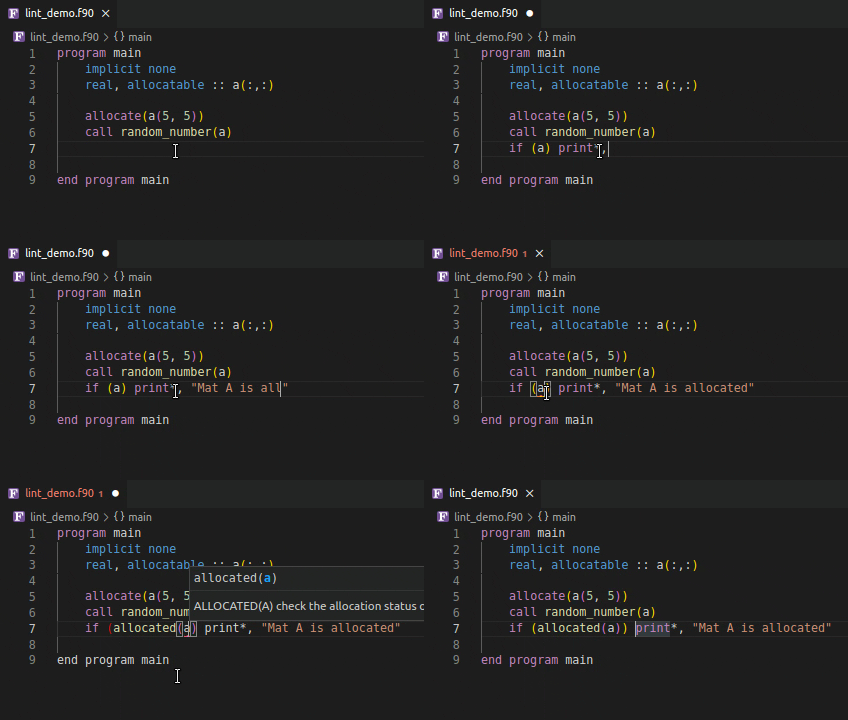
Using an invalid if expression
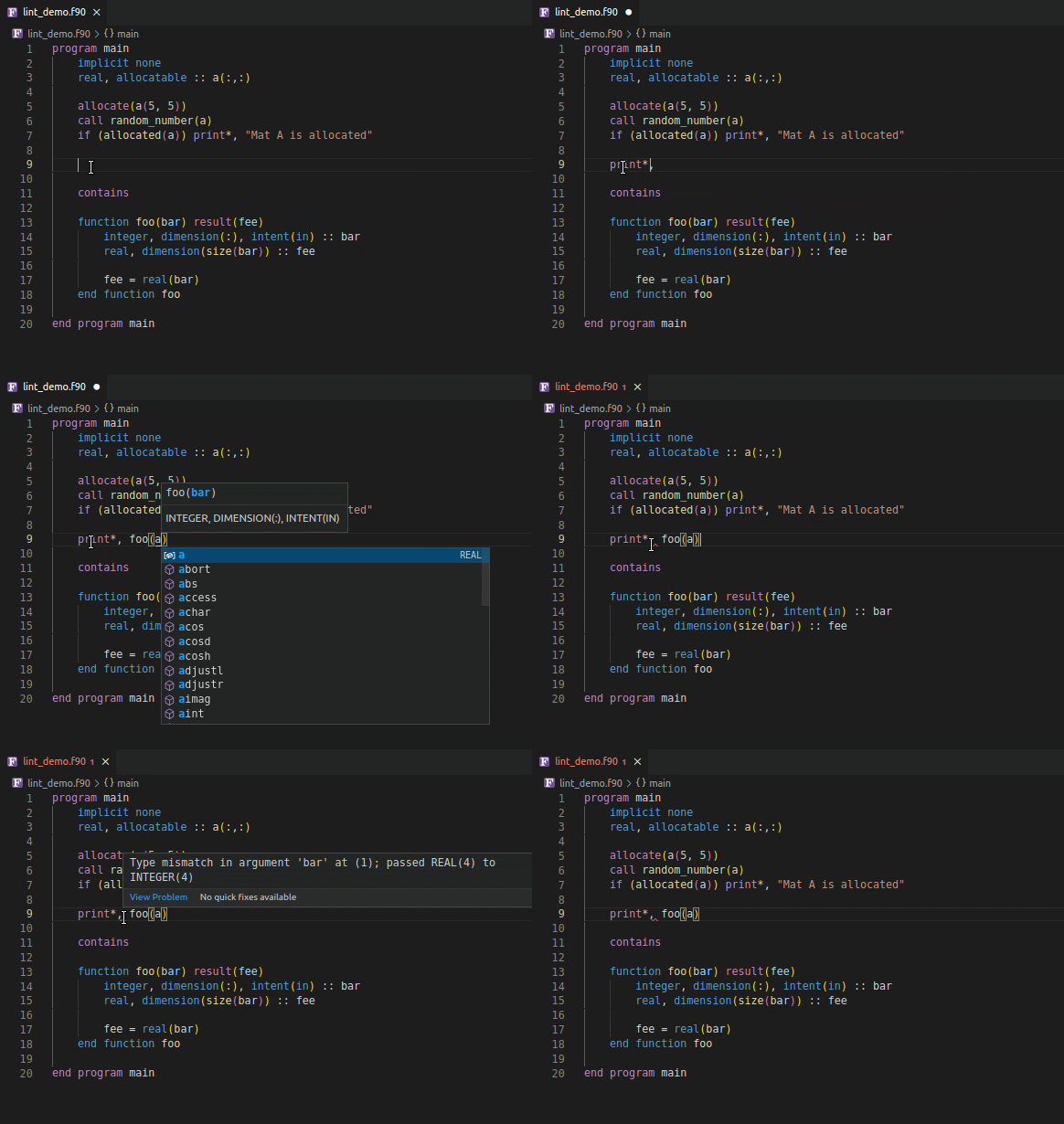
Using incorrect type and rank as function argument
| 📝️ Note | Save your file to generate linting results |
|---|
Linting results can be improved by providing additional options to the compiler.
Including directories
You can control the include paths to be used by the linter with the fortran.linter.includePaths option.
| ❗️ Important | For the best linting results linter.includePaths should match the included paths for your project's compilation. |
|---|
json{ "fortran.linter.includePaths": ["/usr/include/**", "${workspaceFolder}/include/**"] }
| ❗️ Important | If a glob pattern is used only directories matching the pattern will be included |
|---|
Additional linting options
More options can be passed to the linter via
json{ "fortran.linter.extraArgs": [ "-fdefault-real-8", "-fdefault-double-8", "-Wunused-variable", "-Wunused-dummy-argument" ] }
Default value is -Wall (or -warn all for ifort).
Changing linting compiler
By default, the linter used is gfortran, Intel's ifort and Intel's LLVM based compiler ifx are also supported.
One can use a different linter compiler via the option
jsonc{ "fortran.linter.compiler": "ifort" | "gfortran" | "ifx" | "Disabled" }
The linter executable is assumed to be found in the PATH.
In order to use a different executable or if the executable can't be found in the PATH
you can point the extension to another linter with the fortran.linter.compilerPath option.
json{ "fortran.linter.compilerPath": "/opt/oneapi/compiler/2022.0.2/linux/bin/intel64/ifort" }
Debugging
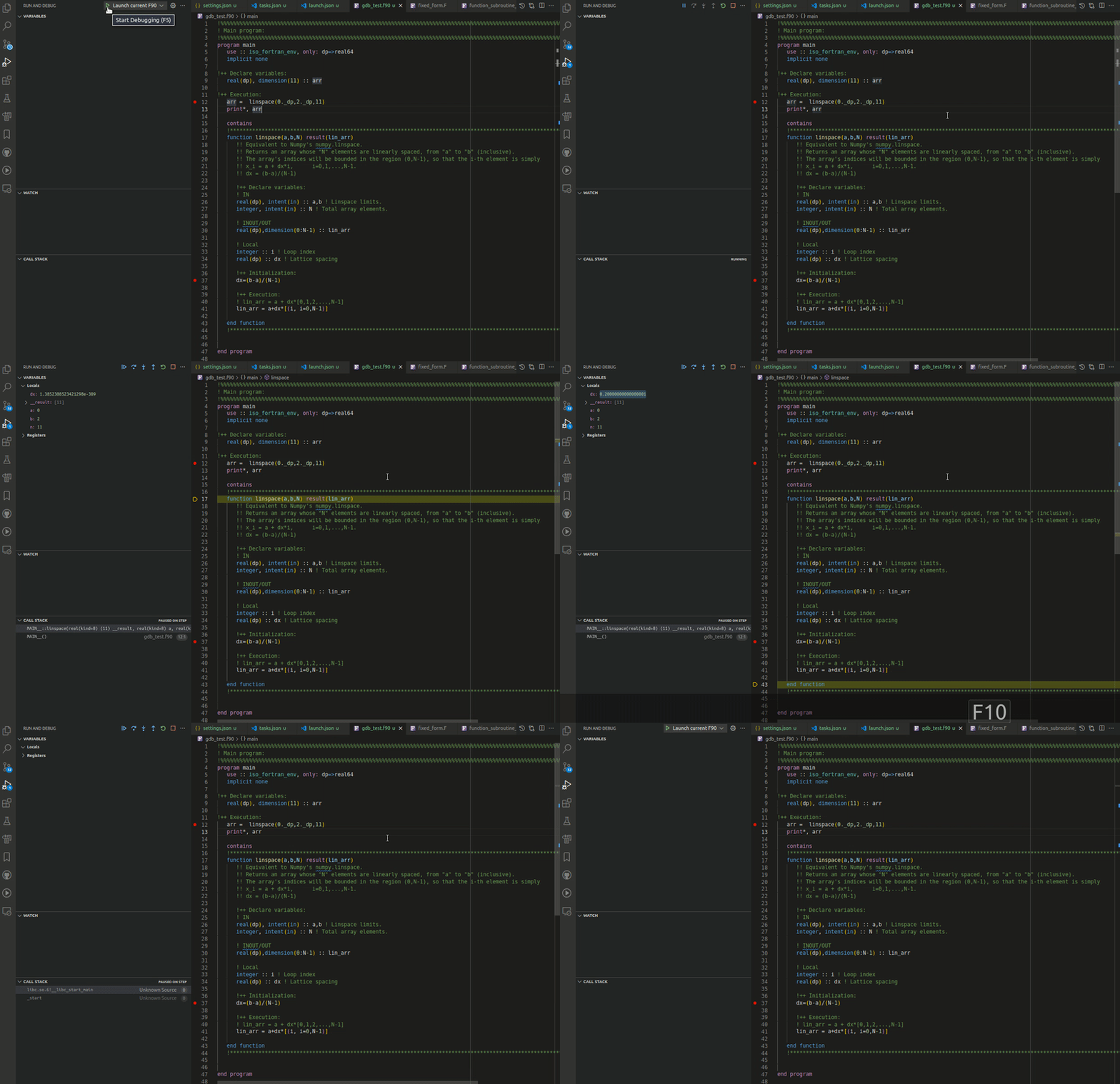
Modern Fortran works with multiple VS Code debuggers and supports the usual
debugging tools: conditional and regular breakpoints, expression evaluation,
multithreaded debugging, call stack view, step controls, and a watch window.
Supported debugger extensions:
- Microsoft's C/C++ extension (ms-vscode.cpptools)
- Eclipse's CDT GDB extension (eclipse-cdt.cdt-gdb-vscode)
- CodeLLDB LLDB extension (vadimcn.vscode-lldb)
| 📝️ Note | For Single file Run/Debug, we pick the first available extension from the list above (top to bottom). |
|---|
To set up debugging, add a launch.json under .vscode in your workspace. In
VS Code, open the Debug view (Ctrl+Shift+D or Cmd+Shift+D), click the gear, and
choose your debugger from the list.
A minimal launch.json using Microsoft's
C/C++ extension (ms-vscode.cpptools)
is shown below.
More details on debugging are available on VS Code docs and each extension:
- General information about debugging in VS Code: https://code.visualstudio.com/docs/editor/debugging
- C/C++ extension debugger information: https://code.visualstudio.com/docs/cpp/cpp-debug
- Build tasks for easy compiling: https://code.visualstudio.com/docs/editor/tasks
</details>jsonc{ // Use IntelliSense to learn about possible attributes. // Hover to view descriptions of existing attributes. // For more information, visit: https://go.microsoft.com/fwlink/?linkid=830387 "version": "0.2.0", "configurations": [ { "name": "(gdb) Fortran", "type": "cppdbg", "request": "launch", "program": "${workspaceFolder}/a.out", "args": [], // Possible input args for a.out "stopAtEntry": false, "cwd": "${workspaceFolder}", "environment": [], "externalConsole": false, "MIMode": "gdb", "setupCommands": [ { "description": "Enable pretty-printing for gdb", "text": "-enable-pretty-printing", "ignoreFailures": true, }, ], }, ], }
Formatting
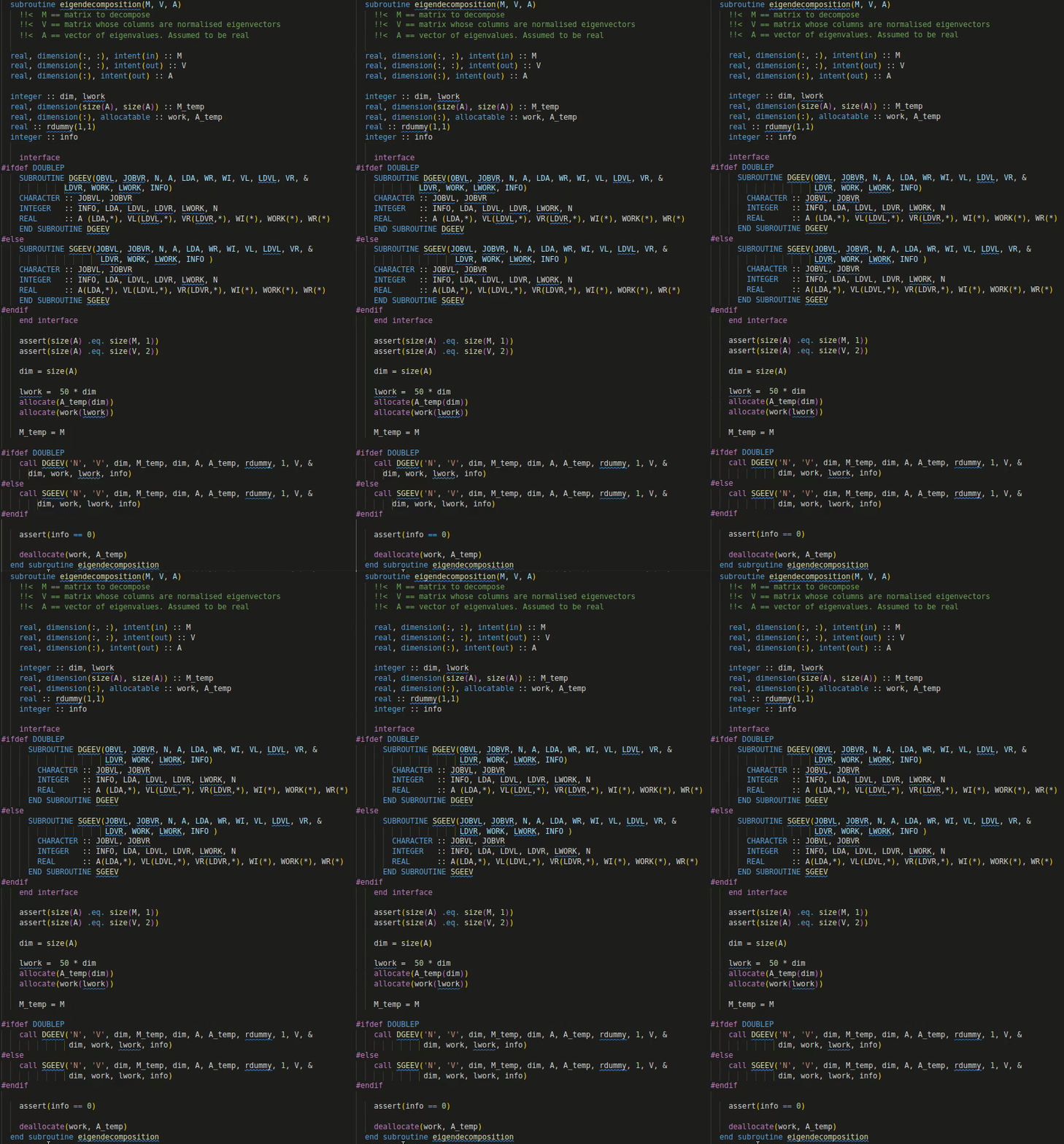
Two formatters are supported findent
and fprettify. Both of them can be
installed with pip automatically through the extension.
| findent | fprettify |
|---|---|
 | 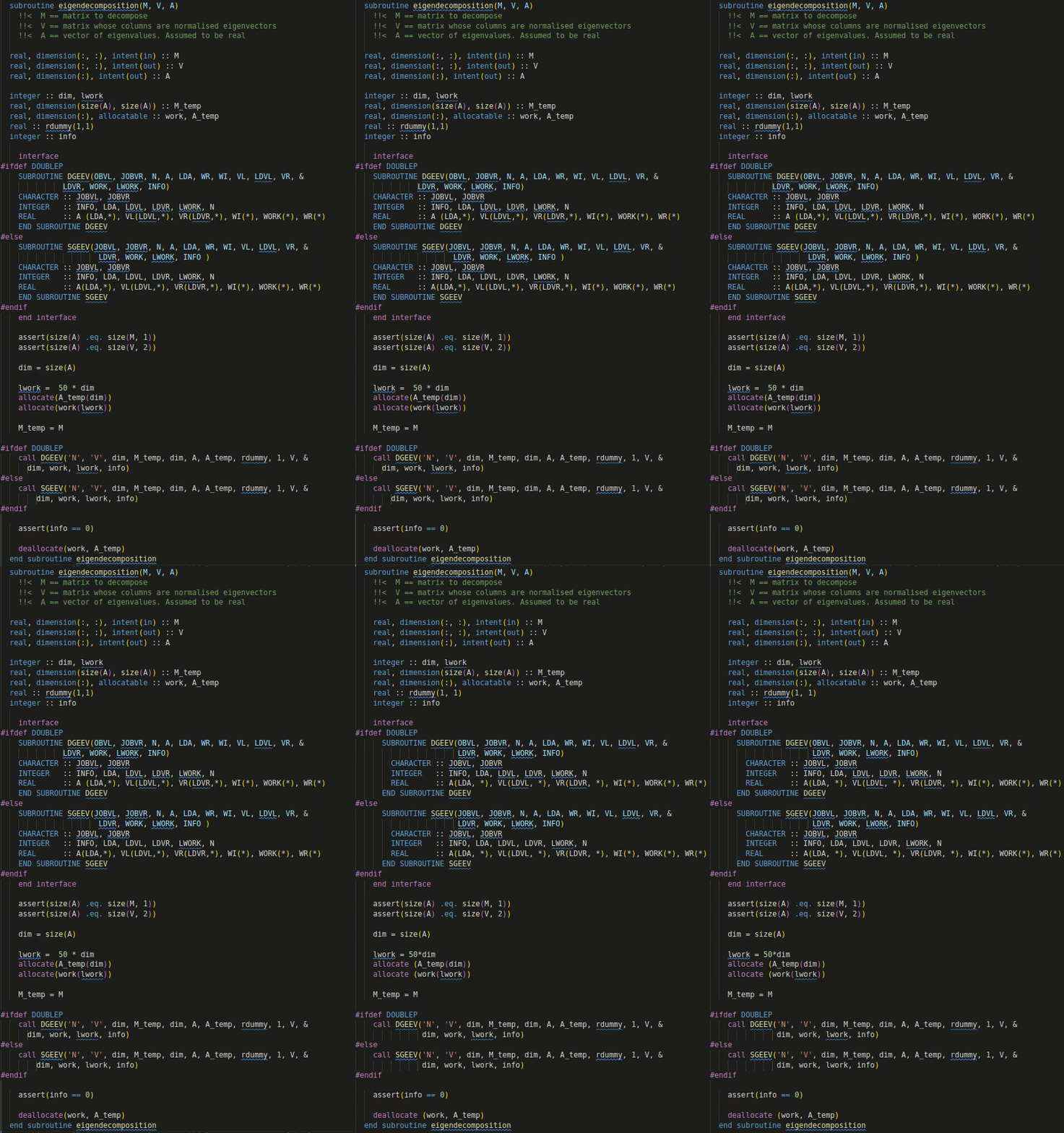 |
The formatter is controlled by the user option
jsonc{ "fortran.formatting.formatter": "findent" | "fprettify" | "Disabled" }
Additional arguments to the formatter can be input using
json{ "fortran.formatting.findentArgs": ["-Cn", "-Rr"], "fortran.formatting.fprettifyArgs": ["--whitespace-comma", "--enable-decl"] }
To check all available arguments to formatters try findent -h or fprettify -h
in a terminal.
If the formatter is not present in the PATH its location can be input with
json{ "fortran.formatting.path": "./custom/path/venv/bin" }
| 📝️ Note | findent can also be used to generate dependency files for a project. |
|---|
Fortran Package Manager
Validation of fpm.toml
Autocompletion and options validation for fpm.toml files are provided by the
installing the Even Better TOML Visual Studio Code extension.

Snippets
Snippets are included by both fortls Language Server and the Modern Fortran VS Code extension.
Some available snippets can be seen below. Users can define their own snippets
by following these VS Code instructions.
If you think a snippet should be shipped by with the extension feel free to
submit a feature request
Advanced options
To show the symbols in the file outline enable provide.symbols. Symbols can be
served by the fortls, the built-in, both or none. By default
fortls is used.
jsonc{ "fortran.provide.symbols": "fortls" | "Built-in" | "Both" | "Disable" }
You can also configure the case for fortran intrinsics auto-complete by using
jsonc{ "fortran.preferredCase": "lowercase" | "uppercase" }
Requirements
For debugging you need to have one of the following debuggers installed:
- Linux: GDB
- macOS: GDB or LLDB
- Windows: GDB or Visual Studio Windows Debugger
Contributing
Support Us
You can support further development of the extension by fiscal donations:
<a href="https://numfocus.org/donate-to-lfortran"><img src="./assets/png/readme.lfortran.png"></a> to our LFortan project on NumFOCUS
Or
<a href="https://github.com/fortran-lang/vscode-fortran-support"><img src="./assets/png/readme.github.sponsor.png"></a> directly sponsoring developers through GitHub Sponsors
Contributors
Showing top 12 contributors by commit count.

![dependabot[bot]](https://avatars.githubusercontent.com/in/29110?v=4)


Related Repositories

x64dbg/x64dbg
An open-source user mode debugger for Windows. Optimized for reverse engineering and malware analysis.

go-delve/delve
Delve is a debugger for the Go programming language.

liriliri/eruda
Console for mobile browsers

rizinorg/cutter
Free and Open Source Reverse Engineering Platform powered by rizin

cool-RR/PySnooper
Never use print for debugging again

winsiderss/systeminformer
A free, powerful, multi-purpose tool that helps you monitor system resources, debug software and detect malware. Brought to you by Winsider Seminars & Solutions, Inc. @ https://windows-internals.com