

Slack
Bring your code to the conversations you care about with GitHub's integration for Slack
The GitHub integration for Slack gives you and your teams full visibility into your GitHub projects right in Slack channels, where you can generate ideas, triage issues and collaborate with other teams to move projects forward. The code for this integration is not open-source, and is not available in this repo. The project is distributed under the MIT License license, first published in 2017. It has gained significant community traction with 3,451 stars and 522 forks on GitHub. Key topics include: github-app, probot-app.
GitHub + integration for Slack
About
The GitHub integration for Slack gives you and your teams full
visibility into your GitHub projects right in Slack channels, where
you can generate ideas, triage issues and collaborate with other teams
to move projects forward. The code for this integration is not
open-source, and is not available in this repo.
Table of Contents
- Installing the GitHub integration for Slack
- Getting Started
- Features
- GHES Integration
- Need help?
- License
Installing the GitHub integration for Slack
Requirements
GHEC on GitHub.com - GA
This app officially supports GitHub.com (which includes our GitHub
Enterprise cloud-hosted offering) and Slack.com.
GHEC with data residency on ghe.com - GA
Please install the data residency compatible version of the app here.
GHES - GA
GHES integration with Slack.com is now GA with GHES 3.8. The detailed
steps for integrating Slack with GHES can be found
here.
Installation
Install the GitHub integration for
Slack. After you've signed
in to your Slack workspace, you will be prompted to give the app
access:
After the app is installed, and once you've added the GitHub
integration to the relevant channels using /invite @github, you will
see previews of links to GitHub issues, pull-requests, and code
rendered as rich text in your workspace.
Getting Started
Once you install the app, you can not interact with GitHub app as a
Personal app or access from a channel. Once the app is installed in
the workspace, the GitHub app is enabled in all the public
channels. For private channels, you need to explicitly invite /invite @github.
At this point, your Slack and GitHub user accounts are now linked. You
will be prompted to connect to GitHub. This is a primary step required
to access the app. Alternatively, we can also connect by running
/github signin.
And once you connect, you will see the next steps and list of
functionalities available for you.
Subscribing and Unsubscribing
The /github slash command also accepts a subscribe argument that
you can use to subscribe to an Organization or Repository's activity
/github subscribe <organization>/<repository>.
If you originally gave the app access to "All repositories" and you've
created a new private repository on GitHub after installing the GitHub
integration for Slack, the /github subscribe command will work
automatically on your new repository. If you installed the app on a
subset of repositories, the app will prompt you to install it on the
new repository.
The /github slash command also supports unsubscribe. To
unsubscribe to notifications from a repository, use /github unsubscribe <organization>/<repository>
Authorization
By granting the app access, you are providing the following
authorizations to your GitHub and Slack accounts:
Slack Permission Scopes
| Permission scope | Why we need it |
|---|---|
| Access private conversations between you and the App | To message you with instructions. |
| View links to GitHub.com in messages | To render rich links from github.com |
| Add link previews to GitHub.com to messages | To render rich links to github.com |
| Add slash commands | To add the /github slash command to your Slack workspace |
| View the workspace or organization's name, email domain, and icon | To store subscriptions you set up |
| Post messages as the app | To notify you of activity that happens on GitHub, in Slack |
GitHub Permission Scopes
| Permission scope | Why we need it |
|---|---|
| Read access to code | To render code snippets in Slack |
| Read access to actions, commit statuses, checks, discussions, issues, metadata, pull requests, and repository projects | To render previews of links shared in Slack |
| Write access to actions, issues, deployments, and pull requests | To take action from Slack with the /github command and directly from messages |
Features
Subscribe to an Organization or a Repository
On repositories, the app notifies of open, close, and re-open
events on pull requests and issues in repositories you've subscribed
to. It also notifies of any push directly to the repository's
default branch.
Customize your notifications
You can customize your notifications by subscribing to activity that
is relevant to your Slack channel, and unsubscribing from activity
that is less helpful to your project.
Settings are configured with the /github slash command:
/github subscribe owner/repo [feature]
/github unsubscribe owner/repo [feature]
These are enabled by default, and can be disabled with the /github unsubscribe owner/repo [feature] command:
issues- Opened or closed issuespulls- New or merged pull requests, as well as draft pull requests marked "Ready for Review"commits- New commits on the default branch (usuallymain)releases- Published releasesdeployments- Deployment status updates.
These are disabled by default, and can be enabled with the /github subscribe owner/repo [feature] command:
workflows- Actions workflow run notificationsreviews- Pull request reviewscomments- New comments on issues and pull requestsbranches- Created or deleted branchescommits:*- All commits pushed to any branch+label:"your label"- Filter issues, pull-requests and comments based on their labels.discussions- Discussions created or answered
You can subscribe or unsubscribe from multiple settings at once. For
example, to turn on activity for pull request reviews and comments:
/github subscribe owner/repo reviews comments
And to turn it back off:
/github unsubscribe owner/repo reviews comments
Branch filters for commit
Branch filters allow filtering commit notifications. By default when
you subscribe for commits feature, you will get notifications for your
default branch (i.e. main). However, you can choose to filter on a
specific branch, or a pattern of branches or all branches.
/github subscribe org/repo commitsfor commit notifications from a default branch./github subscribe org/repo commits:*for commit notifications across all the branches./github subscribe org/repo commits:myBranchfor commit notifications from a specific branch./github subscribe org/repo commits:users/*for commit notifications from a pattern of branches.
You can unsubscribe from commits feature using /github unsubscribe org/repo commits.
Note: Previously, you might have used commits:all to represent
all branches. 'all' is no longer a reserved keyword. Going forward,
you need to use '*' to represent all branches. If you have already
configured with 'commits:all' previously, dont worry, it will continue
to work until you update the commits configuration.
Label filters for prs and issues
Label filters allow filtering incoming events based on a allow list of
required labels.
This is an overview of the event types that are affected by the
required-label filter.
| Event | Is filtered |
|---|---|
| Pull | ✅ Yes |
| Comment (PR and Issue) | ✅ Yes |
| Issue | ✅ Yes |
| Review | ✅ Yes |
| Commit/Push | ❌ No |
| Branch | ❌ No |
Creating a filter
Create a filter with:
/github subscribe owner/repo +label:"priority:HIGH"
This creates a required-label filter with the value priority:HIGH.
Incoming events that support filters are discarded unless they have that label.
Updating a filter
To update the existing filter just enter a new one, the old one will
be updated. Currently, we only support having one filter. Multiple
filters might be supported in the future.
/github subscribe owner/repo +label:"teams/designers"
Now the existing filter priority:HIGH has been replaced by
teams/designers.
Removing filters
Removing a filter is available via unsubscribe
/github unsubscribe owner/repo +label:teams/designers
This removes the teams/designers filter.
Listing filters
To see the currently active filters use
/github subscribe list features
Valid filters
It is common to have certain special characters in labels. Therefore
we added support for the most common special characters for label
filters. Here a few examples:
label:"priority:HIGH"label:"teams/designers"label:"DO NOT MERGE"label:"very important"label:":construction: WIP"
Most labels will work seamlessly, this includes all emojis that slack
and github provide out of the box. However in the following rare
circumstances you might run into difficulties:
- Multibyte characters that are not encoded as
:foo: ,is reserved
Actions workflow notifications
You can subscribe to GitHub Actions workflow run notifications from
your channel or personal app using "workflows" feature.
-
You will get notified when a new workflow run is triggered.
-
You can track the approval notifications as a reply in the thread
and you can approve the notifications directly from channel/personal
app. -
Once the workflow is completed, you will get a update as a reply in
the thread so that you can complete context and history about the
workflow run. -
If something fails, you can choose to rerun the workflow in place
and you can also enable debug logs if needed.
Note: After 2025-03-10 (GHES version 3.17) you will no longer be notified about the progress of individual workflow jobs. See the changelog for more details.
Workflow notification filters
Getting notified about each and every workflow run notification can be
noisy. So, we are providing you capability to filter the notifications
based on your requirement.
You can filter your actions workflows notifications based on name,
event, actor and/or branch. You can filter the notifications as below.
/github subscribe owner/repo workflows:{name:"your workflow name" event:"workflow event" branch:"branch name" actor:"actor name"}
-
name: Name of your workflow
-
event: The event on which the workflow is triggered. You can
find all the available events list
here. -
actor: The person who triggered or responsible for running of
the workflow -
branch: The branch on which the workflow is running. Only incase
where pull_request event is included, the branch will be the
target branch the pull request is created for.
You can pass multiple entries for each of the events in as a comma
separate list as below example:
/github subscribe org/repo workflows:{event:"pull_request","push" branch:"main","dev" actor:"ashokirla"}
By default, when you configure workflow notifications without passing
any filters, it is configured for workflows triggered via pull
requests targeting your default branch. You can pass one or multiple
entries.
You can unsubscribe for workflows notifications by just running the
below command:
/github unsubscribe org/repo workflows
Updates to the app permissions
To receive the above notifications you need to grant access to receive
Actions events by GitHub app in Slack. You will be prompted to do so
as you try to subscribe for workflows feature for your organization
the first time.
Deployment notifications
We support a separate notifications for your deployments. These
deployments can happen from Actions or from external sources using
Deployments
api.
You can enable/disable this feature by running:
/github subscribe/unsubscribe org/repo deployments
Note: If you are using GitHub actions and want to track your
deployments to environments, we recommend to use the new workflows
feature instead as it shows the full picture and gives you ability to
approve your deployments inplace.
Mentions
When you subscribe to a repository in Slack, you will now see yourself
mentioned in the notifications where you are referred and needs your
attention.
When you receive notifications for Issues, PRs and Deployments, here
are the cases when you will be mentioned.
- Assignee in an Issue
- Reviewer for a PR
- Mentioned in a PR/Issue description/comment/discussion
- Reviewer for a Deployment
- Scheduled reminders for PR review requests
And the best part is - you can now see the summary of GitHub
notifications where you are mentioned as part of 'Mentions &
reactions' section in Slack.
How do mentions work?
Mentions will work only if you login to GitHub app in your Slack
workspace. When you login to GitHub app with your GitHub id, we map it
with your Slack id and ping you in Slack whenever you are mentioned in
any of the GitHub notifications.
Note: If you have multiple Slack workspaces where you use GitHub
app, mentions will work only in the workspace where you logged in to
GitHub app most recently.
Threading
Notifications for any Issues and PRs are grouped under a parent card
as replies. The parent card always shows the latest status of the
Issue/PR along with other meta-data like title, description,
assignees, reviewers, labels and checks. Threading gives context and
helps improve collaboration in the channel.
This will reduce the noise in the channel. And our mentions feature
ensures that only those involved in the conversation thread are
notified. Only the parent card is posted to the channel and rest of
the notifications will be added as a reply in the thread. However, the
state change activities like close/reopen issue are added to the
thread as reply and also posted to the channel as this might be of
interest to the group.
Broadcast comments and reviews to channel
If you have subscribed for comments and reviews notifications, and you
also want the channel members to see them instead of just those who
are participants of the issue, you can opt-in for the same by running
/github subscribe org/repo comments:"channel" and
/github subscribe org/repo reviews:"channel"
Note: By default comments and reviews will only showup into the
thread. And you need to explicitly run the above command to ensure the
comments also start flowing into channel as well.
Mentions in the Slack Threads
However, if you absolutely believe that you don't need to see issues/PR
updates in threads and think it is a noise, we can suggest a quick
workaround for no more pings or entries into your threads. Our GitHub
app only mentions you in the Slack workspace where you logged into
GitHub the latest. You can go to a least used slack workspace or
personal slack workspace and log into GitHub with our GitHub app from
there. Then you will not be pinged or see updates in threads in the
other main workspace.
Don't want threading?
If you don't want threading functionality or not yet ready to adapt to
new model, we want to give you the flexibility. You can disable/enable
threading for Issues and Pull requests notifications in your
channel. You can go to the channel where you don't need threading and
run the following command. /github settings
You will see an option to Disable/Enable threading for that
channel. Any member who is part of the channel will be able to perform
this action.
Take action
Slack conversations often lead to decisions and actionable
takeaways. Now it’s easier to start on next steps from Slack.
You no longer have to switch or redirect to GitHub to perform any
actions on issues. You can truly create and manage issues from where
you collaborate i.e. Slack.
Issue creation experience
You can now create issue by just a click, right from the place where
you collaborate. In any channel/personal app/group or direct chat, you
can now click on the three dots (...) at the top right corner of a
message and choose 'Create an Issue GitHub' from the list. This will
launch a create issue dialogue.
-
The content of the message from which you have triggered this
create issue flow will be filled into the description helping you
get started on the issue. Also the link of the Slack conversation
will be added to description in the end automatically giving you
reference when you want to track the issue later. You can also edit
the entire description if you want. -
The last used repo in the channel will be automatically filled
in. However, you can go ahead and change to the repo of your
choice. -
You can optionally fill in labels, assignees and milestones when
you create an issue. -
Once the issue is created you will receive a confirmation card in
<p align="left"><img width="500" alt="IssueCreated" src="docs/images/IssueCreated.png"></p>
the channel from where you have initiated the issue creation flow.
Alternatively, you can create an issue from Slack in two other ways.
-
Global shortcut: We have introduced a new Global shortcut to create
issue from the channel. -
CLI command: You can also launch create issue flow by running a
<p align="left"><img width="500" alt="Global Shortcut" src="docs/images/GlobalShortcut.png"></p>
command/github openfrom the chat box.
Note: You need to be signed in and have necessary access to the repo
to perform any actions.
Issue manage experience
You can also manage the lifecycle of the issue directly from the
chat. When you subscribe to a repo and get an issue notification or
when you create a new issue from Slack, you will now see a issue card
with Call-to-Action buttons comment, edit, close/reopen. You can
perform these actions directly from chat.
Note: When you perform an action on the issue card from Slack, the
response is added as a reply to the thread even if you didn't
subscribe to that activity through subscriptions. However, if you
subscribe, you will also get notifications for activities that happen
outside Slack as well.
Link previews
<!-- preserve old anchor in case other docs link there --><a name="types-of-public-link-unfurls"></a>
When a user posts a GitHub link to issues and pull requests,
directly linked comments, code blobs with line numbers, as
well as organizations, repositories, and users in Slack, a preview
of the link will be shown.
Previews of links will not be shown if:
-
link previews for
github.comhave been disabled for your
workspace -
the same link was already shared in the last 30 minutes in the same channel
-
3 or more links are shared in the same chat message
-
The repository is private and the user that shared the link:
- has not signed in to their GitHub account
- asked not to show a preview when prompted
- the GitHub app is not in the channel, which you can remedy with
/invite @github
Scheduled reminders
Scheduled reminders are used to make sure that users focus on the most
important review requests that require their attention. Scheduled
reminders for pull requests will send a message to you in Slack with
open pull requests needing your review at a specified time. For
example, you can setup scheduled reminders to send you a message in
Slack every morning at 10 AM with pull requests needing to be reviewed
by you or one of your teams.
You can configure scheduled reminders for you (personal reminders),
your team and for your organization.
Personal scheduled reminders
Personal scheduled reminders are configured as part of your GitHub
personal app in Slack. You can set scheduled reminders for personal or
team-level review requests for pull requests in organizations you are
a member of. As part of personal reminders, you can also configure
real time alerts for your pull requests. You can find more details
here.
Channel level scheduled reminders
You can configure scheduled reminders for pending pull requests as
part of your Slack channels so that your team can stay on top of your
work. For a given Slack channel, you can configure scheduled reminders
for your organization or your team. For more details about configuring
scheduled reminders, you should visit, organization level
reminders
and team level
reminders.
Enterprise Grid
If you are on Slack Enterprise Grid and have multiple Slack workspaces
in your organization where you need to use GitHub, you can install and
manage your GitHub app on Slack Enterprise Grid. Org owners and Org
admins in Slack Enterprise grid can:
-
Install the GitHub app at the org level and choose which workspaces
<p align="left"><img width="500" alt="Install" src="docs/images/GridInstall.PNG"></p>
you want to add/remove the GitHub app -
Manage GitHub app installations requests from your workspace members.
-
Make GitHub app available in all future workspaces by default.
<p align="left"><img width="500" alt="AddWorkspace" src="docs/images/AddWorkspace.PNG"></p>
Few things to note
-
Only Enterprise grid org admins and org owners will be able to
install and manage the GitHub app at the grid level. -
You can install the GitHub app at orglevel by clicking
<p align="left"><img width="500" alt="OrgInstall" src="docs/images/OrgInstall.PNG"></p>
here and selecting the enterprise grid
organization to install. -
If you have already installed GitHub app in one of the workspaces in
<p align="left"><img width="500" alt="InstalledApps" src="docs/images/InstalledApps.PNG"></p>
the grid, you can now install the app at org level and manage it
across the workspaces by going to your enterprise grid management
console -> installed apps.
GHES Integration
With this integration, you will now be able to subscribe to your
repositories in your GHES instance and get live updates about your
Issues, PRs, Commits and Deployments in Slack. And you can also take
actions like commenting, open/close issues and approve your
deployments directly from Slack.
Configuration steps
The existing GitHub app you see in the app store can only be used for
GHEC (hosted GitHub) integration. To integrate your GHES instance with
Slack, you need to configure a private GHES app. Here are the steps to
integrate with GHES.
-
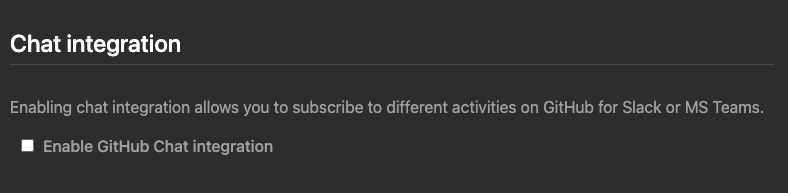
Navigate to "your-ghes-instance:8443" and go to section “Chat Integration”
-
Select the checkbox Enable GitHub Chat Integration
-
Select Slack tab
<img width="580" alt="image9" src="https://user-images.githubusercontent.com/9424117/223660067-bda2fedd-2acf-4ec8-9097-a54166d3e366.png"> -
Navigate to the Slack API page using the link shown below.
-
Generate a Configuration token by clicking the Generate token and
select the workspace where the app will be created.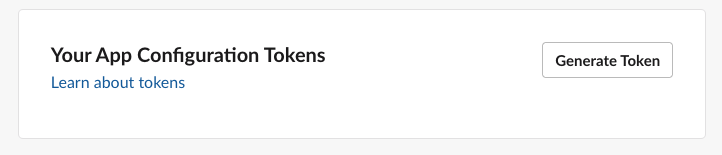
-
Paste the token back in the settings page and click generate app.
<img width="779" alt="image6" src="https://user-images.githubusercontent.com/9424117/223660585-f37ada6d-7392-4fa5-9395-6fef3c2fa42f.png"> -
Once the app is generated Click on Save settings to apply to the instance
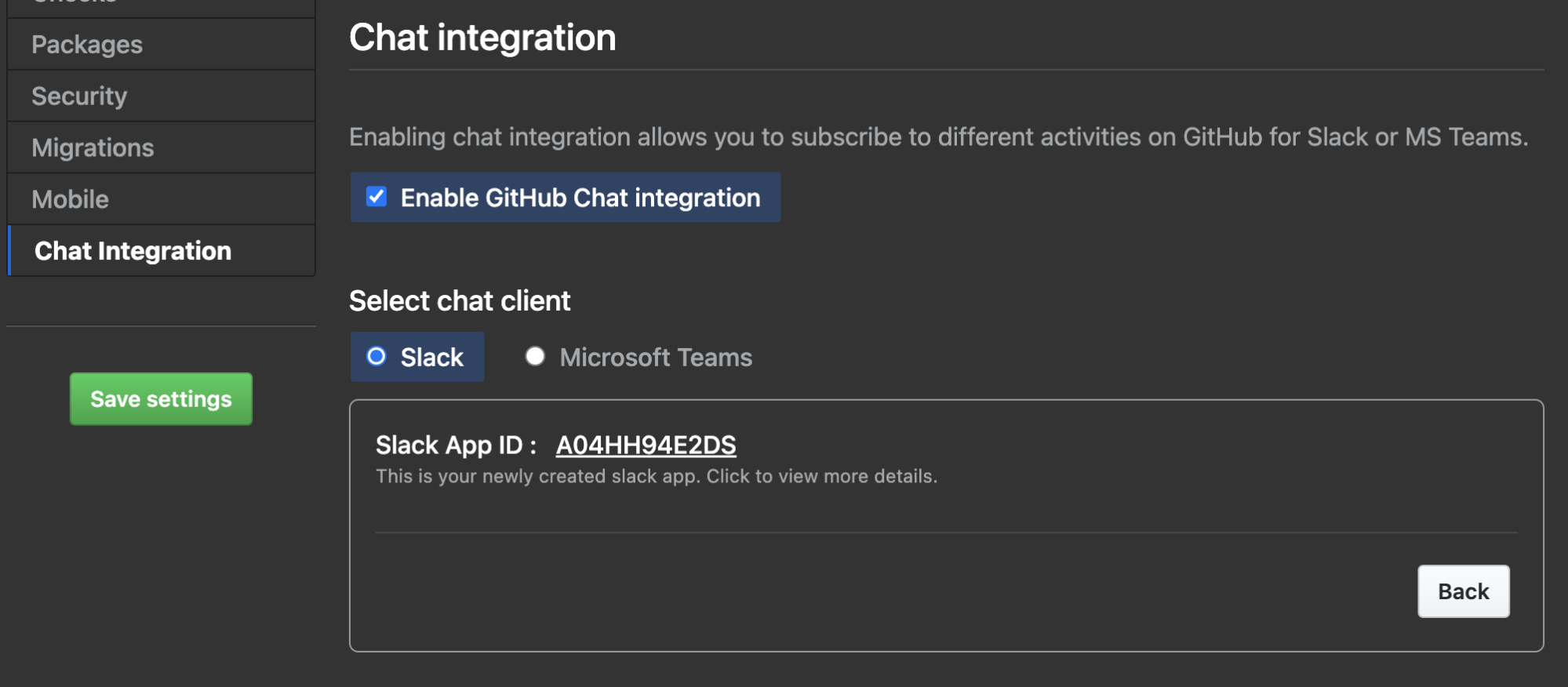
-
Once the settings are applied navigate to either
<instancename>/_slack/orslack.<instancename>to install the
app on your workspace. -
If the app needs to be installed across multiple workspaces
Navigate to your app by click on the app ID -
Navigate to the “Manage Distribution” and check the “Remove hard
coded Information” and Click “Activate Public Distribution”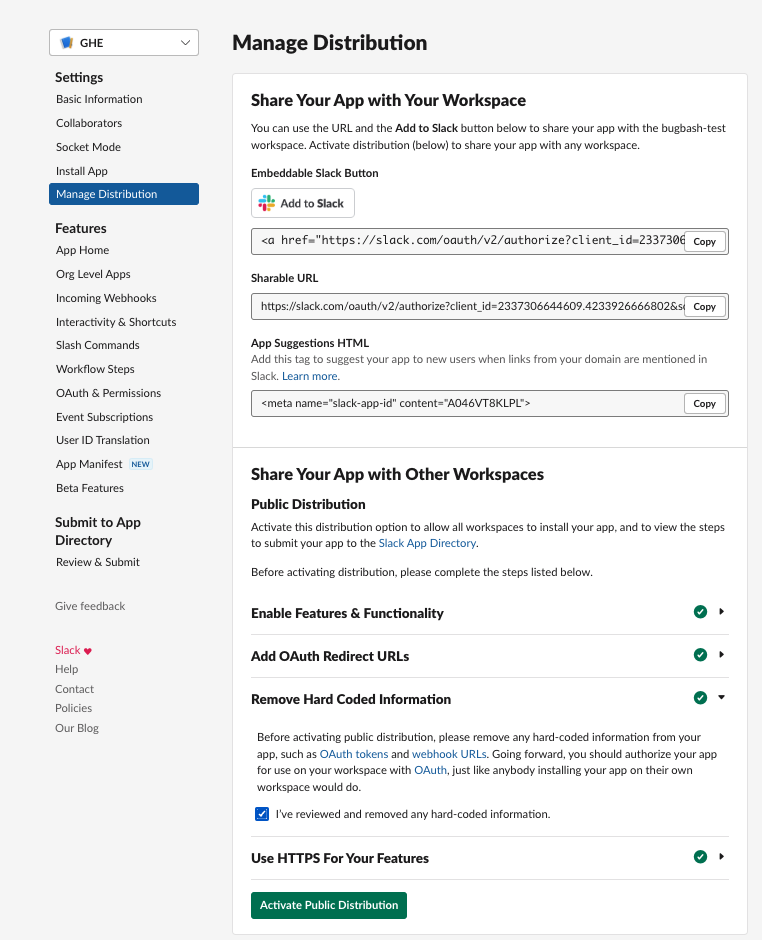
Slack Socket mode
If your GHES instance is behind a proxy and you want to connect with
Slack instance via secure socket
mode, you can
configure integration as follows.
-
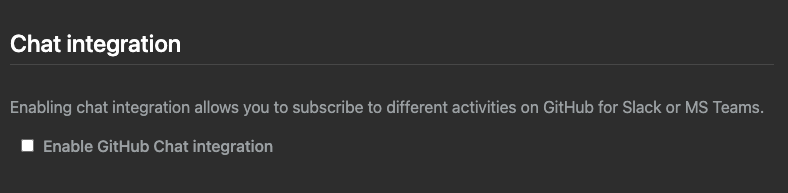
Navigate to "your-ghes-instance:8443" and go to section “Chat Integration”
-
Select the checkbox Enable GitHub Chat Integration
-
Select Slack tab
<img width="580" alt="image9" src="https://user-images.githubusercontent.com/9424117/223661071-e3e20d18-bddb-4a4d-86c1-0f7ca0b2ab44.png"> -
Navigate to the Slack API page using the link.
-
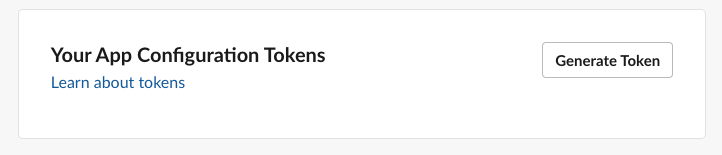
Generate a Configuration token by clicking the Generate token and
select the workspace where the app will be created.
-
Paste the token back in the settings page and check the “Configure
<img width="779" alt="image6" src="https://user-images.githubusercontent.com/9424117/223661184-1d866b98-5e61-41fd-aee6-eb30184169d7.png">
socket mode” and click generate app. -
Once the app is generated click on the app ID to navigate to the
app to generate the app-level token. -
In the app page under “Basic Information” navigate to the
“App-Level Tokens” and click Generate Token and scopes.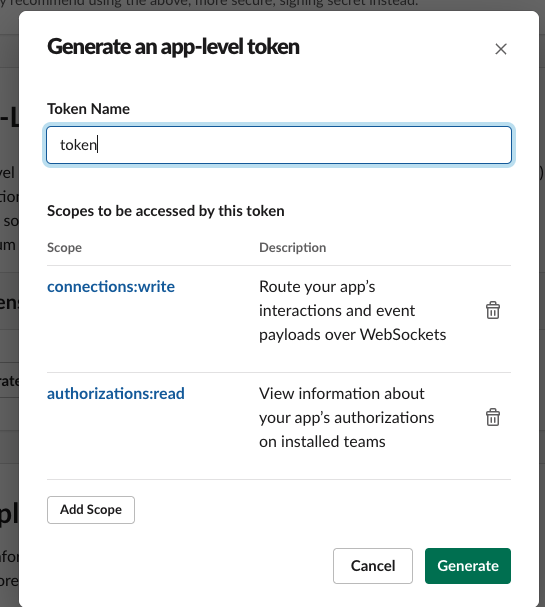
-
Give a name to token and provide the below scopes by clicking on Add scopes
- Authorization.Read
- Connection.Write
-
Copy the token and paste it back in the settings page and click Save
<img width="779" alt="image10" src="https://user-images.githubusercontent.com/9424117/223661356-2864b9b2-9a1e-4028-98a4-6859c83bba77.png"> -
Click on the Save Settings button to apply the settings to instance
<img width="779" alt="image14" src="https://user-images.githubusercontent.com/9424117/223661463-9ee560dc-1de0-43dd-bb2c-c61be3dc564a.png"> -
Once the settings are applied navigate to either
<instancename>/_slack/orslack.<instancename>to install the
app on your workspace. -
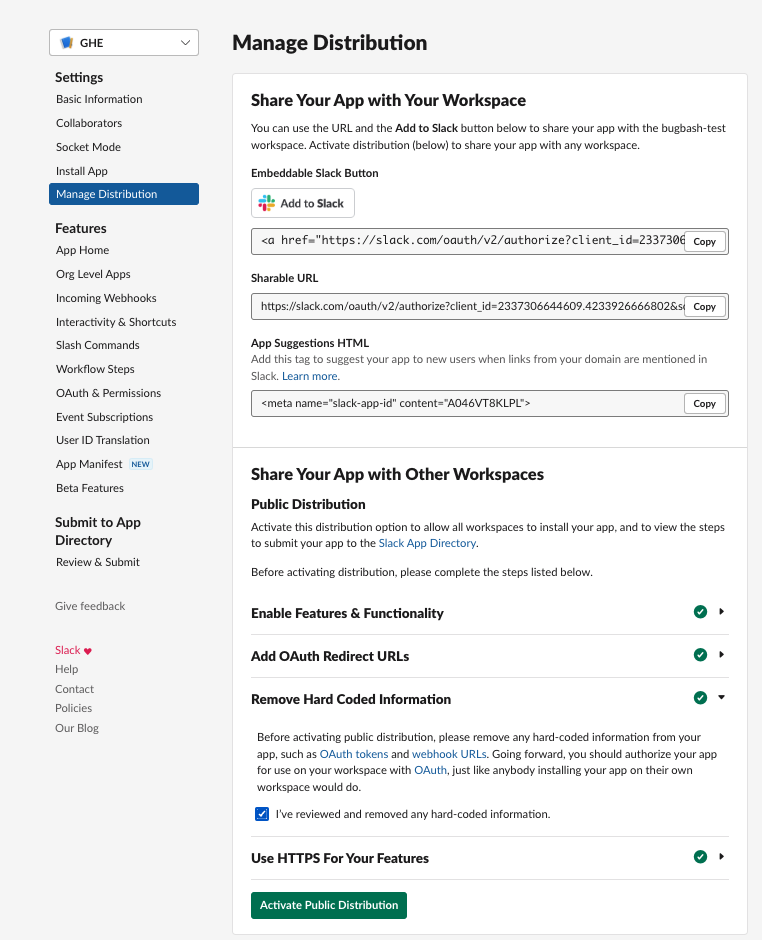
If the app needs to be installed across multiple workspaces
Navigate to your app by click on the app ID -
Navigate to the “Manage Distribution” and check the “Remove hard coded Information” and Click “Activate Public Distribution”
And now you have a dedicated GHES integration with your Slack
workspace. All the features that are available in our hosted GitHub
integration (GHEC) will be available in GHES integration.
Questions? Need help?
If you need support or help please fill out GitHub's Support form and your request will be routed to the right team at GitHub.
| :warning: IMPORTANT |
|---|
| This repository is not accepting any code contributions. The current code which is running for GitHub and integration for Slack has significantly diverged from the code present in this repository as it contains specific code which is required to run service in GitHub infrastructure and which can not be open sourced at this point of time. |
License
The project is available as open source under the terms of the MIT
License.
When using the GitHub logos, be sure to follow the GitHub logo
guidelines.
Contributors
Showing top 12 contributors by commit count.


