

PenguinBurner
Nvidia undervolting companion on Linux. Can automatically scan for GPU voltage-frequency curves from the most efficient to the most performant, and apply them adaptively based on the pre frame-gen FPS. MSI Afterburner profile imports and LACT profile exports.
**PenguinBurner tunes your NVIDIA GPU on Linux, starting with automatic and adaptive undervolting, plus an optional in-game monitoring overlay with a PC latency meter and pre-frame-generation FPS that updates live.** The project is written primarily in Python, distributed under the GNU General Public License v3.0 license, first published in 2026. Key topics include: afterburner, fan-curve, frame-generation, gaming, gpu.
<img src="docs/assets/penguin-burner-logo.png" alt="PenguinBurner logo" width="38" align="top"> NVIDIA GPU Auto Tuning Linux Tool
<p align="center"> <a href="https://pypi.org/project/penguin-burner/"><img alt="PyPI" src="https://img.shields.io/pypi/v/penguin-burner?style=flat-square&logo=pypi&logoColor=white&color=3775A9"></a> <a href="https://pypi.org/project/penguin-burner/"><img alt="Python" src="https://img.shields.io/badge/python-3-3776AB?style=flat-square&logo=python&logoColor=white"></a> <img alt="C++17" src="https://img.shields.io/badge/C%2B%2B-17-00599C?style=flat-square&logo=cplusplus&logoColor=white"> <a href="LICENSE"><img alt="License: GPL v3" src="https://img.shields.io/badge/license-GPL--3.0-blue?style=flat-square"></a> <a href="https://github.com/jpietek/PenguinBurner/actions"><img alt="Build" src="https://img.shields.io/github/actions/workflow/status/jpietek/PenguinBurner/publish-python-package.yml?style=flat-square&logo=github&label=build"></a> <img alt="Coverage" src="https://img.shields.io/badge/coverage-81%25-green?style=flat-square"> <a href="https://github.com/sponsors/jpietek"><img alt="Sponsors" src="https://img.shields.io/badge/sponsors-1-EA4AAA?style=flat-square&logo=githubsponsors&logoColor=white"></a> <a href="https://github.com/jpietek/PenguinBurner/stargazers"><img alt="Stars" src="https://img.shields.io/github/stars/jpietek/PenguinBurner?style=flat-square&logo=github"></a> </p> <p align="center"> <img alt="Platform" src="https://img.shields.io/badge/platform-Linux-FCC624?style=flat-square&logo=linux&logoColor=black"> <img alt="GPU" src="https://img.shields.io/badge/GPU-NVIDIA%20RTX%2030%2F40%2F50-76B900?style=flat-square&logo=nvidia&logoColor=white"> <img alt="Vulkan" src="https://img.shields.io/badge/Vulkan-AC162C?style=flat-square&logo=vulkan&logoColor=white"> <img alt="Proton" src="https://img.shields.io/badge/Proton-1A9FFF?style=flat-square&logo=steam&logoColor=white"> <a href="https://pepy.tech/project/penguin-burner"><img alt="PyPI downloads" src="https://img.shields.io/pepy/dt/penguin-burner?style=flat-square&logo=pypi&logoColor=white&label=PyPI%20downloads"></a> </p>PenguinBurner tunes your NVIDIA GPU on Linux, starting with
automatic and adaptive undervolting, plus an optional in-game monitoring overlay
with a PC latency meter and pre-frame-generation FPS that updates live.
You get quieter fans, lower temperatures, and lower power draw, with no manual
trial and error. It tests your card under real load, finds a stable efficient
setting, and can switch settings automatically as your frame rate changes.
Works on the NVIDIA proprietary driver with RTX 50 (Blackwell), RTX 40 (Ada),
and RTX 30 (Ampere) cards. A recent driver is recommended.
The goal is an all-in-one package for NVIDIA on Linux that is easy to install
and use, closing the feature gap with the Windows tools Linux users miss: the
NVIDIA App, NVUV, and
MSI Afterburner.
Install
bashpython -m pip install --user --upgrade penguin-burner
Also packaged for Fedora (COPR),
Arch / CachyOS (AUR), and
Ubuntu (PPA) —
commands in the Install guide.
Run the GUI with penguin-burner (or pburn). Install the NVIDIA driver and
CUDA first.
Quick start
- Install (above) with the NVIDIA driver and CUDA already set up.
- Launch PenguinBurner (
penguin-burner). - Click Setup Auto Undervolt, choose a performance bias, and let the scan
find and verify a stable curve. - On the Profiles tab, select the result and click Apply Selected.
Toggle Silent fan curve for the quiet fan profile. - Enable Persist on Startup to apply it at boot, or Apply Adaptive to
switch tiers as your frame rate changes.
Automatic Tuning
Tests your card under real load and finds the most efficient stable undervolt
curve for you. The sweep runs PenguinBurner's managed
headless Q2RTX benchmark
plus a CUDA compute test, with stability and performance checks built in.
If a scan crashes mid-probe, the next run records that voltage/clock band as
unsafe and can resume from saved candidates for the same tier.
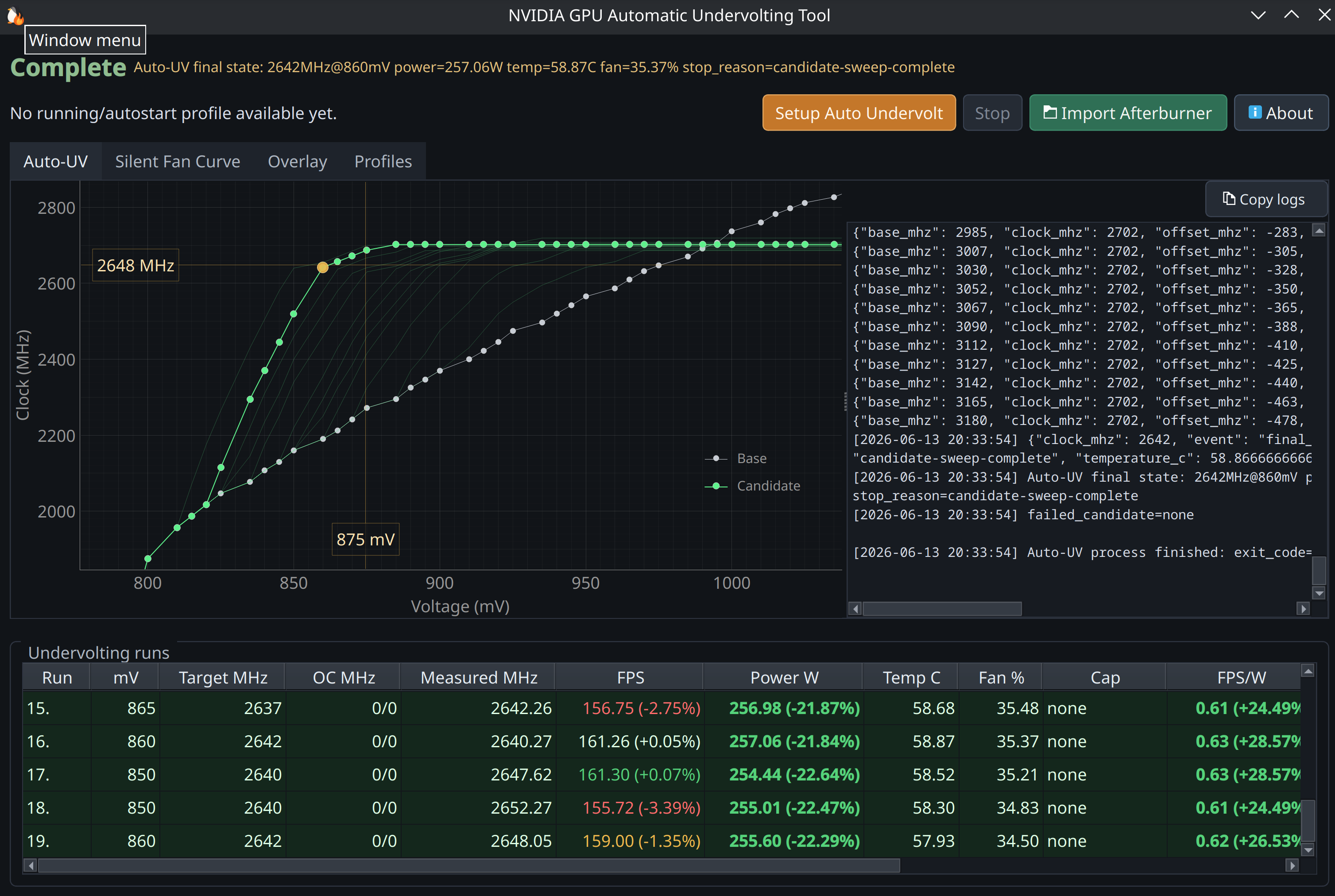
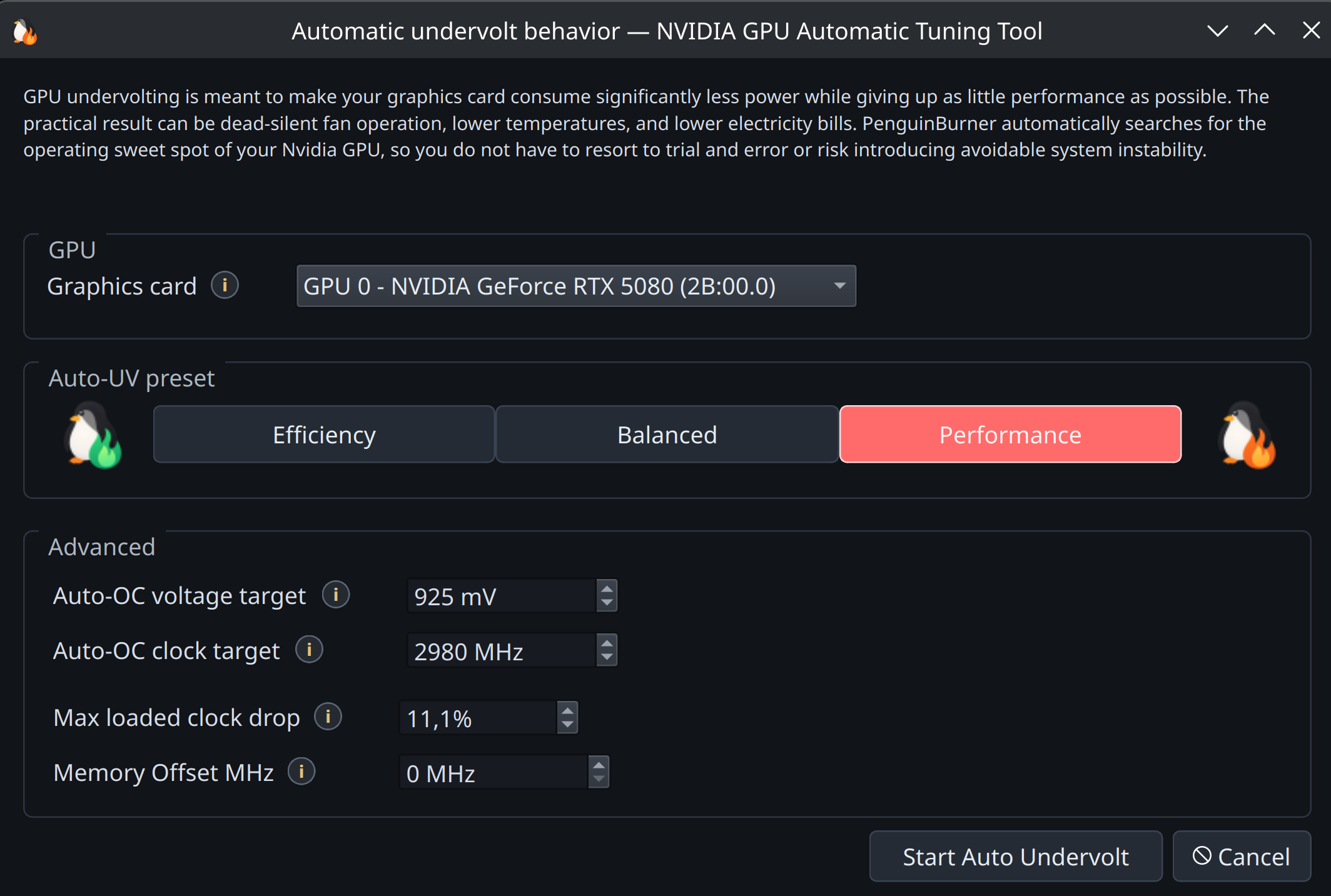
Pick a bias (Efficiency, Balanced, or Performance) and it finds the matching
sweet spot, then verifies it before saving.
You can also set a GPU board power limit for the scan; PenguinBurner reads the
selected card's NVML power-limit range, applies the cap during Auto-UV, and
saves it with the final profile so runtime/profile application restores it.
Adaptive Undervolting
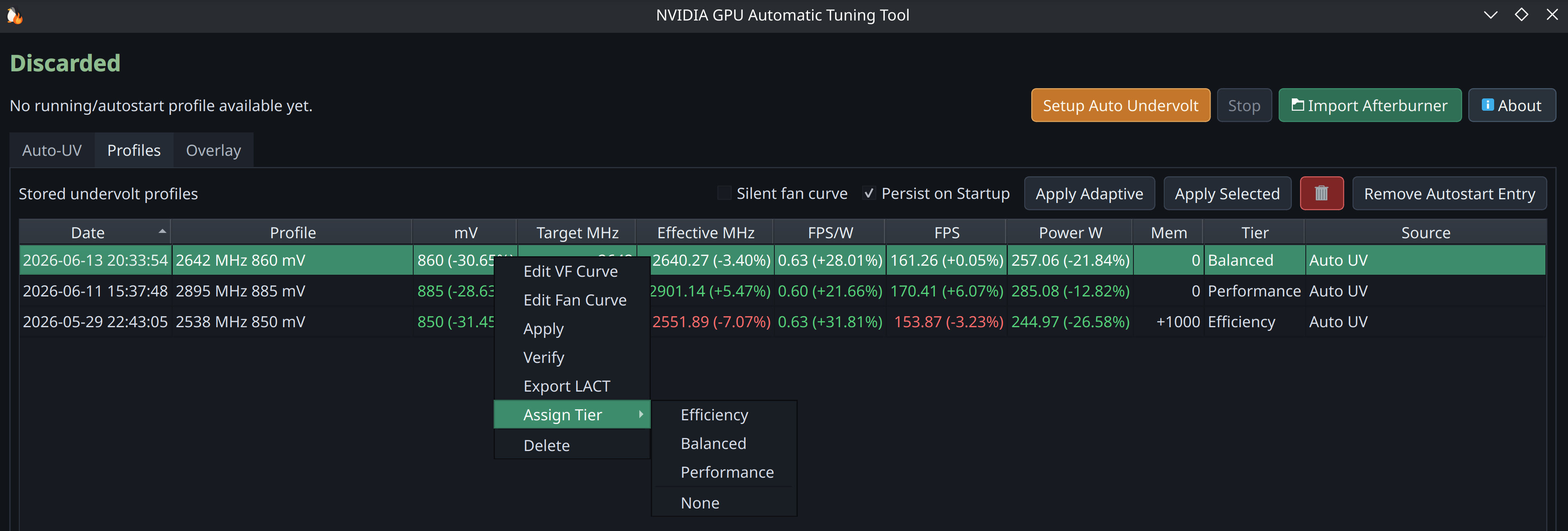
Tag your saved profiles as Efficiency, Balanced, or Performance, and
PenguinBurner switches between them while you play: efficient and silent when you
have headroom, more clock when frames start to drop.
PenguinBurner vs LACT (NVIDIA)
LACT is the broader, more established
Linux GPU app, and it landed a working Nvidia VF curve setter before we did. It
supports more brands and has deeper monitoring than we do. PenguinBurner is
narrower on purpose: automatic undervolting, an in-game overlay, and adaptive
switching. NVIDIA-only comparison, to the best of our knowledge:
| Capability (NVIDIA) | PenguinBurner | LACT |
|---|---|---|
| Automatic undervolt search (stability + perf verified) | ✅ Q2RTX + CUDA sweep | ❌ manual only |
| Adaptive undervolt (switches tiers by frame rate) | ✅ | ❌ |
| In-game performance overlay | ✅ | ❌ |
| PC latency meter | ✅ | ❌ |
| Pre-frame-generation FPS counter (base vs FG FPS) | ✅ | ❌ |
| Manual V/F curve editor | ✅ | ✅ |
| Fan curve control | ✅ auto silent curve + editor | ✅ custom curves |
| Power limit | ✅ Auto-UV + saved profiles | ✅ |
| Steam library import | 🚧 planned | ❌ |
| Per-game tuning profiles | 🚧 planned | ❌ |
| Runtime profile switching | ✅ by present-frame FPS pacing | ✅ by running process / gamemode |
| MSI Afterburner import | ✅ | ❌ |
| Historical telemetry charts | 🚧 planned (live overlay today) | ✅ charts + CSV export |
| Detailed GPU info (VBIOS / VRAM / Vulkan / throttling) | ❌ tuning-focused | ✅ |
| Other GPU brands (AMD / Intel) | ❌ NVIDIA-native, for now | ✅ AMD · Intel · NVIDIA |
| systemd daemon · CLI / headless | ✅ · ✅ | ✅ · ✅ |
✅ available · ❌ not available · 🚧 planned/in progress
LACT monitors inside its own window (charts and CSV) and has no in-game overlay;
on Linux that is usually a separate tool like MangoHud. PenguinBurner's overlay
is built in.
The two interoperate via LACT export, so you can tune with PenguinBurner and run
the resulting curve under LACT if you prefer.
Roadmap (planned, not yet shipped)
- Historical data plotting — power, clocks, and FPS over time.
- Steam library discovery — find installed games automatically.
- Per-game tuning — save and auto-apply a profile per game.
Performance Overlay
A lightweight live on-screen readout over your game. It can visualize PC
latency and pre-frame-generation FPS — things most Linux overlays can't —
alongside frame-gen FPS, clocks, voltage, power, temperatures, and the active
tier.
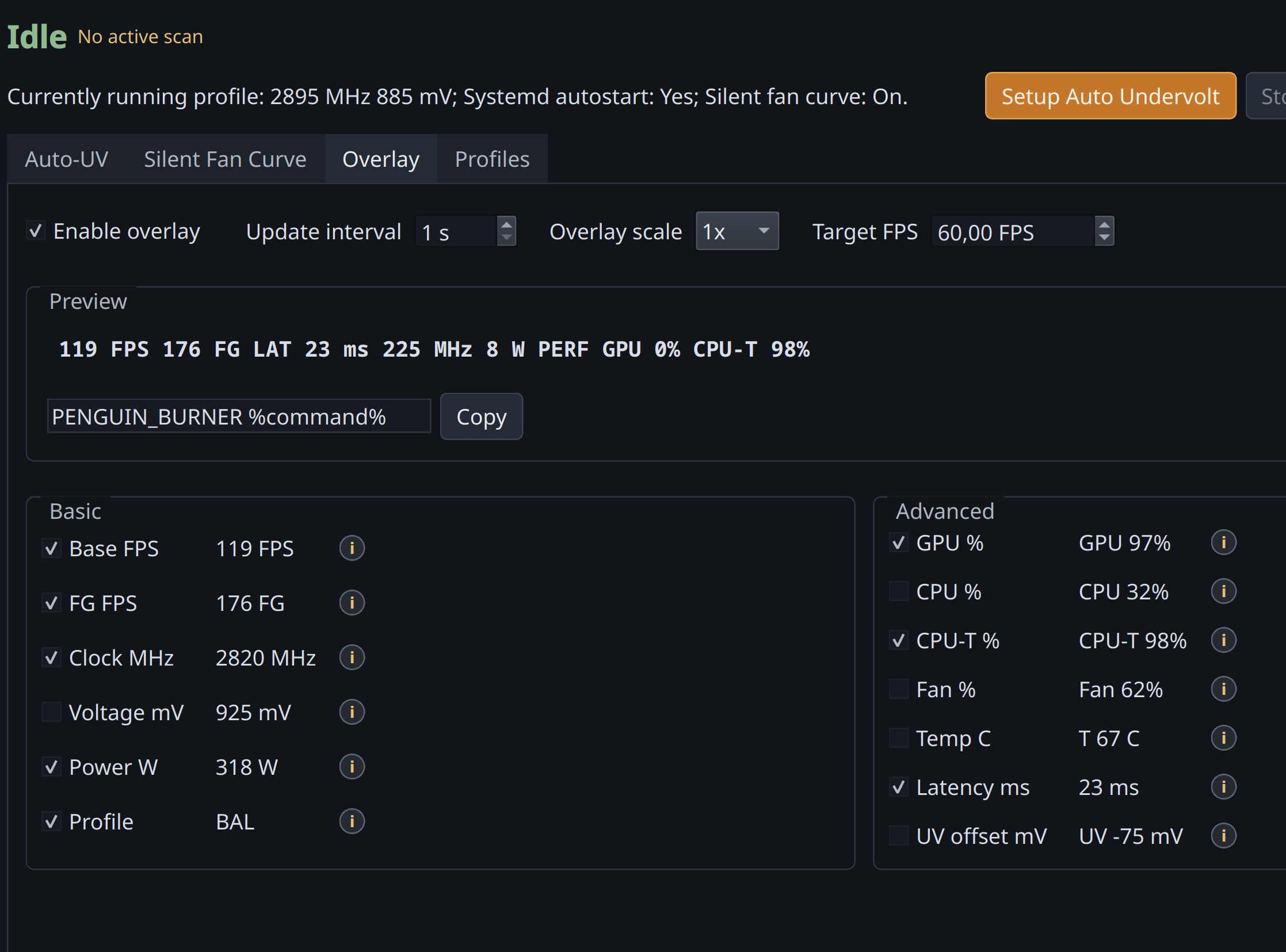
Launch it with the game via PENGUIN_BURNER %command%, then toggle the fields
you want. Any tuning change you make is reflected live in the overlay while you
play, so you see the effect of an undervolt, clock, or fan change in real time
without leaving the game.
If you want the detailed numbers behind that LAT figure, start the daemon with
PENGUIN_BURNER_DUMP_LATENCY_DATA=1 in its environment. It dumps the full
per-frame latency breakdown — present mode, queue depth, Reflex sleep-mode/boost,
and the display/scanout split — to the daemon log, which you can capture to a
file by also passing --debug-log.
More features
- Profile management — apply, verify,
tier, export, and clean up saved curves. - Curve editors — Afterburner-style manual
V/F and fan curve editors with full keyboard control. - Silent fan curve — auto-generated
quiet fan curve once the undervolt brings temperatures down.
MSI Afterburner Import
Bring your Windows MSI Afterburner
profile over and import its V/F curve.
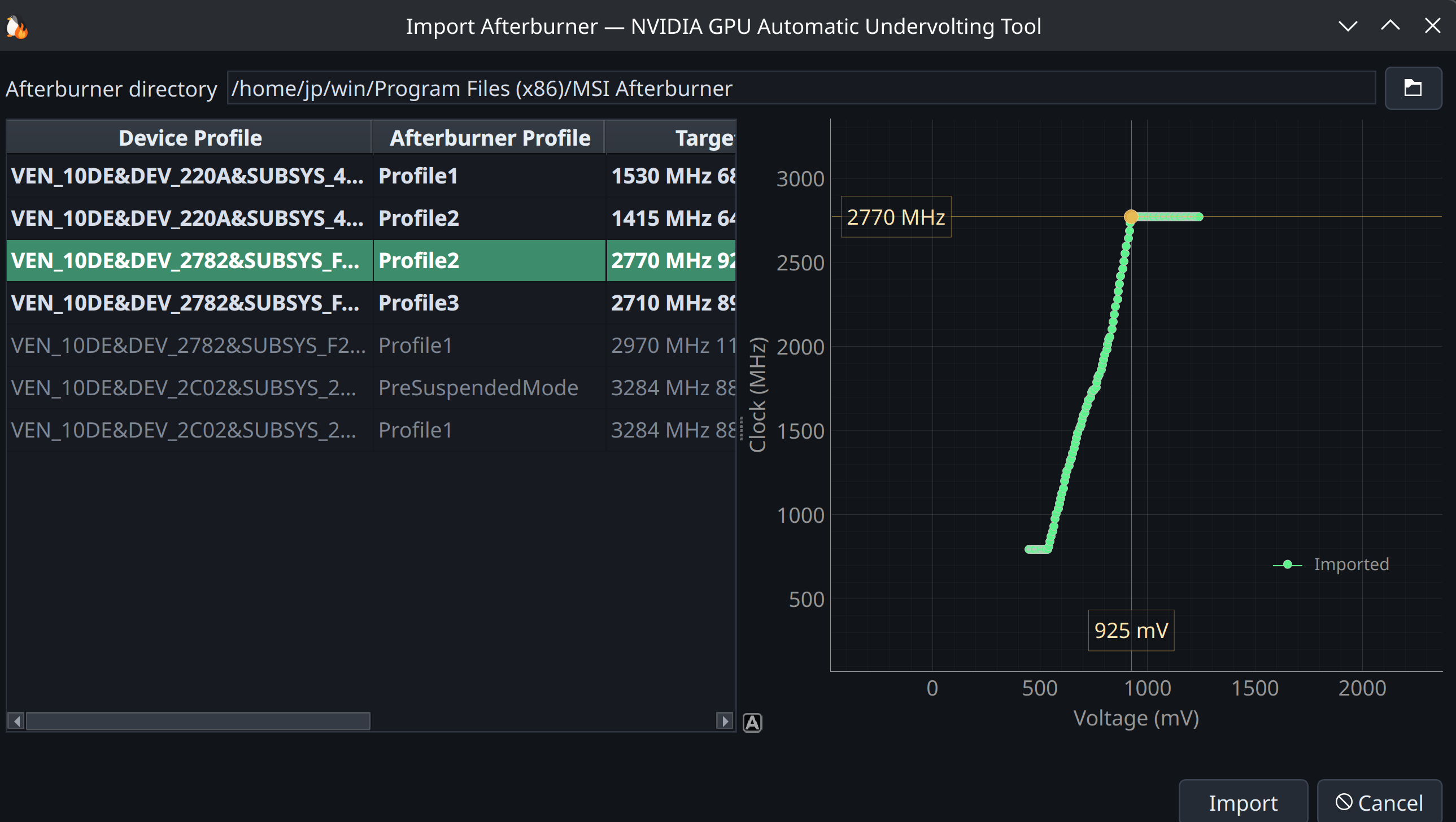
Point PenguinBurner at the real MSI Afterburner directory (no Afterburner
binaries or profiles are bundled in this repo). Default Windows path:
textC:\Program Files (x86)\MSI Afterburner
LACT Export
Export any saved V/F (and optionally fan) curve as a complete Nvidia LACT config
from the Profiles view. See
the Auto-UV guide for the workflow.
Run At Your Own Risk
Auto-UV makes real hardware changes — enabling persistence mode, setting board
power limits, writing core/memory V/F offsets, and taking over fan control.
The Balanced and Efficiency Auto-UV profiles are ultra-defensive.
Balanced at most retains the card's stock clock, probing gently for lower
voltage. Efficiency just follows the stock curve on the first pass — lowering
power consumption by reducing clock — then undervolts only very slightly.
Performance undervolt mode is the one that pushes past stock. On my RTX 5080,
during the OC phase I sometimes get a "Vulkan device lost", which PenguinBurner
catches and then reverts the problematic voltage/frequency point. Worst case is
a hard system freeze and reboot — after which the blacklisted V/F point is
persisted to the UV history file in your home directory, so it is not retried.
You can also define, in the Performance UV dialog, exactly which
voltage/frequency point the card is pushed to over stock limits. The default is
the suggested point for 30/40/50-tier GPUs, based on experiments with this and
similar tools on Windows. Performance is optional anyway — OC is not mandatory.
Acknowledgements
PenguinBurner was built through agentic AI development, guided by human ideas and
direction. The implementation, research, and reverse engineering were driven
primarily by GPT 5.5 (OpenAI) and Claude Opus (Anthropic), with brief use
of Fable (Anthropic).
- NVIDIA — for the graphics technology that, unfortunately, lacks some
features and polish on Linux. - Qt Project — for the excellent Qt6 UI.
Special thanks to the LACT project
and Ilya Zlobintsev for pushing Linux NVIDIA tuning forward — in particular
LACT #957 (Nvidia VF curve editor),
merged April 18, 2026.
Support
CLI Documentation
The CLI-focused README is archived in readme-cli.md.
Start clean
Reset PenguinBurner user state for a fresh run:
bashrm -rf ~/.config/PenguinBurner ~/.local/share/PenguinBurner ~/.cache/PenguinBurner
Installing from a local checkout? See the Install guide.
Contributors
Showing top 2 contributors by commit count.


