

Superhtml
HTML Validator, Formatter, LSP, and Templating Language Library
HTML Validator, Formatter, LSP, and Templating Language Library The project is written primarily in Zig, distributed under the MIT License license, first published in 2024. It has gained significant community traction with 1,306 stars and 64 forks on GitHub. Key topics include: html, language-server, language-server-protocol, lsp, lsp-server.
SuperHTML
HTML Validator, Formatter, LSP, and Templating Language Library
SuperHTML CLI Tool
The SuperHTML CLI Tool offers validation and autoformatting features
for HTML files.
The tool can be used either directly (for example by running it on save), or
through a LSP client implementation.
$ superhtml
Usage: superhtml COMMAND [OPTIONS]

Commands:
  check         Check documents for errors.
  fmt           Format documents.
  lsp           Start the Language Server.
  help          Show this menu and exit.
  version       Print the version and exit.

General Options:
  --help, -h        Print command specific usage.
  --syntax-only     Disable HTML element and attribute validation.
[!WARNING] SuperHTML only supports HTML5 (the WHATWG living spec)
regardless of what you put in your doctype (a warning will be generated
for unsupported doctypes).
[!WARNING] Templated HTML (Jinja2, Angular, Mustache, ...) is not yet
supported when all validation rules are enabled, use--syntax-only(or
the relative Extension Setting in VSCode) to limit validation to syntax
errors to use SuperHTML with templated HTML documents.Compatibility with popular templating languages is being explored.
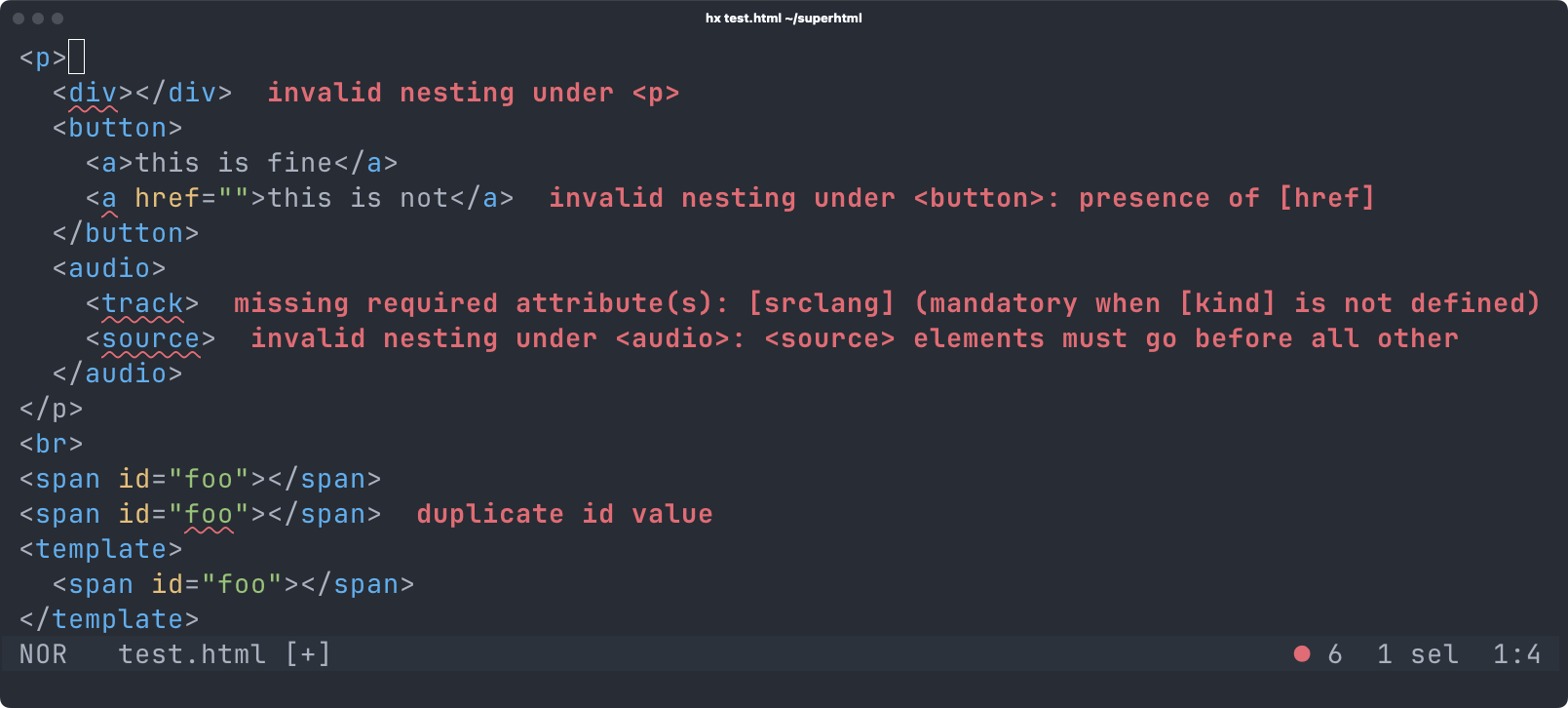
Diagnostics
SuperHTML validates not only syntax but also element nesting and attribute
values. No other language server implements the full HTML spec in its
validation code.
Autoformatting
The autoformatter has two main ways of interacting with it in order to
request for horizontal / vertical alignment.
- Adding / removing whitespace between the start tag of an element and
its content. - Adding / removing whitespace between the last attribute of a start
tag and the closing>.
[!TIP] Consider using
superhtml fmt --checkin your CI to enforce every
change to be performed on normalized HTML files. This is a technique
commonly used in Zig (and Go) for source code that can also help
streamline frontend development.
Example of rule #1
Before:
html<div> <p>Foo</p></div>
After:
html<div> <p>Foo</p> </div>
Reverse
Before:
html<div><p>Foo</p> </div>
After:
html<div><p>Foo</p></div>
Example of rule #2
Before:
html<div foo="bar" style="verylongstring" hidden >Foo</div>
After:
html<div foo="bar" style="verylongstring" hidden >Foo</div>
Reverse
Before:
html<div foo="bar" style="verylongstring" hidden>Foo</div>
After:
html<div foo="bar" style="verylongstring" hidden>Foo</div>
Download
See the Releases section here on GitHub.
Editor support
VSCode
Install the
Super HTML VSCode extension
(doesn't require the CLI tool as it bundles a WASM build of the language
server).
Neovim
- Download a prebuilt version of
superhtmlfrom the Releases section (or
build it yourself). - Put
superhtmlin yourPATH. - Configure
superhtmlfor your chosen lsp-
Neovim Built-In
luavim.api.nvim_create_autocmd("Filetype", { pattern = { "html", "shtml", "htm" }, callback = function() vim.lsp.start({ name = "superhtml", cmd = { "superhtml", "lsp" }, root_dir = vim.fs.dirname(vim.fs.find({".git"}, { upward = true })[1]) }) end }) -
LspZero
lualocal lsp = require("lsp-zero") require('lspconfig.configs').superhtml = { default_config = { name = 'superhtml', cmd = {'superhtml', 'lsp'}, filetypes = {'html', 'shtml', 'htm'}, root_dir = require('lspconfig.util').root_pattern('.git') } } lsp.configure('superhtml', {force_setup = true})
-
Helix
In versions later than 24.07 superhtml is supported out of the box,
simply add executable to your PATH.
Flow Control
Already defaults to using SuperHTML, just add the executable to your PATH.
Vim
Vim should be able to parse the errors that superhtml check [PATH]
generates. This means that you can use :make and the quickfix window to
check for syntax errors.
Set the makeprg to the following in your .vimrc:
" for any html file, a :make<cr> action will populate the quickfix menu
autocmd filetype html setlocal makeprg=superhtml\ check\ %
" if you want to use gq{motion} to format sections or the whole buffer (with gggqG)
autocmd filetype html setlocal formatprg=superhtml\ fmt\ --stdin
Zed
Other editors
Follow your editor specific instructions on how to define a new Language
Server for a given language / file format.
(Also feel free to contribute more specific instructions to this readme /
add files under the editors/ subdirectory).
FAQs
Why doesn't SuperHTML support self-closing tags?
Because self-closing tags don't exist in HTML and, while harmless when used
with void elements, it just keeps misleading people into thinking that you
can self-close HTML tags.
In particular, given this HTML code:
html<!doctype html> <html> <head></head> <body> <div /> <p></p> </body> </html>
You might think that <div> and <p> are siblings, while in reality
browsers are required by the spec to ignore the self-closing slash in
<div/>, making <p> a child, not a sibling of it.
Add to that the fact that tooling like the default HTML formatter in VSCode
will provide misleading autoformatting (try it yourself, disable SuperHTML
in VSCode and autoformat the snippet above), to this day people are way more
confused about HTML than they need to be.
Related: #100.
Why doesn't SuperHTML report duplicate values in [class] as an error?
The HTML spec defines the global class attribute as a space-separated list
of tokens, as opposed to a space-separated list of unique tokens, like
some other attributes are (e.g. accesskey).
Why is <style> under <body> an error? It works in all browsers!
As far as I'm concerned, there is no good reason to forbid <style> in
body, but that's what the HTML spec does.
Related upstream issue: https://github.com/whatwg/html/issues/1605
Why does SuperHTML consider unclosed <li> elements an error?
According to the HTML spec it's legal to leave some tags unclosed. One
common example is <li>, which enables this usage pattern:
html<ul> <li>First point</li> <li>Second point</li> </ul>
The reason why this is not ambiguous is that <li>cannot be nested inside
another <li> so when the second sibling is encountered, it's possible to
always correctly implicitly close the first <li>.
SuperHTML breaks compatibility with the HTML spec in this regard for one
main reason: while implicitly closed tags are unambiguous in valid HTML
documents, it creates a problematic gray area when it comes to typos.
Consider the following snippet:
html<li>first point</li> <li></li>
If SuperHTML were to follow the HTML spec it would have to consider this
valid HTML that represents two bullet points, the second of which contains
no content.
Unfortunately it's also very likely (actually even more so) that the user
just forgot the closing slash in the second tag.
For this reason SuperHTML does not allow closing tags implicitly even if the
HTML spec allows it.
If you want to write HTML code that leverages this feature, do not use
SuperHTML as there are no plans to ever support it.
But what about Google AMP?
Why are you letting an ad company decide what the world wide web should look
like. Do you want ads? Because that's how you get ads.
Templating Language Library
SuperHTML is also a HTML templating language.
First make sure to familiarize yourself with the process to setup a
ScriptyVM (see https://github.com/kristoff-it/scripty).
See src/example.zig for more info. Note that the API is not polished yet
and will change over time.
Contributing
SuperHTML tracks the latest Zig release (0.15.1 at the moment of writing).
Contributing to the HTML parser & LSP
Contributing to the HTML parser and LSP doesn't require you to be familiar
with the templating language, basically limiting the scope of what you have
to worry about to:
src/cli.zigsrc/cli/src/html/
In particular, you will care about the source files under src/html.
You can invoke zig build test to run all unit tests.
Running zig build will compile the SuperHTML CLI tool, allowing you to
also then test the LSP behavior directly from your favorite editor.
For testing within VSCode:
- Run
zig build wasm -p src/editors/vscode/wasm - Open
src/editors/vscodein VSCode - Start debugging.
Debug builds will produce logs in your cache directory so you can
tail -f ~/.cache/superhtml.log.
Contributors
Showing top 12 contributors by commit count.







Related Repositories

twbs/bootstrap
The most popular HTML, CSS, and JavaScript framework for developing responsive, mobile first projects on the web.

Chalarangelo/30-seconds-of-code
Coding articles to level up your development skills

electron/electron
:electron: Build cross-platform desktop apps with JavaScript, HTML, and CSS

microsoft/Web-Dev-For-Beginners
24 Lessons, 12 Weeks, Get Started as a Web Developer

florinpop17/app-ideas
A Collection of application ideas which can be used to improve your coding skills.

storybookjs/storybook
Storybook is the industry standard workshop for building, documenting, and testing UI components in isolation