

PicoWiFiModem
A Pico W based RS232 <-> WiFi modem with Hayes AT style commands and LED indicators
This project began as an exercise to learn about the Pico W and lwIP. Then, as I figured things out, it sort of took on a life of its own... The project is written primarily in C, distributed under the GNU General Public License v3.0 license, first published in 2022. Key topics include: hayes, kicad, modem, openscad, raspberry-pi-pico.
Pico WiFi modem
A Pico W based RS232 <-> WiFi modem with Hayes AT style commands and LED indicators
 |
|---|
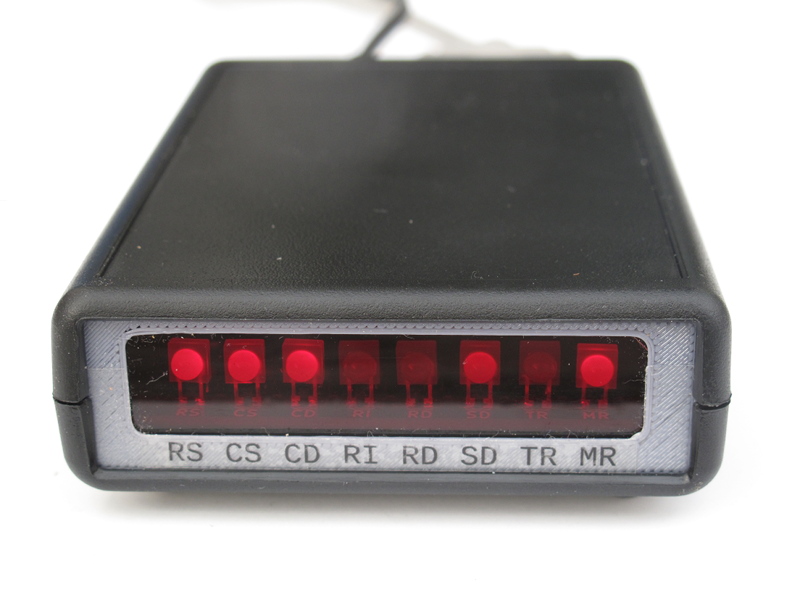
| The Pico WiFi modem |
This project began as an exercise to learn about the Pico W and lwIP.
Then, as I figured things out, it sort of took on a life of its own...
The code was ported from my
Retro WiFi Modem.
One look at it will betray its Arduino IDE origin! It's definitely not
the most efficient way to do things in the Pico world, but it worked
well enough for my purposes in learning "okay, I know what I want to do
here, but how does the Pico C/C++ SDK do it?"
It likely would have been much faster to install one of the Pico-Arduino
cores. I imagine there would have been far fewer code changes. But I
don't think I would have learned anywhere near as much about the
workings of the Pico W and lwIP as I did by using the Pico SDK.
The Hardware
 |
|---|
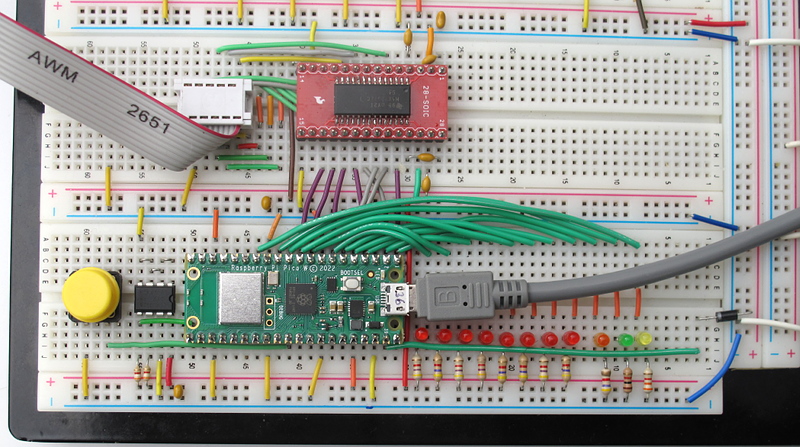
| The prototype |
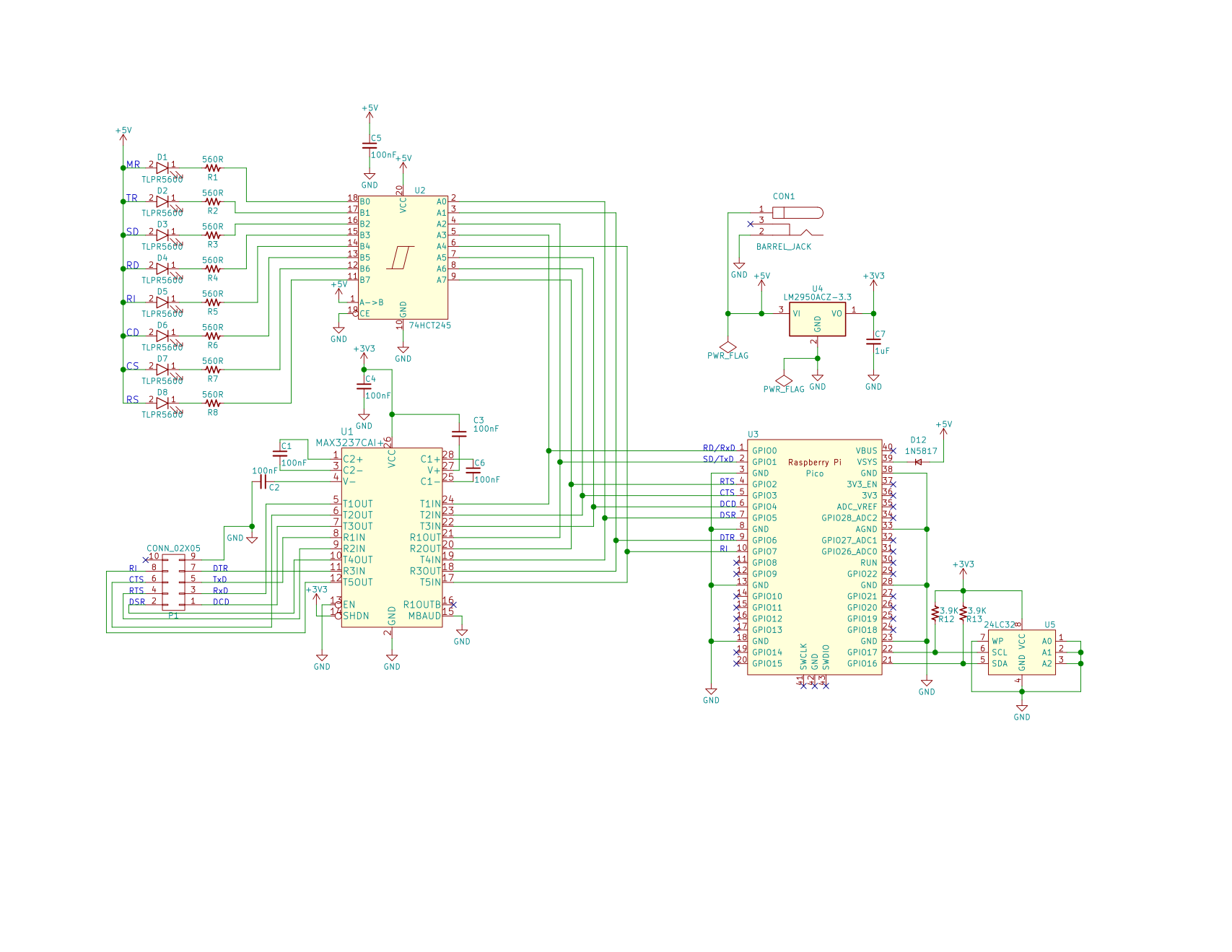
As with the code, I re-up'd a lot of the original hardware decisions.
But, since this time around it wasn't a pandemic project that I was
trying to do as much as possible with parts on hand, I used a MAX3237
instead of a MAX3232.
 |
|---|
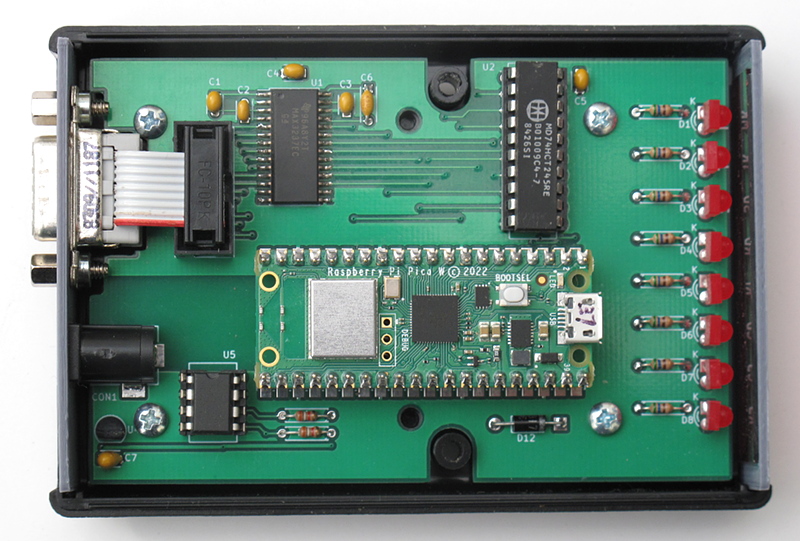
| The interior |
The modem still uses the classic Hayes style blinking LEDs and a DE-9F
for the RS-232 connector. Everything is displayed: RTS, CTS, DSR, DTR,
DCD, RI, TxD and RxD. And this time, since I used a MAX3237, they're all
brought out to the DE-9F connector. So things like using a change in the
DTR line to go to command mode or end a call are supported (on a system
that brings DTR out to the serial port, of course).
Since the Pico W doesn't have EEPROM on board, I added a small 4K I2C
EEPROM to the mix. I could have used a block of the Pico's flash, but I
wanted to get a feel for I2C on the Pico as well.
The Pico is socketed on this first board due to the lack of OTA
programming. The PCB is set up to allow it to be soldered directly on
the board once I have that figured out.
 |
|---|
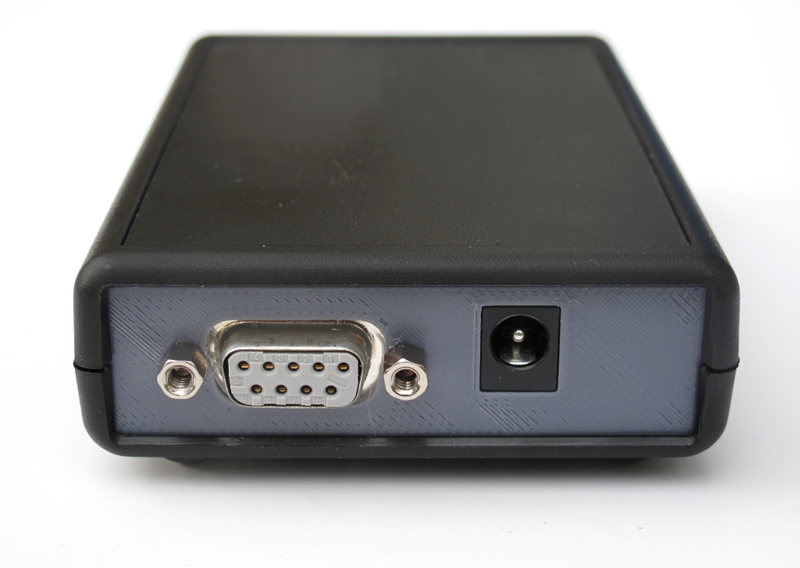
| The back panel |
The power connector expects a 2.1mm I.D. x 5.5mm O.D. barrel plug,
delivering 5 volts, centre positive. I used a Tri-Mag L6R06H-050 (5V,
1.2A), DigiKey part# 364-1251-ND.
If you plug in a 9V adapter like you'd use for an Arduino, you will
let the magic smoke out and have an ex-modem on your hands.
 |
|---|
| The schematic |
On the off chance that there's someone else out there with a well
stocked parts box and a burning desire to put together their own Pico
WiFi modem, there's a BOM in the
kicad sub directory. As was true with the original ESP8266 design, if
you actually had to go out and buy all the parts, it really wouldn't be
cost effective.
The case
I re-used the same case, a Hammond 1593N case (DigiKey part #
HM963-ND
or HM964-ND
depending on whether you like black or grey). STL and OpenSCAD
files are included for the front and back panels. You could use the
proper Hammond red panel for the front (DigiKey part #
HM965-ND),
but they're only available in 10 packs and their price is highway robbery.
I ended up using a slightly smaller red panel (DigiKey part #
HM889-ND)
that was much cheaper (it has recently increased in price by 500%)
and available in single units.
The labels are unbelievably low tech. I print them on a piece of inkjet
transparency film. I then cut that down to size so that it will fit
under the LED opening. Then I attach the trimmed down transparency piece
to a length of matte finish, invisible tape and carefully position it in
place. A bit of careful work with an x-acto knife and you've got
yourself a label that looks like it's part of the panel. If you look
closely at the front panel image you can see the edges of the
transparency film and the tape, but in practice they both essentially
disappear.
The PCB
The PCB includes cutouts for the two columns that join the case
together, and mounting holes for the 6 standoffs. Also, there's an oddly
shaped cutout in back end to allow a particular IDC DE-9F I had on hand.
It's available from DigiKey (or a very close clone is) but it's fairly
pricey. But there's plenty of room for an ordinary solder cup DE-9F.
You'd most likely want to omit the 10 pin header and just wire the DE-9F
right to the board.
Unlike the original Retro Wifi Modem, I made no attempt to make this
board by hand. Instead, I took advantage of an introductory offer by a
well known PCB house and had PCBs made. 5 boards for under 20 bucks, and
delivered in under a week? Who could say no?
The Software
 |
|---|
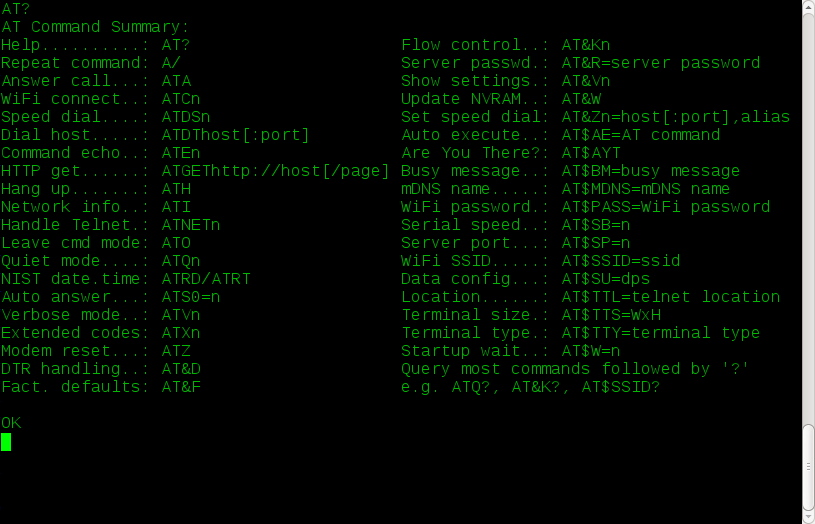
| Modem command list |
The software is naturally quite similar to the original ESP8266 Wifi
modem. There are a few changes (and one fairly major omission):
- DTR signal handling (AT&D)
- Escape sequence character definition (ATS2)
- no OTA reprogramming (yet!)
First time setup
The default serial configuration is 9600bps, 8 data bits, no parity, 1
stop bit.
Here's the commands you need to set up the modem to automatically
connect to your WiFi network:
AT$SSID=your WiFi network nameto set the WiFi network that the
modem will connect to when it powers up.AT$PASS=your WiFi network passwordto set the password for the
network.ATC1to connect to the network.- Optional stuff:
AT$SB=speedto set the default serial speed.AT$SU=dpsto set the data bits, parity and stop bits.ATNETnto select whether or not to use Telnet protocol.AT&Knto use RTS/CTS flow control or not.AT&Dnto set up DTR handling.
AT&Wto save the settings.
Once you've done that, the modem will automatically connect to your WiFi
network on power up and will be ready to "dial up" a connection with
ATDT.
Command Reference
Multiple AT commands can be typed in on a single line. Spaces between
commands are allowed, but not within commands (i.e. AT S0=1 X1 Q0 is
fine; ATS 0= 1 is not). Commands that take a string as an argument
(e.g. AT$SSID=, AT$TTY=) assume that everything that follows is a part
of the string, so no commands are allowed after them.
| Command | Details |
|---|---|
| +++ | Online escape code. Once your modem is connected to another device, the only command it recognises is an escape code of a one second pause followed by three typed plus signs and another one second pause, which puts the modem back into local command mode. |
| A/ | Repeats the last command entered. Do not type AT or press Enter. |
| AT | The attention prefix that precedes all command except A/ and +++. |
| AT? | Displays a help cheatsheet. |
| ATA | Force the modem to answer an incoming connection when the conditions for auto answer have not been satisfied. |
| ATC?<br>ATCn | Query or change the current WiFi connection status. A result of 0 means that the modem is not connected to WiFi, 1 means the modem is connected. The command ATC0 disconnects the modem from a WiFi connection. ATC1 connects the modem to the WiFi. |
| ATDSn | Calls the host specified in speed dial slot n (0-9). |
| ATDT<i>[+=-]host[:port]</i> | Tries to establish a WiFi TCP connection to the specified host name or IP address. If no port number is given, 23 (Telnet) is assumed. You can also use ATDT to dial one of the speed dial slots in one of two ways:<br><br><ul><li>The alias in each speed dial slot is checked to see if it matches the specified hostname.</li><li>A host specified as 7 identical digits dials the slot indicated by the digit. (i.e. 2222222 would speed dial the host in slot 2).</li></ul>Preceding the host name or IP address with a +, = or - character overrides the ATNET setting for the period of the connection.<br><br><ul><li>+ forces NET2 (fake Telnet)</li><li>= forces NET1 (real Telnet)</li><li>- forces NET0 (no Telnet)</li></ul>Once the dial attempt has begun, pressing any key before the connection is established will abort the attempt. |
| ATE?<br>ATEn | Command mode echo. Enables or disables the display of your typed commands.<br><br><ul><li>E0 Command mode echo OFF. Your typing will not appear on the screen.</li><li>E1 Command mode echo ON. Your typing will appear on the screen.</li></ul> |
| ATGEThttp://host[/page] | Displays the contents of a website page. https connections are not supported. Once the contents have been displayed, the connection will automatically terminate. |
| ATH | Hangs up (ends) the current connection. |
| ATI | Displays the current network status, including sketch build date, WiFi and call connection state, SSID name, IP address, and bytes transferred. |
| ATNET?<br>ATNETn | Query or change whether telnet protocol is enabled. A result of 0 means that telnet protocol is disabled; 1 is Real telnet protocol and 2 is Fake telnet protocol. If you are connecting to a telnet server, it may expect the modem to respond to various telnet commands, such as terminal name (set with AT$TTY), terminal window size (set with AT$TTS) or terminal speed. Telnet protocol should be enabled for these sites, or you will at best see occasional garbage characters on your screen, or at worst the connection may fail.<br><br>The difference between real and fake telnet protocol is this: with real telnet protocol, a carriage return (CR) character being sent from the modem to the telnet server always has a NUL character added after it. The implementation of the telnet protocol used by some BBSes doesn't properly strip out the NUL character. When connecting to such BBSes (Particles! is one), use fake telnet.<br><br>When using real telnet protocol, when the telnet server sends a CR character followed by a NUL character, only the CR character will be sent to the serial port; the NUL character will be silently stripped out. With fake telnet protocol, the NUL will be passed through. |
| ATO | Return online. Use with the escape code (+++) to toggle between command and online modes. |
| ATQ?<br>ATQn | Enable or disable the display of result codes. The default is Q0.<br><br><ul><li>Q0 Display result codes.</li><li>Q1 Suppress result codes (quiet).</li></ul> |
| ATRD<br>ATRT | Displays the current UTC date and time from NIST in the format YY-MM-DD HH:MM:SS. A WiFi connection is required and you cannot be connected to another site. |
| ATS0?<br>ATS0=n | Display or set the number of "rings" before answering an incoming connection. Setting S0=0 means "don't answer". |
| ATS2?<br>ATS2=n | Display or set the ASCII code used in the online escape sequence. The default value is 43 (the + plus character). Setting it to any value between 128 and 255 will disable the online escape function. |
| ATV?<br>ATVn | Display result codes in words or numbers. The default is V1.<br><br><ul><li>V0 Display result codes in numeric form.</li><li>V1 Display result codes in text form.</li></ul> |
| ATX?<br>ATXn | Control the amount of information displayed in the result codes. The default is X1 (extended codes).<br><br><ul><li>X0 Display basic codes (CONNECT, NO CARRIER)</li><li>X1 Display extended codes (CONNECT speed, NO CARRIER (connect time))</li></ul> |
| ATZ | Resets the modem. |
| AT&D?<br>AT&Dn | Display or set the handling of DTR going inactive. The default is &D0 (ignored).<br><br><ul><li>&D0 Ignore</li><li>&D1 Go to command mode</li><li>&D2 End call</li><li>&D3 Reset modem</li></ul> |
| AT&F | Reset the NVRAM contents and current settings to the sketch defaults. All settings, including SSID name, password and speed dial slots are affected. |
| AT&K?<br>AT&Kn | Data flow control. Prevents the modem's buffers for received and transmitted from overflowing.<br><br><ul><li>&K0 Disable data flow control.</li><li>&K1 Use hardware flow control. Requires that your computer and software support Clear to Send (CTS) and Request to Send (RTS) at the RS-232 interface.</li></ul> |
| AT&R?<br>AT&R=server pwd | Query or change the password for incoming connections. If set, the user has 3 chances in 60 seconds to enter the correct password or the modem will end the connection. |
| AT&Vn | Display current or stored settings.<br><br><ul><li>&V0 Display current settings.</li><li>&V1 Display stored settings.</li></ul> |
| AT&W | Save current settings to NVRAM. |
| AT&Zn?<br>AT&Zn=host[:port],alias | Store up to 10 numbers in NVRAM, where n is the position 0-9 in NVRAM, and host[:port] is the host string, and alias is the speed dial alias name. The host string may be up to 50 characters long, and the alias string may be up to 16 characters long.<br><br>Example: AT&Z2=particlesbbs.dyndns.org:6400,particles<br><br>This number can then be dialed in any of the following ways:<br><br><ul><li>ATDS2</li><li>ATDTparticles</li><li>ATDT2222222</li></ul> |
| AT$AE?<br>AT$AE=startup AT cmd | Query or change the command line to be executed when the modem starts up. |
| AT$AYT | Sends a Telnet "Are You There?" command if connected to a Telnet remote. |
| AT$BM?<br>AT$BM=server busy msg | Query or change a message to be returned to an incoming connection if the modem is busy (i.e. already has a connection established). |
| AT$MDNS<br>AT$MDNS=mDNS name | Query or change the mDNS network name (defaults to "espmodem"). When a non zero TCP port is defined, you can telnet to that port with telnet mdnsname.local port. |
| AT$PASS?<br>AT$PASS=WiFi pwd | Query or change the current WiFi password. The password is case sensitive. Clear the password by issuing the set command with no password. The maximum length of the password is 64 characters. |
| AT$SB?<br>AT$SB=n | Query or change the current baud rate. Valid values for "n" are 110, 300, 450, 600, 710, 1200, 2400, 4800, 9600, 19200, 38400, 57600, 76800 and 115200. Any other value will return an ERROR message. The default baud rate is 1200. The Pico WiFi modem does not automatically detect baud rate like a dial-up modem. The baud rate setting must match that of your terminal to operate properly. It will display garbage in your terminal otherwise. |
| AT$SP?<br>AT$SP=n | TCP server port to listen on. A value of 0 means that the TCP server is disabled, and no incoming connections are allowed. |
| AT$SSID?<br>AT$SSID=ssid name | Query or change the current SSID to the specified name. The given SSID name is case sensitive. Clear the SSID by issuing the set command with no SSID. The maximum length of the SSID name is 32 characters. |
| AT$SU?<br>AT$SU=dps | Query or change the current number of data bits ('d'), parity ('p') and stop bits ('s") of the serial UART. Valid values for 'd' are 5, 6, 7 or 8 bits. Valid values for 'p' are (N)one, (O)dd or (E)ven parity. Valid values for 's' are 1 or 2 bits. The default settings are 8N1. The UART setting must match your terminal to work properly. |
| AT$TTL?<br>AT$TTL=telnet location | Query or change the Telnet location value to be returned when the Telnet server issues a SEND-LOCATION request. The default value is "Computer Room". |
| AT$TTS?<br>AT$TTS=WxH | Query or change the window size (columns x rows) to be returned when the Telnet server issues a NAWS (Negotiate About Window Size) request. The default value is 80x24. For terminals that are smaller than 80x24, setting these values appropriately will enable paging on the help (AT?) and network status (ATI) commands. |
| AT$TTY?<br>AT$TTY=terminal type | Query or change the terminal type to be returned when the Telnet server issues a TERMINAL-TYPE request. The default value is "ansi". |
| AT$W?<br>AT$W=n | Startup wait.<br><br><ul><li>$W=0 Startup with no wait.</li><li>$W=1 Wait for the return key to be pressed at startup.</li></ul> |
Updating the Code
As I'm writing this, I haven't settled on an OTA programming method that
I like. But I will figure something out; taking the modem apart to do a
code update will get old the very first time I have to do it. Plus,
it means that the Pico W can't be soldered down to the PCB, and that'd
be a nice to have as well.
Status
It's a work in progress at the moment. The lack of OTA programming is
the big "needs to be done" item.
As this is my first Pico project, and the first time I've written lwIP
stuff (and the first time I've really had to make changes to CMake
stuff), I've run headlong into all the usual beginner gotchas. And I'm
completely, absolutely sure that I haven't found them all yet.
The code works reasonably well at the moment; it can call out, you can
call in, Ymodem and Zmodem transfers work, I've figured out why it used
to appear to lock up when I left it alone for 10 minutes (Wifi power
management, if you're wondering)... but I'm under no illusion that there
aren't bugs aplenty yet to be squashed. After all, I found a handful of
problems in the original ESP8266 Retro Wifi modem code while I was
getting the Pico code working, and the ESP code had been pretty much
stable for over two years.
And I think I may have also discovered why every once in a while, the
modem would get behind a few (or many) characters either on receive or
transmit. The 'volatile' qualifier isn't of as much use with variables
modified by two threads as it is with memory mapped I/O or hardware
registers. To make a long story short, '++var' and '--var' aren't
atomic operations; they're read/modify/write. And every once in a great
while the main thread would be updated a buffer length at the same time
the lwIP thread was updating the same buffer length and whackiness
ensued.
For the moment, I've taken the naive approach of surrounding the buffer
length writes with disable/re-enable interrupt calls. I think that will
work reasonably well (though if I ever decided to make use of the second
core, it'll fail because interrupts are only disabled on the calling
core). If not, it'll be time to bone up on mutexes and semaphores and
critical sections.
Linux, Telnet, Zmodem and downloading binary files
Have you used the modem to 'dial' into a Linux box? And have you done a
sz binary_file on the Linux box? And at a completely reproducible
point in the file, has the connection dropped? But other binary files
work just fine? Then read on.
This drove me slightly batty for months on the original Retro modem. I
finally narrowed it down to trying to send blocks of binary data with a
large number of FF bytes. eventually created a test file consisting of
2K of FF and used that to test with. I could download it through the
modem with Xmodem just fine. Ymodem also worked if I kept the block size
down to 128 bytes - but the connection would drop instantly if I tried
sending 1K blocks. Same thing with Zmodem.
In fact, if I just tried cat binary_file, the connection would
drop. Which eventually got me thinking. Sitting at the console on my
main Linux box, I telnet'd to the same box and logged in. No WiFi modem
involved anywhere, just a telnet session on the console to the same box.
I then did a cat binary_file. The telnet connection dropped, and I
was back in my original session.
It's the Linux telnet daemon. Not the modem at all.
To prove it to myself, I hooked up WiFi modems to two systems on their
serial ports and had one dial into the other. I could send the all FF
binary file back and forth with Zmodem and Ymodem, no trouble at all.
But you really, really need to download that binary file through the
modem from a telnet connection to a Linux box? You're not going to be
able to use Zmodem. Ymodem will work (the sy command defaults to 128
byte blocks), as will Xmodem. But not Zmodem.
Oddly enough, the telnet daemon has no trouble receiving the all FF
binary file. Only sending it. Your guess as to why is probably better
than mine.
References
- Retro WiFi Modem
- WiFi232 - An Internet Hayes Modem for your Retro Computer<br>
- WiFi232's Evil Clone<br>
- Jussi Salin's Virtual modem for ESP8266<br>
- Stardot's ESP8266 based virtual modem<br>
- Roland Juno's ESP8266 based virtual modem
Acknowledgements
- A whole lot of people owe a big vote of thanks to Jussi Salin for
releasing their virtual modem code for the ESP8266 and starting the
ball rolling. - Paul Rickards for an amazing bit of hardware to draw inspiration from.
- All the Stardot contributors for their work.
- And, of course, Dennis C. Hayes for creating something so simple and
elegant that has stood the test of time.
Contributors
Showing top 1 contributor by commit count.

