

MixedReality GraphicsTools Unity
Graphics tools and components for developing Mixed Reality applications in Unity.
MRTK Graphics Tools for Unity is a [Unity engine](https://unity.com/) package with code, shaders, assets, and samples created to help improve the visual fidelity of [mixed reality](https://docs.microsoft.com/windows/mixed-reality/discover/mixed-reality) applications while staying within performance budgets. The project is written primarily in C#, distributed under the MIT License license, first published in 2021. Key topics include: graphics, graphicstools, hololens, mixed-reality, mixedrealitytookit-unity.

What is Graphics Tools?
MRTK Graphics Tools for Unity is a Unity engine package with code, shaders, assets, and samples created to help improve the visual fidelity of mixed reality applications while staying within performance budgets.
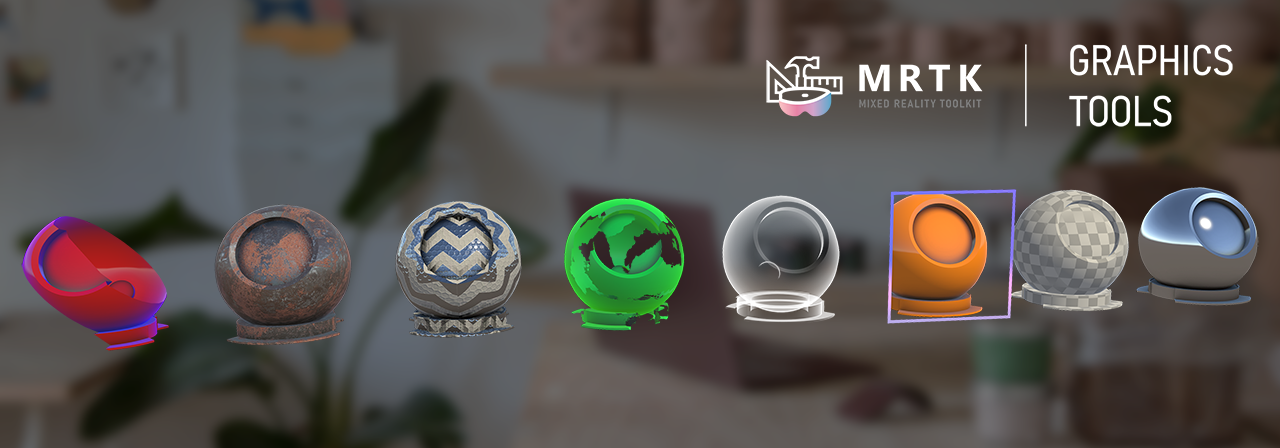
Getting started with Graphics Tools
Graphics Tools is normally ingested as a Unity package. To import Graphics Tools into your Unity project follow the below steps:
[!NOTE]
The Graphics Tools package requires Unity 2021.3 and above.
-
Open your Unity project and select
Window > Package Managerfrom the file menu bar -
Click the
'+'icon within the Package Manager and select"Add package from git URL..."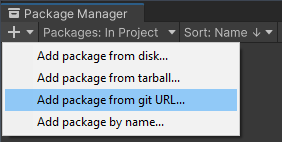
-
Paste https://github.com/microsoft/MixedReality-GraphicsTools-Unity.git?path=/com.microsoft.mrtk.graphicstools.unity#v0.8.0 into the text field and click
"Add"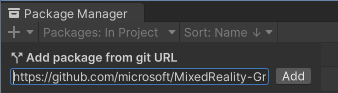
-
Graphics Tools will now be installed within your Unity project as an immutable package within the project's
Packagesfolder namedMRTK Graphics Tools.
It is advised you use a specific release of the Graphics Tools package to ensure your project is locked to a stable release. Release version 0.8.0 is suggested in step three above. You can also pull another version, specific branch, or git commit hash by altering the URL as demonstrated below:
Documentation
Documentation can be found on Microsoft's technical documentation website.
| Documentation Category | Link |
|---|---|
| Conceptual | MRTK Unity |
| API Reference | Microsoft.MixedReality.GraphicsTools |
Importing samples
To view the samples contained within Graphics Tools select Window > Package Manager from the Unity file menu bar. Click on the MRTK Graphics Tools package and expand the Samples list. Finally, click the Import button for any samples you would like to try:
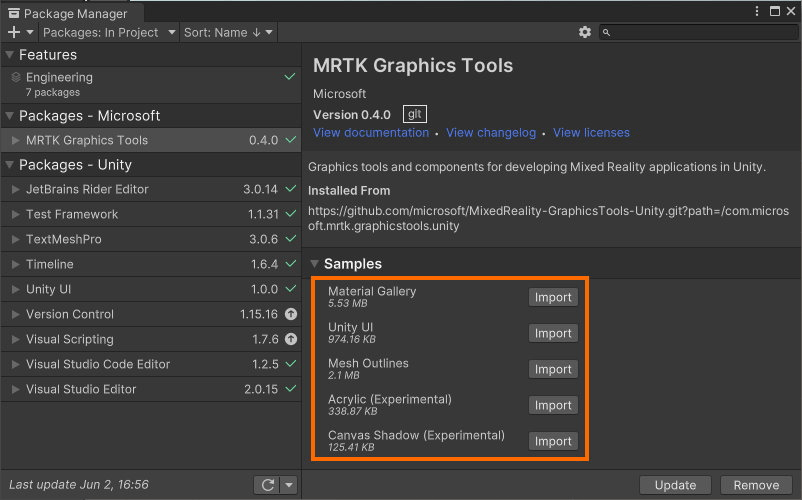
Example project
A Unity project named GraphicsToolsUnityProject lives at the root of this repository. The project serves as sandbox to test and validate the Graphics Tools package. This project can also assist in developing contributions to this repo. See below to learn more about contributing.
[!TIP]
See GraphicsToolsUnityProject/ProjectSettings/ProjectVersion.txt to inspect the Unity version used for the example project.
Feedback and contributions
This project welcomes contributions and suggestions. Most contributions require you to agree to a
Contributor License Agreement (CLA) declaring that you have the right to, and actually do, grant us
the rights to use your contribution. For details, visit https://cla.opensource.microsoft.com.
When you submit a pull request, a CLA bot will automatically determine whether you need to provide
a CLA and decorate the PR appropriately (e.g., status check, comment). Simply follow the instructions
provided by the bot. You will only need to do this once across all repos using our CLA.
This project has adopted the Microsoft Open Source Code of Conduct.
For more information see the Code of Conduct FAQ or
contact opencode@microsoft.com with any additional questions or comments.
Updating the package samples
Samples exist under the Samples~ subfolder as outlined by Unity's sample recommendations. The '~' character prevents the Samples~ folder for being imported by Unity.
If you wish to contribute changes to the samples you must make a temporary local change to the Unity project's directory structure.
- Open the
GraphicsToolsUnityProjectin Unity. TheSamplesfolder will not be visible in theMRTK Graphics Toolspackage by default. To show the samples selectWindow > Graphics Tools > Show Samplesfrom the file menu bar. - Make any desired changes to the samples.
- Important: When finished and before committing your changes, remember to hide the samples. Select
Window > Graphics Tools > Hide Samplesfrom the file menu bar.
License agreement
This project welcomes contributions and suggestions. Most contributions require you to agree to a
Contributor License Agreement (CLA) declaring that you have the right to, and actually do, grant us
the rights to use your contribution. For details, visit https://cla.opensource.microsoft.com.
When you submit a pull request, a CLA bot will automatically determine whether you need to provide
a CLA and decorate the PR appropriately (e.g., status check, comment). Simply follow the instructions
provided by the bot. You will only need to do this once across all repos using our CLA.
This project has adopted the Microsoft Open Source Code of Conduct.
For more information see the Code of Conduct FAQ or
contact opencode@microsoft.com with any additional questions or comments.
Contributors
Showing top 12 contributors by commit count.


Related Repositories

jgraph/drawio-desktop
Official electron build of draw.io

aseprite/aseprite
Animated sprite editor & pixel art tool (Windows, macOS, Linux)

raysan5/raylib
A simple and easy-to-use library to enjoy videogames programming

iced-rs/iced
A cross-platform GUI library for Rust, inspired by Elm

GraphiteEditor/Graphite
Community-built comprehensive 2D content creation appplication for graphic design, digital art, and interactive real-time motion graphics powered by a node-based procedural graphics engine

lvgl/lvgl
Embedded graphics library to create beautiful UIs for any MCU, MPU and display type.