

Ramda cli
:ram: A CLI tool for processing data with functional pipelines
A tool for processing data with functional pipelines. In the command-line or interactively in browser. The project is written primarily in LiveScript, distributed under the ISC License license, first published in 2015. Key topics include: cli, json, livescript, ramda.
🐑 ramda-cli 

A tool for processing data with functional pipelines. In the command-line or
interactively in browser.
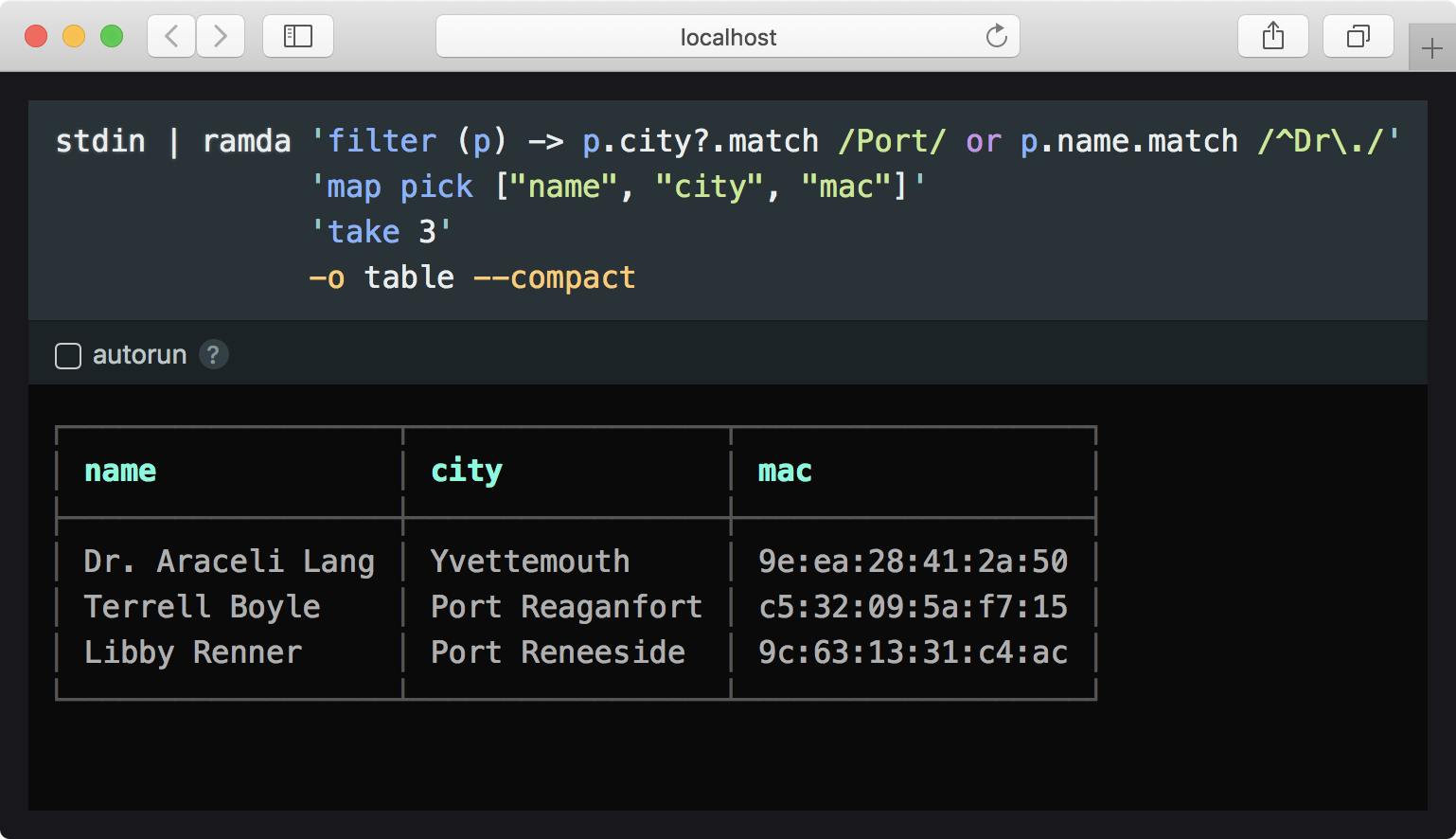
sh$ npm install -g ramda-cli $ curl -Ls https://bit.ly/gist-people-json | ramda \ 'filter (p) -> p.city?.match /Port/ or p.name.match /^Dr\./' \ 'map pick ["name", "city", "mac"]' \ 'take 3' \ -o table --compact ┌──────────────────┬─────────────────┬───────────────────┐ │ name │ city │ mac │ ├──────────────────┼─────────────────┼───────────────────┤ │ Dr. Araceli Lang │ Yvettemouth │ 9e:ea:28:41:2a:50 │ │ Terrell Boyle │ Port Reaganfort │ c5:32:09:5a:f7:15 │ │ Libby Renner │ Port Reneeside │ 9c:63:13:31:c4:ac │ └──────────────────┴─────────────────┴───────────────────┘
Or, pass in --interactive to launch in browser.
✨ highlights
- Build elegant data-processing pipelines in the command-line with Ramda's data-last API
- No new syntax to learn: Use LiveScript or JavaScript, and the functions you know from Ramda
- Use any npm module seamlessly
- Interactive mode for building pipelines iteratively with instant feedback
Table of Contents
- Interactive mode
- Examples
- JavaScript
- Options
- Evaluation context
- Configuration
- Using packages from npm
- Promises
- Debugging
- LiveScript?
Resources
- Cookbook
- Tutorial: Using ramda-cli to process and display data from GitHub API
- Essential LiveScript for ramda-cli
install
shnpm install -g ramda-cli
synopsis
shcat data.json | ramda [function] ...
The idea is to compose functions into a pipeline of operations
that when applied to given data, produces the desired output.
By default, the function is applied to a stream of JSON data read from stdin,
and the output data is sent to standard out as JSON.
Technically, function should be a snippet of LiveScript (or JavaScript with
--js) that evaluates into a function. If multiple function arguments are
supplied as positional arguments, they are composed into a pipeline in order
from left to right.
For example, the command
shecho '[1,2,3]' | ramda 'filter (> 1)' 'map multiply 2' 'product' 24
is roughly equivalent in the following operation:
jsR.pipe( JSON.parse, R.filter(x => x > 1), R.map(R.multiply(2)), R.product, JSON.stringify )('[1,2,3]') // "24"
(see R.pipe).
All Ramda's functions are available directly in the context. See
http://ramdajs.com/docs/ for a full list and Evaluation
context section for other functions.
interactive mode
<a href="https://raw.githubusercontent.com/raine/ramda-cli/media/interactive.png"> <img align="right" width="250" src="https://raw.githubusercontent.com/raine/ramda-cli/media/interactive_thumb.png?1"/> </a>New in v4.0
When launched with the --interactive parameter, ramda-cli opens in the
browser. The pipeline, if given, is placed in an embedded code editor that
emulates the prompt in command-line. As the pipeline is edited, changes to
output are reflected below in the output panel.
In interactive mode, ramda-cli is generally operated the same way as on the
command-line. The key benefit is being able to develop pipelines incrementally
with much shorter feedback cycle.
Input is passed to interactive mode in stdin, as usual.
You may pipe stdout to other commands even when using interactive mode. When the
interactive mode tab is closed, the result will printed to stdout.
copy-pasteable example
shcurl -Ls http://bit.ly/gist-people-json | npx ramda-cli \ 'filter (p) -> p.city is /Port/ or p.name is /^Dr\./' \ 'filter (p) -> p.email?.includes ".info"' \ 'project <[ name city mac email ]>' \ 'take 100' \ --interactive \ -o table --compact
examples
sh# Add 1 to each value in a list echo [1,2,3] | ramda 'map add 1' [ 2, 3, 4 ]
sh# Add 1 to each value with inline ES6 lambda and take product of all echo [1,2,3] | ramda --js 'map(x => x + 1)' product 24
Get a list of people whose first name starts with "B"
shcat people.json | ramda 'pluck \name' 'filter (name) -> name.0 is \B)' -o raw Brando Jacobson Betsy Bayer Beverly Gleichner Beryl Lindgren
Ramda functions used:
pluck,
filter
Data: people.json
Create a markdown TODO list
shcurl -s http://jsonplaceholder.typicode.com/todos |\ ramda --raw-output \ 'filter where-eq user-id: 10' \ 'map (t) -> "- [#{t.completed && "x" || " "}] #{t.title}"' \ 'take 5' \ 'unlines'
Output
- ut cupiditate sequi aliquam fuga maiores
- inventore saepe cumque et aut illum enim
- omnis nulla eum aliquam distinctio
- molestias modi perferendis perspiciatis
- voluptates dignissimos sed doloribus animi quaerat aut
List versions of a npm module with ISO times formatted using a module from npm
shnpm view ramda --json | ramda --import time-ago:ta \ 'prop "time"' \ 'to-pairs' \ 'map -> version: it.0, time: ta.ago(it.1)' \ 'reverse' \ -o table --compact ... ┌───────────────┬──────────────┐ │ version │ time │ ├───────────────┼──────────────┤ │ 0.26.1 │ 1 month ago │ │ 0.26.0 │ 2 months ago │ │ 0.25.0 │ 1 year ago │ │ 0.24.1-es.rc3 │ 1 year ago │ │ 0.24.1-es.rc2 │ 1 year ago │ ...
Search twitter for people who tweeted about ramda and pretty print the result
shtwarc.py --search '#ramda' | ramda --slurp -p 'map path [\user, \screen_name]' uniq
Pull response status data from Graphite and visualize
HTTP status codes per minute for last hour:
<a href="https://raw.githubusercontent.com/raine/ramda-cli/media/graphite-http-codes.png"> <img width="256" src="https://raw.githubusercontent.com/raine/ramda-cli/media/graphite-http-codes_thumb.png"/> </a>shgraphite -t "summarize(stats_counts.status_codes.*, '1min', 'sum', false)" -f '-1h' -o json | \ ramda --import sparkline 'map evolve datapoints: (map head) >> sparkline \ 'sort-by prop \target' -o table
Use --slurp to read multiple JSON objects into a single list before any operations
shcat <<EOF | ramda --slurp identity "foo bar" "test lol" "hello world" EOF [ "foo bar", "test lol", "hello world" ]
Solution to the credit card JSON to CSV challenge using --output-type csv
bash#!/usr/bin/env bash data_url=https://gist.githubusercontent.com/jorinvo/7f19ce95a9a842956358/raw/e319340c2f6691f9cc8d8cc57ed532b5093e3619/data.json curl $data_url | ramda \ 'filter where creditcard: (!= null)' `# filter out those who don't have credit card` \ 'project [\name, \creditcard]' `# pick name and creditcard fields from all objects` \ -o csv > `date "+%Y%m%d"`.csv `# print output as csv to a file named as the current date`
List a project's dependencies in a table
shnpm ls --json | ramda 'prop \dependencies' 'map-obj prop \version' -o table --compact ┌───────────────┬────────┐ │ JSONStream │ 1.0.4 │ │ treis │ 2.3.9 │ │ ramda │ 0.14.0 │ │ livescript │ 1.4.0 │ │ cli-table │ 0.3.1 │ └───────────────┴────────┘
Generate HTML with hyperscript
shcat <<EOF > shopping.txt milk cheese peanuts EOF
shcat shopping.txt | ramda --import hyperscript:h \ -rR --slurp `# read raw input into a list` \ 'map (h \li.item, _)' `# apply <li class="item"> into each item` \ 'h \ul#list, _' `# wrap list inside <ul id="list">` \ '.outer-HTML' `# finally, grab the HTML`
html<ul id="list"> <li class="item">milk</li> <li class="item">cheese</li> <li class="item">peanuts</li> </ul>
Reason for underscores (e.g. h \ul, _) is that hyperscript API is not
curried (and can't be because it's variadic). We need to explicitly state
that this function is waiting for one more argument.
For more examples, see the Cookbook.
using javascript
If LiveScript is not your thing, you may write pipelines in JavaScript using the
--js parameter.
shecho '[1,2,3]' | ramda --js 'map(x => x + 1)' [ 2, 3, 4 ]
options
Usage: ramda [options] [function] ...

  -I, --interactive    run interactively in browser
  -f, --file           read a function from a js/ls file instead of args; useful for
                       larger scripts
  -c, --compact        compact output for JSON and tables
  -s, --slurp          read JSON objects from stdin as one big list
  -S, --unslurp        unwraps a list before output so that each item is formatted and
                       printed separately
  -t, --transduce      use pipeline as a transducer to transform stdin
  -P, --json-path      parse stream with JSONPath expression
  -i, --input-type     read input from stdin as (#{format-enum-list INPUT_TYPES})
  -o, --output-type    format output sent to stdout (#{format-enum-list OUTPUT_TYPES})
  -p, --pretty         pretty-printed output with colors, alias to -o pretty
  -D, --pretty-depth   set how deep objects are pretty printed
  -r, --raw-input      alias for --input-type raw
  -R, --raw-output     alias for --output-type raw
  -n, --no-stdin       don't read input from stdin
      --[no-]headers   csv/tsv has a header row
      --csv-delimiter  custom csv delimiter character
      --js             use javascript instead of livescript
      --import         import a module from npm
  -C, --configure      edit config in $EDITOR
  -v, --verbose        print debugging information (use -vv for even more)
      --version        print version
  -h, --help           displays help
-I, --interactive
Launch interactive mode in browser.
See Interactive mode.
-f, --file
Load a function pipeline from a file. Useful for scripts difficult to express
in command-line.
Example
js// shout.js var R = require('ramda'); module.exports = R.pipe(R.toUpper, R.add(R.__, '!'));
shecho -n '"hello world"' | ramda --file shout.js "HELLO WORLD!"
You can overwrite command-line arguments through the script by exporting a
string in property opts.
jsmodule.exports = function() { /* ... */ } module.exports.opts = '--slurp -o table'
-c, --compact
Print compact tables and JSON output without whitespace.
When used with --output-type raw, no line breaks are added to output.
Example
shseq 10 | ramda --input-type raw --output-type raw --compact identity # or -rRc 12345678910%
-s, --slurp
Read all input from stdin and wrap the data in a list before operations.
Example
shcat <<EOF | ramda --slurp 'map to-upper' "foo" "bar" "xyz" EOF [ "FOO", "BAR", "XYZ" ]
-S, --unslurp
After the pipeline is applied to an item and if the result is an array, its
items are printed separately.
Example
shecho '[1,2,3]' | ramda --unslurp 'map inc' 2 3 4
-t, --transduce
Transform the input stream using the pipeline as a
transducer. Requires all functions in the pipeline
to be able to act as transducers.
This option essentially allows performing operations like
R.map or
R.filter on items as they come without
waiting for the stream to complete or wrapping the input stream in a
collection with --slurp.
Example
shecho '1 2 2 3 3 4' | ramda --transduce drop-repeats 1 2 3 4
-P, --json-path
Parse the input stream with given JSONPath expression.
See also: JSONStream documentation
Examples
Process a huge JSON array one by one without reading the whole thing first.
* as JSON path unwraps the array and objects are passed to identity one by one.
shcurl -Ls http://bit.do/countries-json | ramda --json-path '*' --compact identity {"name":"Afghanistan","code":"AF"} {"name":"Åland Islands","code":"AX"} {"name":"Albania","code":"AL"} ...
-i, --input-type
Parse stdin as one of these formats: raw, csv, tsv.
Examples
shecho foo | ramda --input-type raw to-upper "FOO"
sh$ cat <<EOF | ramda --input-type csv identity id,name 1,Bob 2,Alice EOF [ { "id": "1", "name": "Bob" }, { "id": "2", "name": "Alice" } ]
-o, --output-type
Instead of JSON, format output as one of: pretty, raw, csv, tsv, table.
-o pretty
Print pretty output.
-o raw
With raw output type when a string value is produced, the result will be
written to stdout as is without any formatting.
-o csv and -o tsv
CSV or TSV output type can be used when pipeline evaluates to an array of
objects, an array of arrays or when stdin consists of a stream of bare
objects. First object's keys will determine the headers.
-o table
Print nearly any type of data as a table. If used with a list of objects,
uses the first object's keys as headers.
Example
shcurl -Ls http://bit.do/countries-json | ramda 'take 3' -o table --compact ┌───────────────┬──────┐ │ name │ code │ ├───────────────┼──────┤ │ Afghanistan │ AF │ │ Åland Islands │ AX │ │ Albania │ AL │ └───────────────┴──────┘
-p, --pretty
Alias of --output-type pretty.
-D, --pretty-depth
When using pretty-printed output, set how deep structures are verbosely
printed.
Useful when output is huge and you want to see the general structure of an
object or list.
See documentation of util.inspect(object[, options])
-n, --no-stdin
Don't read stdin for input. Useful when starting a pipeline with a constant
function.
Example
shramda --no-stdin 'always "hello world"' 'add __, \!' "hello world!"
--[no-]headers
Set if input csv/tsv contains a header row.
By default, csv/tsv input is assumed to contain headers.
--csv-delimiter
Use a custom csv delimiter. Delimiter is comma by default.
Example: --csv-delimiter=';'
--js
Interpret positional arguments as JavaScript instead of LiveScript.
Example
shecho '[1,2,3]' | ramda --js 'map(x => Math.pow(x, 2))' [ 1, 4, 9 ]
--import <package>
Install given package from npm, and make it available in the pipeline.
Symbol : combined with a name can be used to declare the variable name module
should appear as. Otherwise, it is imported as camelcased name of the module.
Can be used multiple times to import more than one module.
Example
shecho test | ramda -rR --import chalk:c 'c.bold' **test**
-C, --configure
Edit ramda-cli config file in $EDITOR.
See Configuration.
evaluation context
functions
All of Ramda's functions are available, and also:
| function | signature | description |
|---|---|---|
id | a → a | Alias to R.identity |
flat | * → Object | Flatten a deep structure into a shallow object |
readFile | filePath → String | Read a file as string |
lines | String → [String] | Split a string into lines |
words | String → [String] | Split a string into words |
unlines | [String] → String | Join a list of lines into a string |
unwords | [String] → String | Join a list of words into a string |
then | Function → Promise | Map a value inside Promise |
pickDotPaths | [k] → {k: v} → {k: v} | Like R.pick but deep using dot delimited paths |
renameKeysBy | Function → {k: v} → {k: v} | Like R.map but for keys instead of values |
objects
| object | description |
|---|---|
process | https://nodejs.org/api/process.html |
console | https://nodejs.org/api/console.html |
process.exit() can be used to short-circuit pipeline in case of an error,
for example:
shcurl api | ramda 'tap (res) -> if res.error then console.error(res); process.exit(1)'
An alternative is to use Maybe type.
configuration
config file
Path: $HOME/.config/ramda-cli.{js,ls}
The purpose of a global config file is to carry functions you might find
useful to have around. The functions it exports in an object are made
available.
For example,
js// ~/.config/ramda-cli.js exports.date = (val) => new Date(val); exports.timeago = require('timeago'); exports.debug = (val) => { console.log('debug:', val); return val; };
shecho 1442667243000 | ramda date debug timeago debug: Sat Sep 19 2015 12:54:03 GMT+0000 (UTC) "12 minutes ago"
default options
To make some options be passed by default, it is best to use a shell alias.
For example:
sh# always interpret as javascript alias ramda="ramda --js" echo 1 | ramda '(x) => x + 1' 2
using packages from npm
New in v5.0: ramda-cli installs specified modules transparently from npm,
manual installation is no longer required.
With the --import parameter, any module from npm can be installed and imported
into the pipeline context. Invocations with a particular module will be instant
once installed.
promises
Promise values are unwrapped at the end of pipeline.
then helper function can be used to map promise values.
shecho 1 | ramda --js 'x => Promise.resolve(x)' 'then(add(5))' 6
shecho '192.168.1.1\ngoogle.com\nyahoo.com' | \ ramda -r --js --import ping 'ping.promise.probe' 'then(omit(["output", "numeric_host"]))' | \ ramda --slurp -o table --compact ┌─────────────┬───────┬─────────┬─────────┬─────────┬─────────┬────────┐ │ host │ alive │ time │ min │ max │ avg │ stddev │ ├─────────────┼───────┼─────────┼─────────┼─────────┼─────────┼────────┤ │ 192.168.1.1 │ true │ 1.325 │ 1.325 │ 1.325 │ 1.325 │ 0.000 │ │ google.com │ true │ 10.729 │ 10.729 │ 10.729 │ 10.729 │ 0.000 │ │ yahoo.com │ true │ 115.418 │ 115.418 │ 115.418 │ 115.418 │ 0.000 │ └─────────────┴───────┴─────────┴─────────┴─────────┴─────────┴────────┘
debugging
You can turn on the debug output with -v, --verbose flag. Use -vv for
even more verbose output.
Verbose output shows what entered LiveScript compiled to.
To debug individual functions in the pipeline, you can use something like treis.
shecho 1 | ramda --import treis 'treis(add(1))'
f1 a: 1
f1 => 2
2
livescript?
LiveScript is a language which compiles to JavaScript. It has
a straightforward mapping to JavaScript and allows you to write expressive
code devoid of repetitive boilerplate.
comparison table
All expressions in the table evaluate to a function, and are valid in
ramda-cli.
| Ramda | LiveScript | JavaScript |
|---|---|---|
not | (not) | x => !x |
nth(0) | (.0) | x => x[0] |
prop('name') | (.name) | x => x.name |
add(1) | (+ 1) | x => x + 1 |
add(__, '!') | (+ '!') | x => x + '!' |
gt(__, 2) | (> 2) | x => x > 2 |
contains(__, xs) | (in xs) | x => xs.includes(x) |
pipe(length, gt(__, 2)) | (.length > 2) | x => x.length > 2 |
isNil | (~= null) | x => x == null |
complement(isNil) | (!~= null) | x => x != null |
match(/foo/) | (is /foo/) | x => x.match(/foo/) |
replace('a', '') | (- 'a') | x => x.replace('a', '') |
join(',') | (* ',') | x => x.join(',') |
split(',') | (/ ',') | x => x.split(',') |
toUpper | (.to-upper-case!) | x => x.toUpperCase() |
See also: Essential LiveScript for ramda-cli
questions or suggestions?
contributors
Contributors
Showing top 3 contributors by commit count.


Related Repositories

n8n-io/n8n
Fair-code workflow automation platform with native AI capabilities. Combine visual building with custom code, self-host or cloud, 400+ integrations.

ohmyzsh/ohmyzsh
🙃 A delightful community-driven (with 2,500+ contributors) framework for managing your zsh configuration. Includes 300+ optional plugins (rails, git, macOS, hub, docker, homebrew, node, php, python, etc), 140+ themes to spice up your morning, and an auto-update tool that makes it easy to keep up with the latest updates from the community.

yt-dlp/yt-dlp
A feature-rich command-line audio/video downloader

google-gemini/gemini-cli
An open-source AI agent that brings the power of Gemini directly into your terminal.

sherlock-project/sherlock
Hunt down social media accounts by username across social networks

junegunn/fzf
:cherry_blossom: A command-line fuzzy finder