

Junction
Application/browser chooser
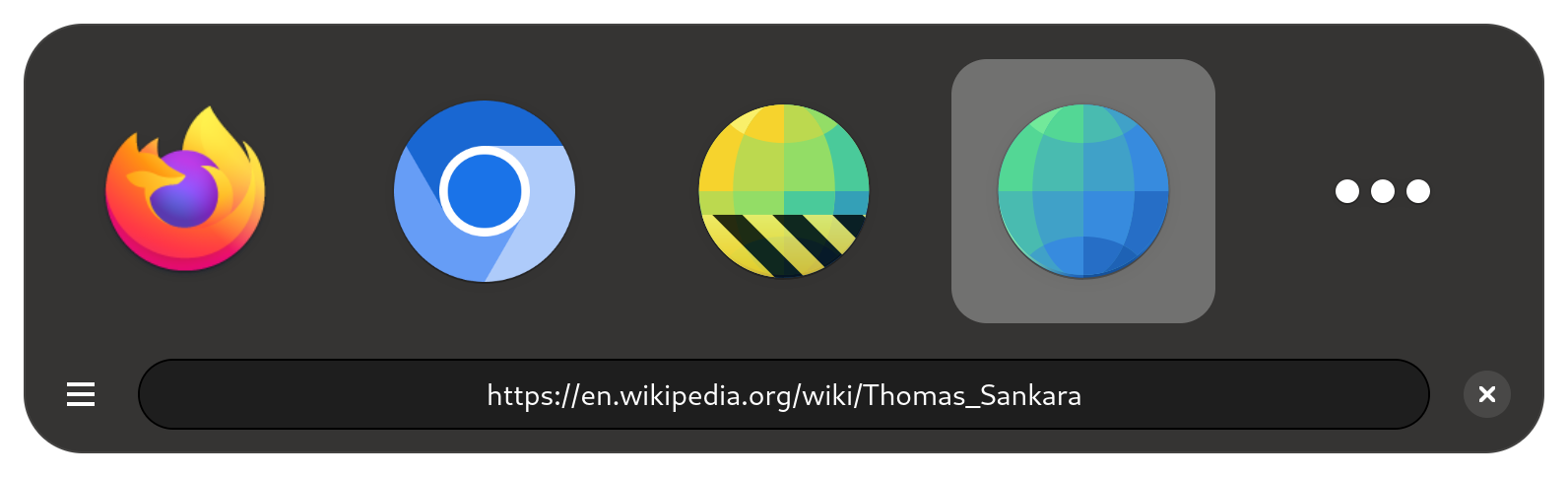
Junction lets you choose the application to open files and links. The project is written primarily in JavaScript, distributed under the GNU General Public License v3.0 license, first published in 2021. Key topics include: desktop, flatpak, gjs, gnome, gtk.
Junction
Junction lets you choose the application to open files and links.
<a href='https://flathub.org/apps/re.sonny.Junction'><img width='240' height='80' alt='Download on Flathub' src='https://flathub.org/api/badge?svg&locale=en'/></a>
Usage
Set Junction as the default application for a resource and let it do the rest. Junction will pop up and offer multiple options to handle it.
<details> <summary>Set Junction as default browser</summary> <code> xdg-settings set default-web-browser re.sonny.Junction.desktop </code> </details> <details> <summary>Set Junction as default for all files</summary> <code> xdg-mime default re.sonny.Junction.desktop x-scheme-handler/file </code>Please note that this may not be respected by all applications but the command xdg-open will.
Junction has a very simple API that doesn't require any programming. To open any resource with Junction, even if it's not configured as the default application, simply use the following URI format x-junction://$RESOURCE. For examples
x-junction://https://github.comx-junction://~x-junction://file:///etc/os-releasex-junction:///etc/os-release
You can use this in web pages, the terminal, native applications and anything that is able to open URIs.
If Junction is installed - you can test this in the terminal with xdg-open "x-junction://file:///etc/os-release" and in the browser with <a href="x-junction://file:///etc/os-release">Test Junction URI</a>.
Tips and tricks
<details> <summary>Keyboard navigation</summary>Use the menu or <Ctrl>? to learn about Keyboard usage. You can navigate the UI with the arrow keys too.
Use Middle-click, Ctrl+Click, Ctrl+Enter or Ctrl+Space to keep Junction open - allowing you to open the resource in multiple applications.
</details> <details> <summary>Make Junction appear in the center of the screen</summary>On GNOME you can make all new windows open in the center using
shgsettings set org.gnome.mutter center-new-windows true
See https://gitlab.gnome.org/GNOME/mutter/-/issues/246
</details> <details> <summary>Use Junction from the terminal</summary>Create a permant alias, for example alias open="flatpak run re.sonny.Junction".
Then you can use open my-file.
See How To Create Permanent Aliases In Linux?
</details> <details> <summary>Add custom scripts to Junction</summary>You can add your own script to Junction by creating a .desktop file for it in ~/.local/share/applications.
See https://wiki.archlinux.org/title/desktop_entries (distro agnostic).
</details> <details> <summary>Browser integration</summary> <!-- Drag the following [bookmarklet](https://en.wikipedia.org/wiki/Bookmarklet) to your browser bookmarks toolbar to create a button to open the current page in Junction. Bookmarklet: <a herf="javascript:window.location='x-junction://'+window.location">Junction</a> -->Create a bookmark with the following URL
javascript:window.location='x-junction://'+window.location
See Profile Manager - Create, remove or switch Firefox profiles
If you want to be able to choose the Firefox profile to open the resource with, you can make desktop files for your Firefox profiles in ~/.local/share/applications.
Here is an example ~/.local/share/applications/firefox-work.desktop
ini[Desktop Entry] Version=1.0 Name=Firefox work Exec=firefox -P work --class=firefox-work %u Icon=firefox Terminal=false Type=Application StartupWMClass=firefox-work MimeType=text/html;text/xml;application/xhtml+xml;application/vnd.mozilla.xul+xml;text/mml;x-scheme-handler/http;x-scheme-handler/https; StartupNotify=true
Save, run update-desktop-database ~/.local/share/applications, enjoy.
# Before
Exec=firefox %u
# After
Exec=env MOZ_USE_XINPUT2=1 firefox %u
Troubleshooting
<details> <summary>I can't distinguish between options with the same icon</summary>Within Junction, you can toggle Show names in the menu or hover the application with the mouse to display a tooltip.
Otherwise, you can edit the desktop files to use distinctive icons, here are a some tools
</details> <details> <summary>My app doesn't show up</summary>If the application was installed via Flatpak, the package manager or an other conventional way, feel free to open an issue.
Make sure the application desktop file has a MimeType key that matches the type of resource you want it to handle. For example if you want the application ~/.local/share/applications/my-custom-browser.desktop to handle web content; add the following MimeType=text/html;text/xml;application/xhtml+xml;text/mml;x-scheme-handler/http;x-scheme-handler/https;.
The [Desktop Entry] of the .desktop file must be the first section as mandated by the specification.
The desktop filename should be unique. Junction can't display both /usr/share/applicatins/firefox.desktop and ~/.local/share/applications/firefox.desktop. The second overrides the first.
Finally - make sure to run update-desktop-database ~/.local/share/applications after installing a desktop file.
- System
/usr/share/applications/ - User
~/.local/share/applications/ - Flatpak system
/var/lib/flatpak/exports/share/applications/ - Flatpak user
~/.local/share/flatpak/exports/share/applications/ - Snap
/var/lib/snapd/desktop/applications/
In the media
linuxlinks.com - Junction – application/browser chooser - 04/2024
softpedia.com - Nifty and useful app switcher called Junction - 05/2022
itsfoss.com - 03/2022
youtube.com - Junction 1.4 | Choose the application to open files and links - 12/2021
linuxunplugged.com - Episode 433 The Lessons of Jellyfin - 11/2021
Translation
If you'd like to help translating Junction into your language, please head over to Weblate.
<a href="https://hosted.weblate.org/engage/junction/"> <img src="https://hosted.weblate.org/widgets/junction/-/junction/multi-auto.svg" alt="Translation status" /> </a>Thank you for your help!
Development
shgit clone --recursive https://github.com/sonnyp/Junction.git cd Junction npm install make dev
Make changes and press <Primary><Shift>Q on the Junction window to restart it.
Use <Primary><Shift>I to open the inspector.
To pass the tests you have to install a few dependencies
sh# Install development dependencies sudo dnf install --assumeyes npm flatpak make desktop-file-utils gjs gtk4-devel libadwaita-devel cd Junction npm install flatpak remote-add --user --if-not-exists flathub https://flathub.org/repo/flathub.flatpakrepo flatpak install --user --assumeyes --noninteractive flathub org.freedesktop.appstream-glib # Run tests make test
Maintainer
<details> <summary>Bookmarks</summary> </details> <details> <summary>i18n</summary>sh# To update the pot file # xgettext -f po/POTFILES -o po/re.sonny.Junction.pot --no-wrap -cTRANSLATORS --from-code=UTF-8 # sed -i "s/Project-Id-Version: PACKAGE VERSION/Project-Id-Version: re.sonny.Junction/" po/re.sonny.Junction.pot meson compile re.sonny.Junction-pot -C build # To create a translation # msginit -i po/re.sonny.Junction.pot -o po/fr.po -l fr_FR.UTF-8 echo -n " fr" >> po/LINGUAS meson compile re.sonny.Junction-update-po -C build # To update translations # msgmerge -U po/*.po po/re.sonny.Junction.pot meson compile re.sonny.Junction-update-po -C build
See https://github.com/sonnyp/Commit/pull/14#issuecomment-894070878
</details> <details> <summary>Publish new version</summary>- update metainfo and screenshot
meson compile re.sonny.Junction-pot -C buildmeson compile re.sonny.Junction-update-po -C build- Update version in
meson.build - git tag
- flathub
Copyright
© 2021 Sonny Piers
License
GPLv3. Please see COPYING file.
Contributors
Showing top 12 contributors by commit count.


Related Repositories

flutter/flutter
Flutter makes it easy and fast to build beautiful apps for mobile and beyond

microsoft/PowerToys
Microsoft PowerToys is a collection of utilities that supercharge productivity and customization on Windows

PanJiaChen/vue-element-admin
:tada: A magical vue admin https://panjiachen.github.io/vue-element-admin

ChatGPTNextWeb/NextChat
✨ Light and Fast AI Assistant. Support: Web | iOS | MacOS | Android | Linux | Windows

tw93/Pake
🤱🏻 Turn any webpage into a desktop app with one command.

GitSquared/edex-ui
A cross-platform, customizable science fiction terminal emulator with advanced monitoring & touchscreen support.