

Onehalf
Clean, vibrant and pleasing color schemes for Vim, Sublime Text, iTerm, gnome-terminal and more.
A color scheme for Sublime Text, (Neo)Vim, iTerm, and more. Based on Atom's One. The project is written primarily in Vim script, distributed under the MIT License license, first published in 2016. It has gained significant community traction with 1,893 stars and 231 forks on GitHub. Key topics include: alacritty, colorscheme, gnome-terminal, iterm, iterm2.
One Half ½ 🎨 🖥



A color scheme for Sublime Text, (Neo)Vim, iTerm, and more. Based on Atom's One.
- Name: One Half
- Author: Son A. Pham @sonph
- Repo: https://github.com/sonph/onehalf
- License: MIT
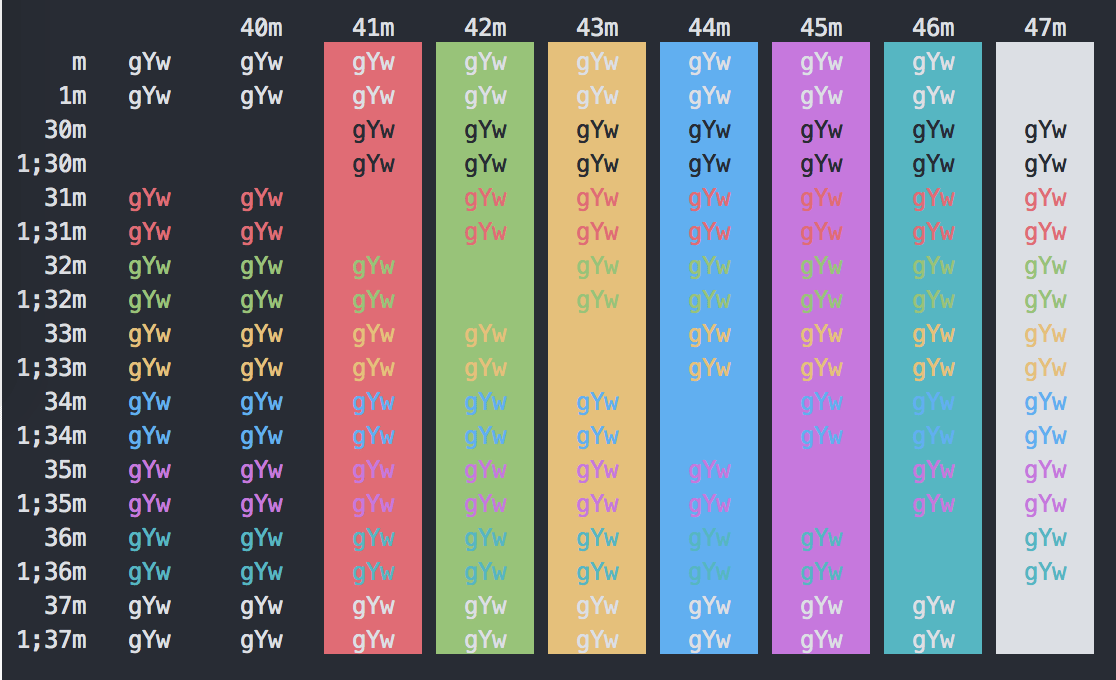
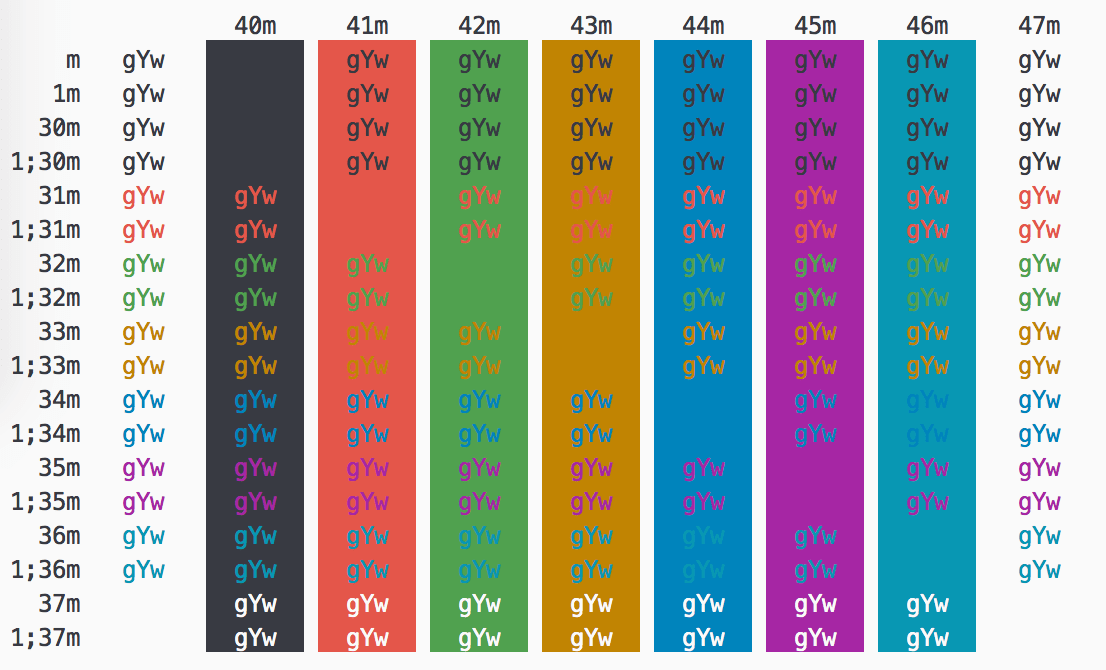
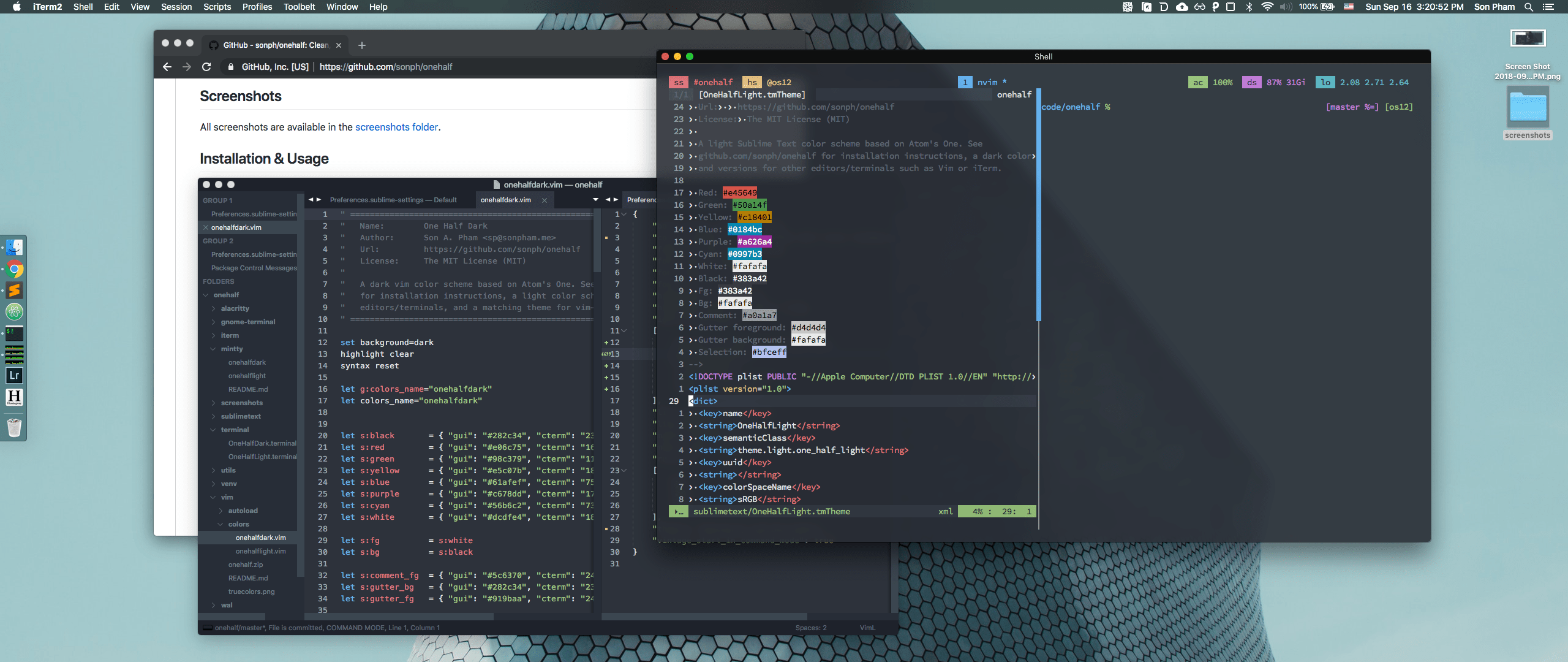
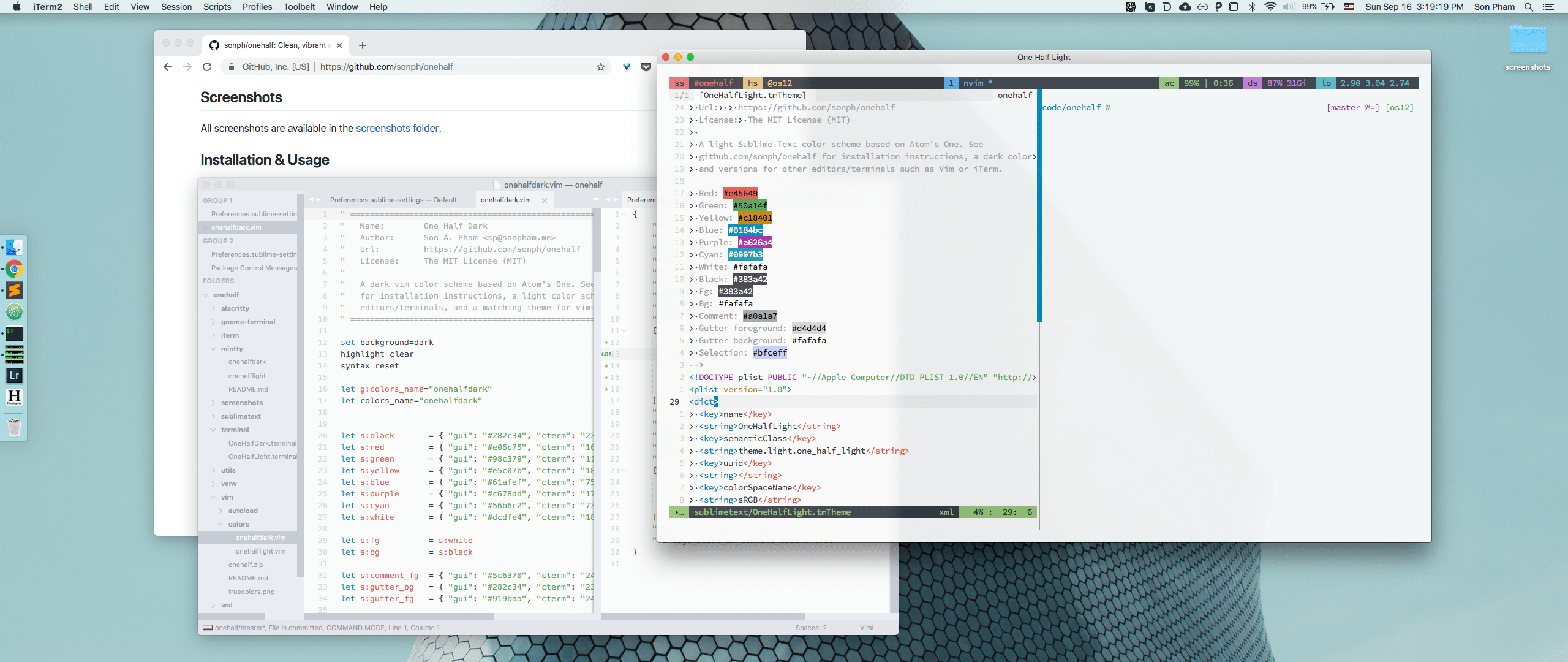
Table of Contents
Features
- Light and dark color schemes.
- Support a wide range of editors and terminals for a consistent color theme.
- Sublime Text 2/3
- VSCode
- GVim, MacVim, NeoVim, vim-airline (GUI/true colors)
- Terminal Vim, vim-airline (256 colors)
- iTerm2
- Xcode
- Windows Terminal
- OS X Terminal.app
- Gnome Terminal
- Konsole
- Alacritty
- Mintty/WSLtty
- FluentTerminal
- bat
- pywal
- PuTTY
- Kitty
- TextMate
- xfce4-terminal
- Hyper
- ConEmu
- IntelliJ
- Eclipse
- GNU Emacs
- Pygments
- Prism
- Add Your Suggestion
                        light     dark
0   normal  black       #383a42   #282c34
1   normal  red         #e45649   #e06c75
2   normal  green       #50a14f   #98c379
3   normal  yellow      #c18401   #e5c07b
4   normal  blue        #0184bc   #61afef
5   normal  magenta     #a626a4   #c678dd
6   normal  cyan        #0997b3   #56b6c2
7   normal  white       #fafafa   #dcdfe4
            foreground  #383a42   #dcdfe4
            background  #fafafa   #282c34
Screenshots
All screenshots are available in the screenshots folder.
Installation & Usage
Vim
Install with Vundle then set colorscheme and g:airline_theme:
Bundle 'sonph/onehalf', {'rtp': 'vim/'}
colorscheme onehalflight
let g:airline_theme='onehalfdark'
Or if you are using lightline, set g:lightline.colorscheme:
let g:lightline.colorscheme='onehalfdark'
If you want your vim and terminal colors to match exactly, you must enable true colors in vim.
For more details and manual installation, see vim README.
Sublime Text 2/3
Install with Package Control.
For more details and manual installation, see sublime text README.
iTerm2
- Download the theme files in the iterm folder.
- Import the color schemes:
- Either double click on the files to import.
- Or open iTerm Preferences > Profiles > Colors > Color Presets > Import
then select the downloaded files.
- Select Preferences > Profiles > Colors > Color Presets > One Half Light (Dark).
OS X Terminal.app
Download the files in the terminal folder and simply open the files. Terminal.app will
automatically recognize and import the color schemes.
Pywal
Copy the files in the wal/colorschemes folder under the matching
directories in ~/.config/wal/colorschemes, then enable the schemes (-l is for light theme):
> wal -l --theme one-half-light
# or
> wal --theme one-half-dark
Contributing / Troubleshooting / Bug Reports
Contributions are welcome. Feel free to open an issue
if you have problems installing and using the color schemes.
Contributors
Showing top 12 contributors by commit count.



Related Repositories

folke/tokyonight.nvim
🏙 A clean, dark Neovim theme written in Lua, with support for lsp, treesitter and lots of plugins. Includes additional themes for Kitty, Alacritty, iTerm and Fish.

mmulet/term.everything
Run any GUI app in the terminal❗

gh0stzk/dotfiles
BSPWM environment with 18 themes. With a theme selector to change on the fly.

kepano/flexoki
An inky color scheme for prose and code.

dikiaap/dotfiles
Get ready for dotfiles. Contains i3, i3blocks, rofi, dunst, picom, vim, tmux, and zsh.

sameemul-haque/dotfiles
✨ Hyprland + Waybar with Catppuccin theme • Arch Linux