

Screencap
To remember what happened yesterday, share progress and break addictions. With E2EE social publishing, local LLM classification, and MCP support
A macOS desktop app that captures screenshots, windows and apps (both background and foreground) on a schedule and transforms them into a timeline, daily summaries, project milestones, and addiction tracking. Screencap answers the questions like: The project is written primarily in TypeScript, distributed under the MIT License license, first published in 2026. Key topics include: activity-tracker, electron, mcp, ollama.
Screencap
To understand where your day went
A macOS desktop app that captures screenshots, windows and apps (both background and foreground) on a schedule and transforms them into a timeline, daily summaries, project milestones, and addiction tracking.
Screencap answers the questions like:
- What did I actually do today?
- How long did I really work?
- Am I spending too much time on Chess?
- What progress did I make on my project?
- What actual progress on project X has been made since September?
The idea behind this opensource is to inspire as many forks as possible. The project is fully free to use, encouraging everyone to customise and build their own Screencaps.
Project started as a background project tracker, as we all tend to have zero-to-little screenshots from projects we worked on for months. Then addiction tracker came in, Spotify background context, End Of Day flow, and the activity popup.
Download · Homebrew Tap · Changelog · Security · Local LLM
Install
Homebrew
bashbrew install --cask yahorbarkouski/tap/screencap
Or, if you prefer to add the tap first:
bashbrew tap yahorbarkouski/tap brew install --cask screencap
Features Summary
Timeline
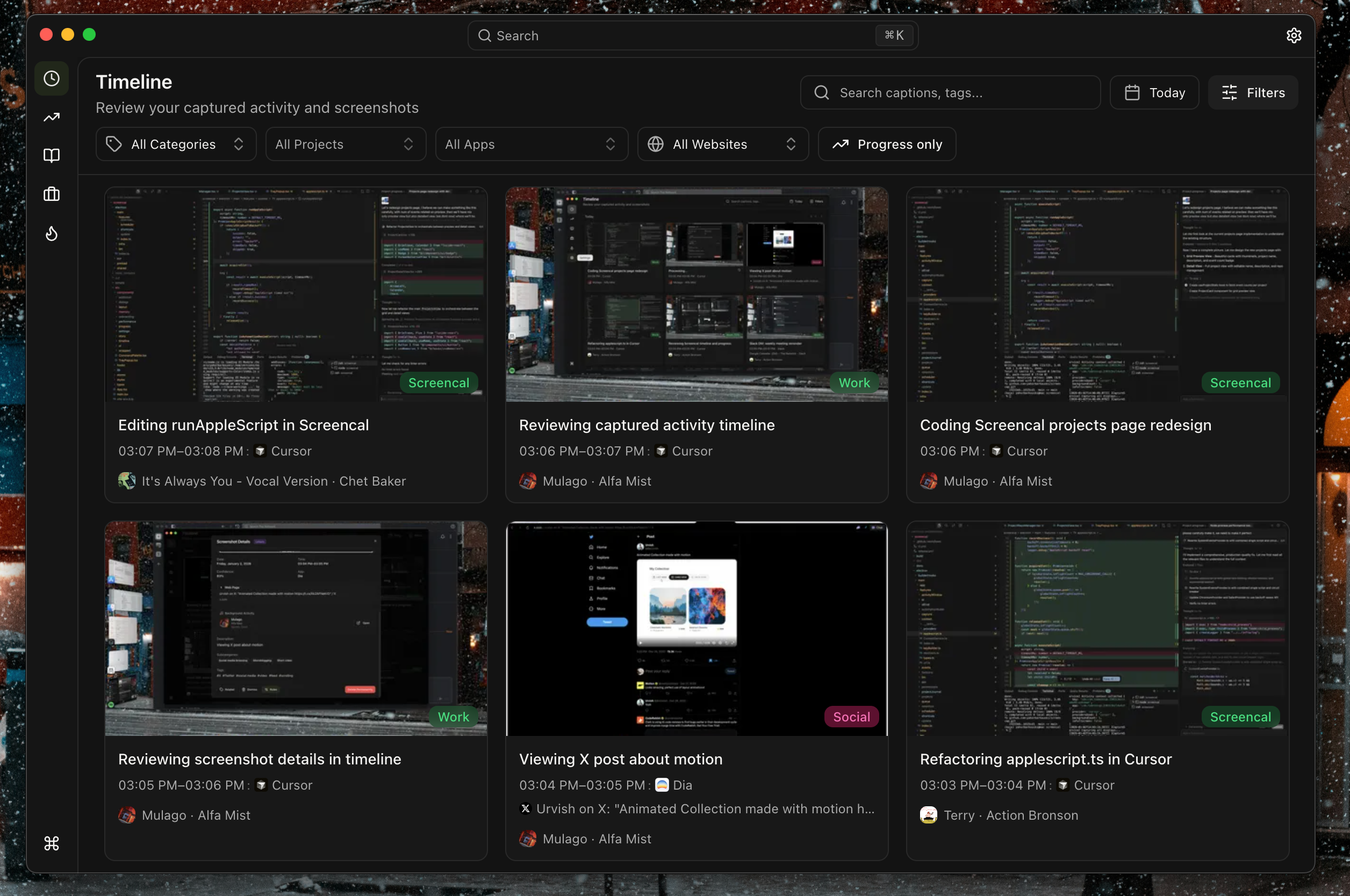
Time period (day), visualized as a stream of events
- Each card is an event — multiple captures with the same context and similar pixels merge into one time window
- Rich context extraction — app name, window title, browser URL, media playing, and per-app lower contexts like VS Code workspace
- Fully editable — relabel events, dismiss captures, copy screenshots, create per-app or per-website automation rules, mark as progress or addiction (by default done automatically via llms)
Day Wrapped
The tray widget "what happened today?" with quick actions and different views available.
<table> <tr> <td colspan="2" align="center">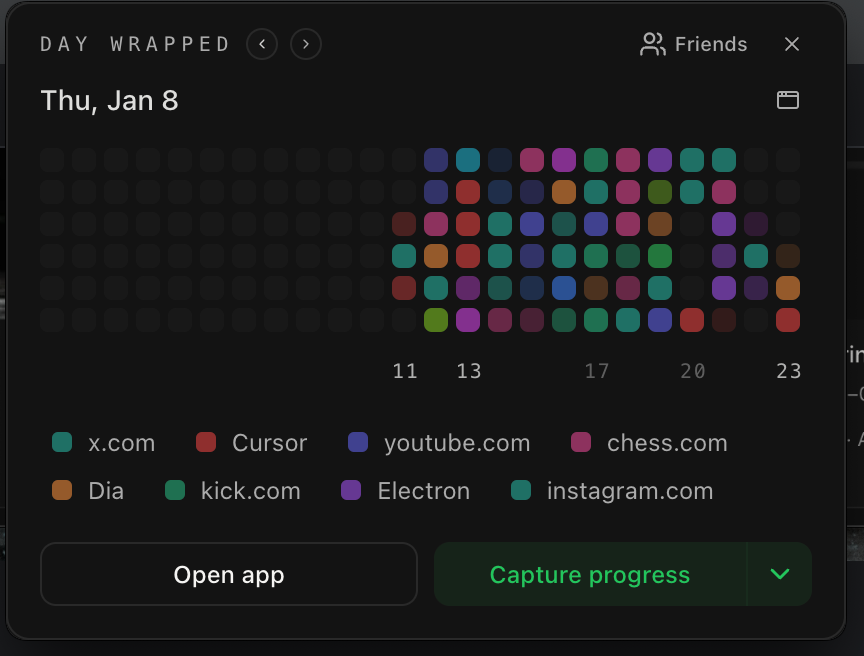
Apps View - see which apps and websites dominated each time slot
</td> </tr> <tr> <td width="50%" align="center">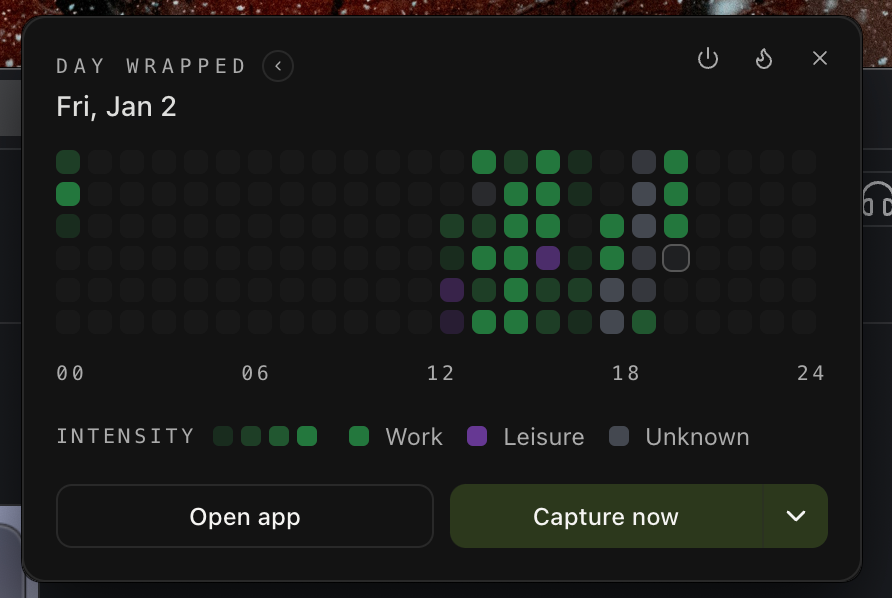
Categories - what categories dominated
</td> <td width="50%" align="center">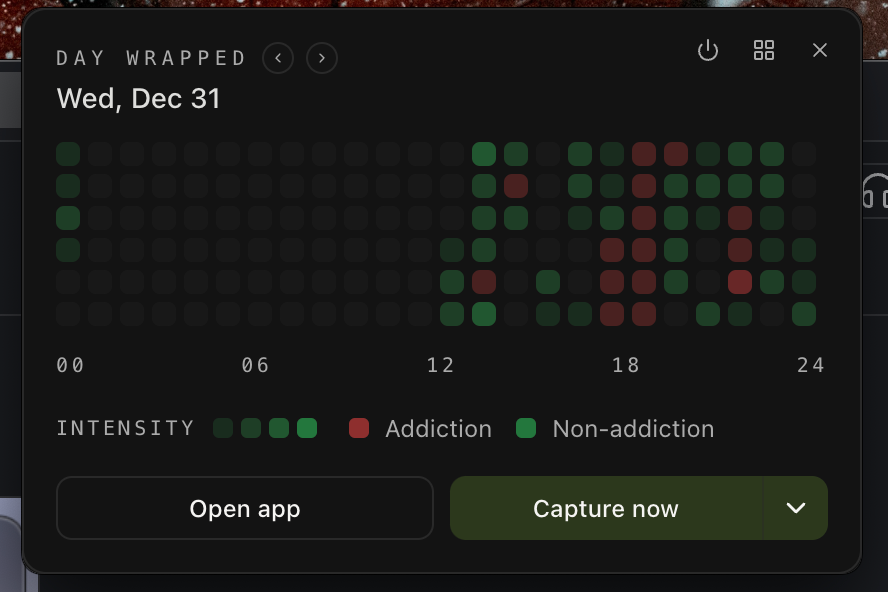
Addictions - confirmed signals highlighted
</td> </tr> </table>Quick actions:
- Capture now — trigger an immediate capture
- Capture project progress — save a milestone with a caption (screenshots active window and waits for a comment. would want to double-down and add loom-like view support one day)
Journal
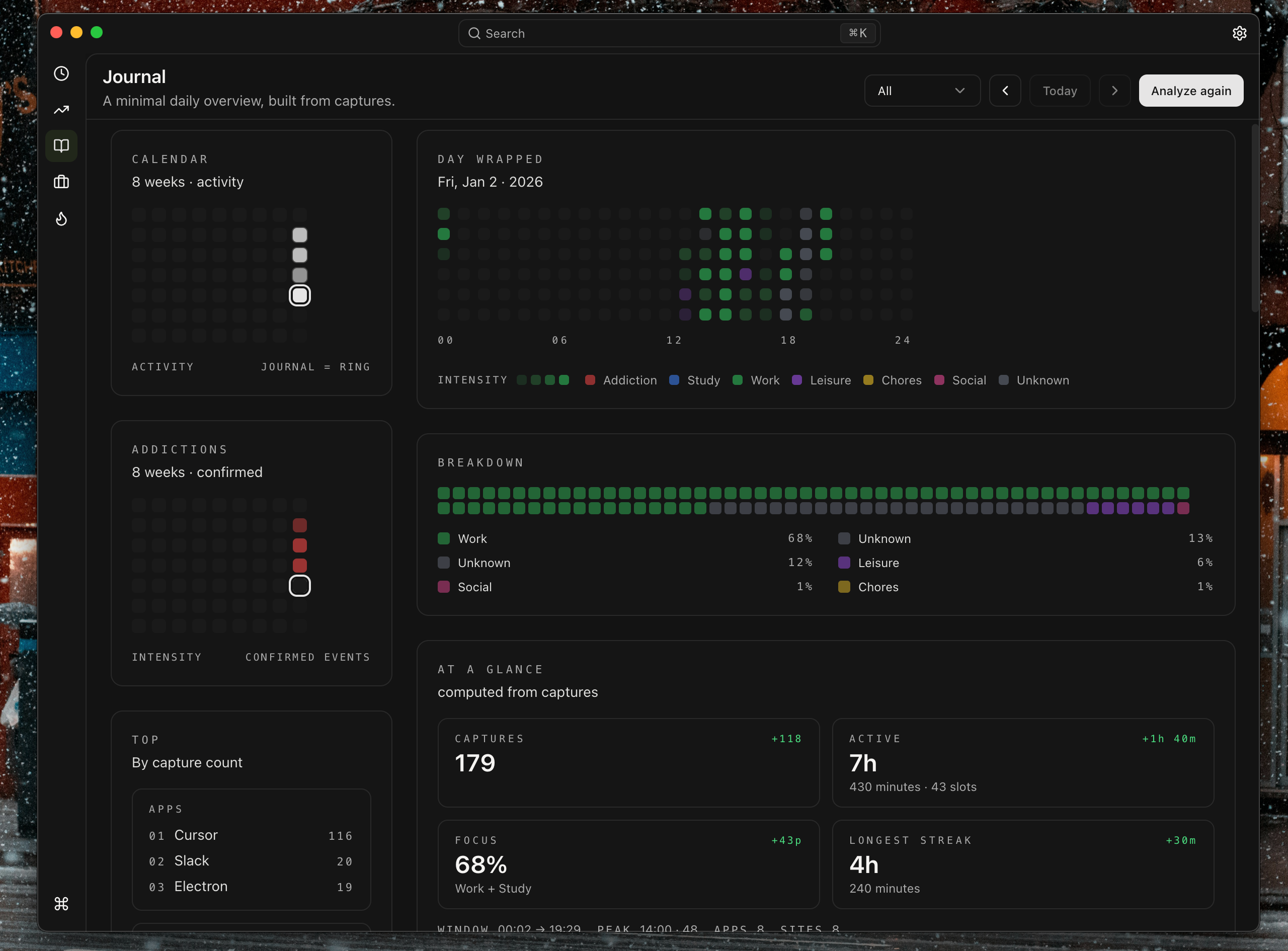
To turn your day into a narrative
- Dayline visualization — see your entire day at a glance with category colors
- Breakdown metrics — active time, focus percentage, longest streak, top apps/sites/projects
- End of Day — optional LLM-powered daily recap (or the one from End of Day flow below)
- Manual journaling — write reflections, embed event screenshots, create custom sections
End of Day Flow
A guided ritual to close your day intentionally, guides you through:
- Summary — metrics and dayline visualization
- Progress Review — confirm or promote potential milestones
- Addictions Review — acknowledge or dismiss flagged events
- Write — compose custom sections with embedded event screenshots
| Summary |
|---|
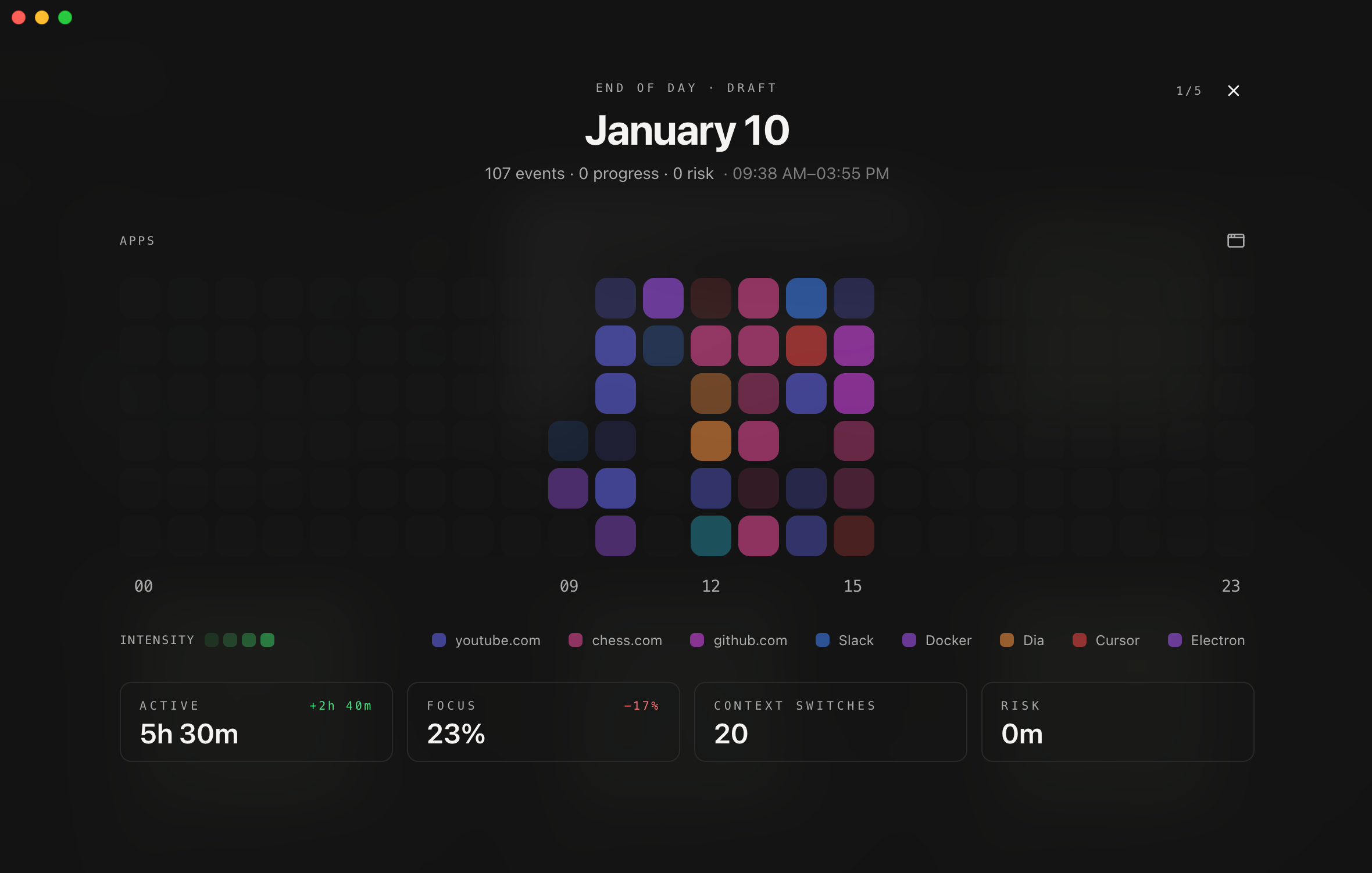 |
| active time, focus, progress milestones, addiction episodes. |
| Write |
|---|
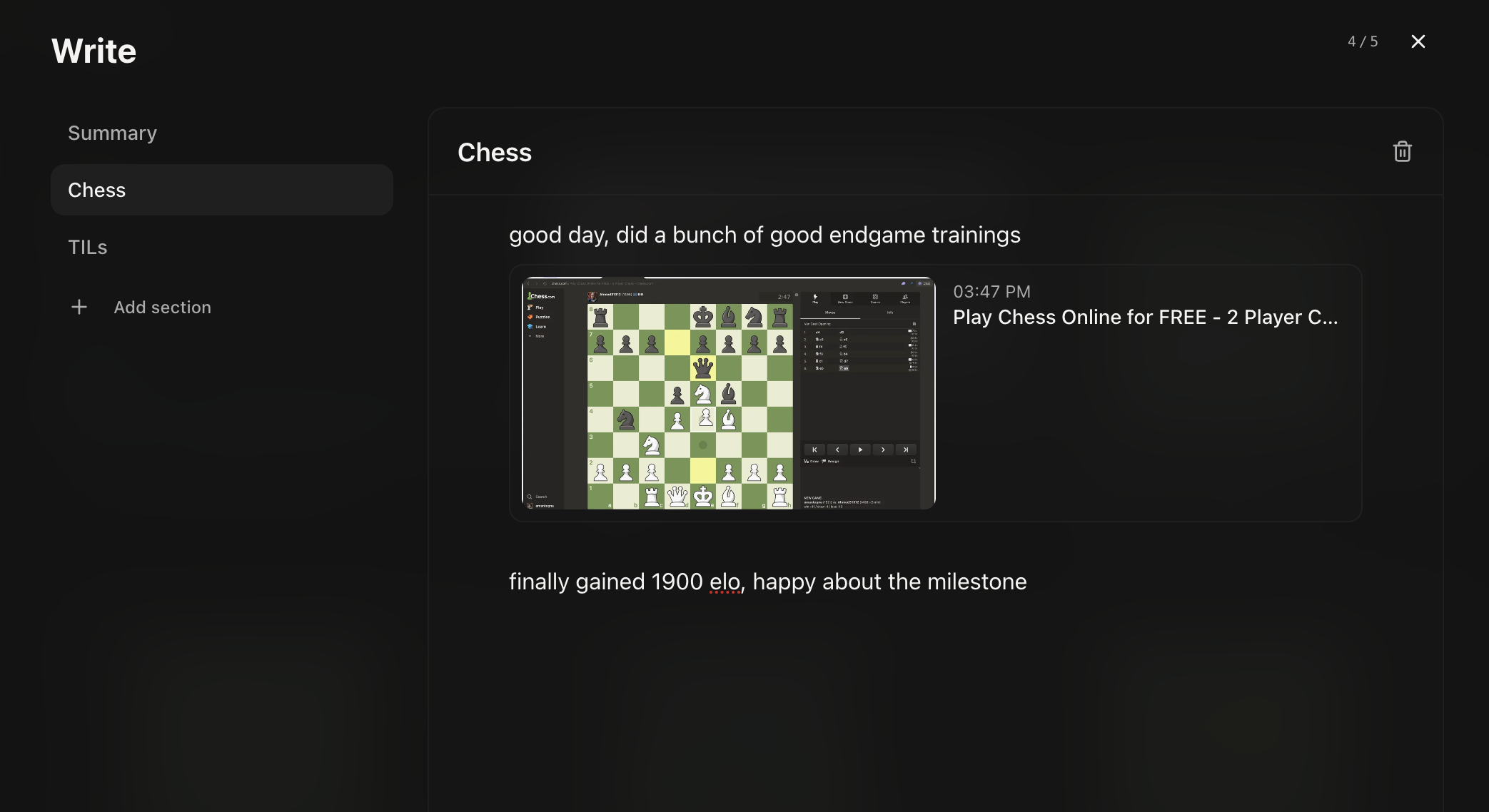 |
| to compose with embedded screenshots and custom sections. |
Addictions
Define behaviors you want to track, then measure. Bullet chess in my case:) But is thought for games and porn too, so tricky events are well-covered.
| Overview | Example: Speed Chess |
|---|---|
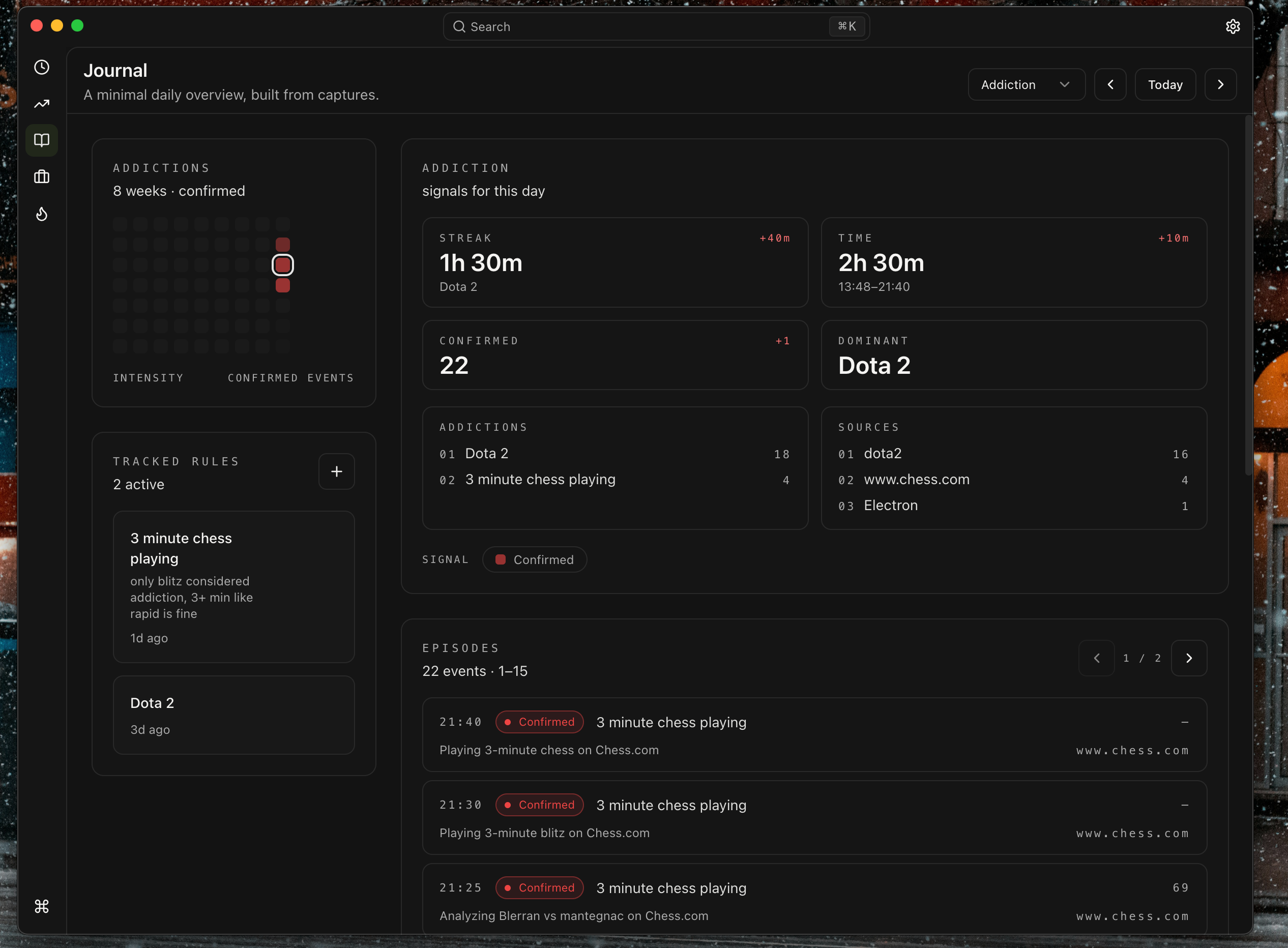 | 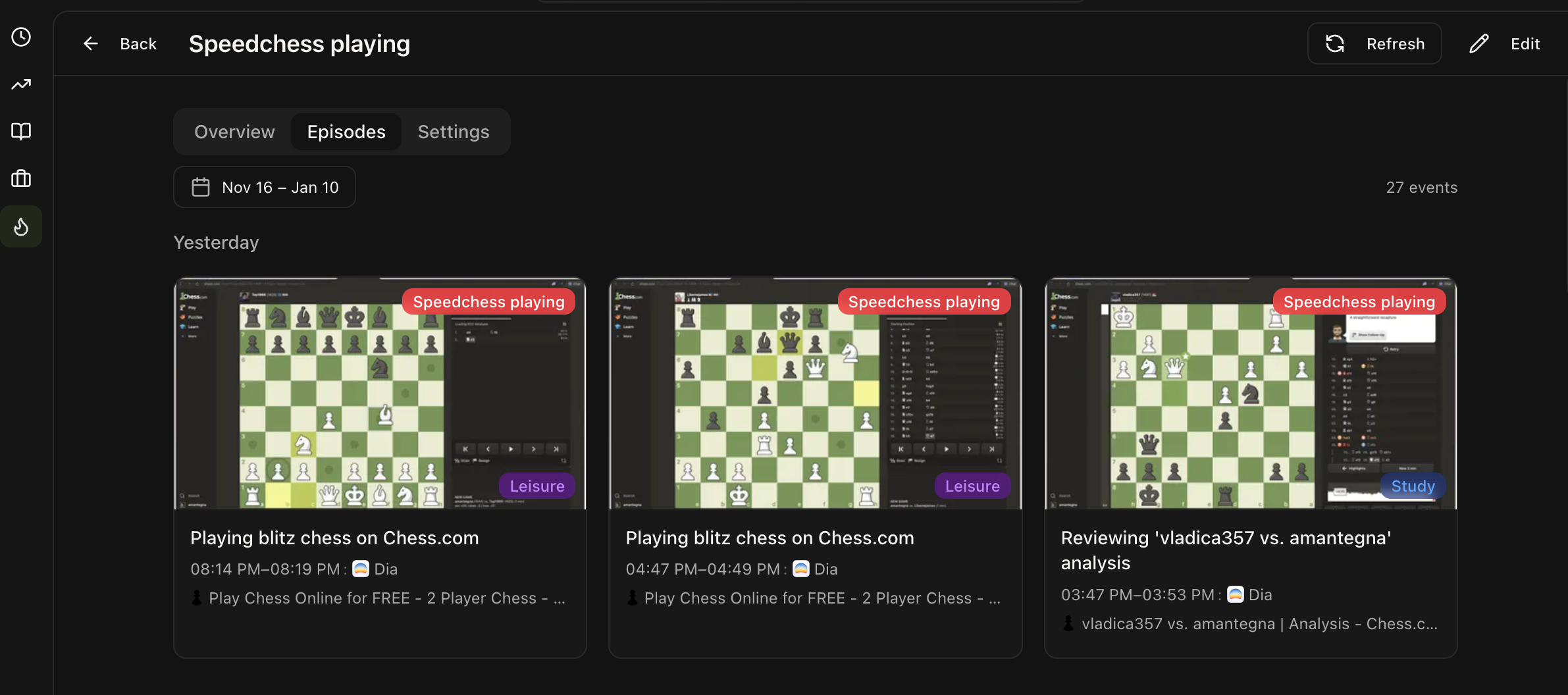 |
| Calendar heatmap, streak counter, and episode timeline. See patterns across weeks. | Track specific behaviors like bullet chess. The AI detects candidates, you confirm episodes. |
- Create rules — define what counts as an addiction
- AI detection — the LLM surfaces candidates based on content (either image OCR or image itself + Accessibility context)
- Calendar view — see patterns across weeks
- Streak tracking — visualize consecutive clean days
- Episode timeline — drill into specific incidents with screenshots
Project Progress
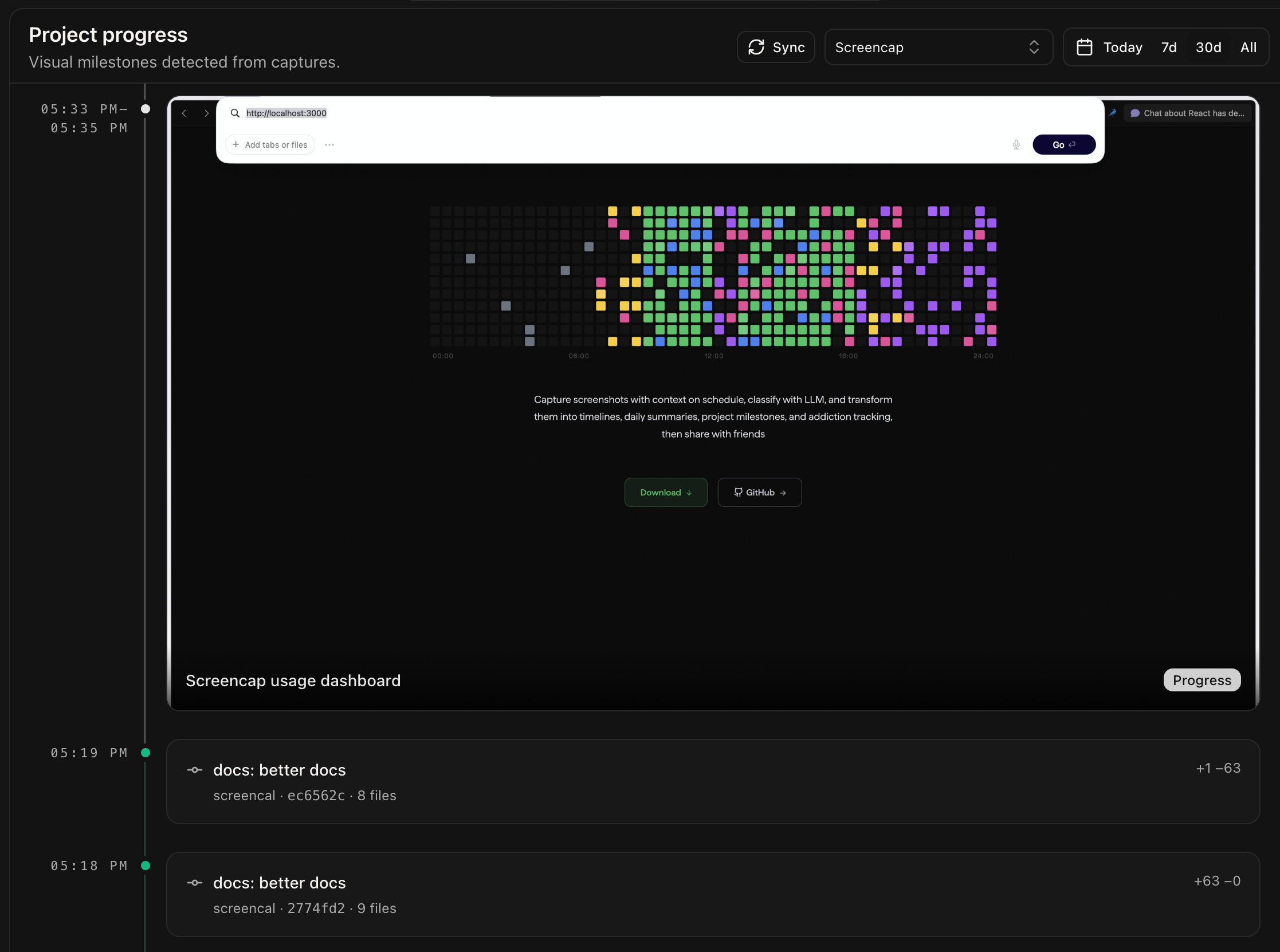
A dedicated timeline for milestones and momentum.
- Automatic detection — AI identifies progress-worthy captures
- Manual milestones —
⌘⇧Pto capture and caption a moment - Git integration — link local repositories to see commits alongside work sessions
- Multi-project filtering — track progress across all projects or focus on one
Context Providers
Screencap extracts rich context from your active window:
| Provider | What it captures |
|---|---|
| Native macOS APIs | Frontmost app, window title, fullscreen state |
| Safari | Current URL, page title |
| Chromium browsers | Current URL, page title (Chrome, Arc, Brave, Edge, etc.) |
| Spotify | Track name, artist, album art |
| Cursor/VS Code | Workspace path, project name |
With accessibility + automation permissions, we can get pretty much precise context
LLM Classification
When enabled, events go through a multi-step classification pipeline:
- Cache reuse — instant match by fingerprint + context
- Local retrieval — match against your own history
- Local LLM — Ollama, LM Studio, or any OpenAI-compatible server
- Cloud text — OpenRouter with context + OCR (no images)
- Cloud vision — OpenRouter with screenshots (if enabled)
- Fallback — baseline classification from context alone
Classification output:
- Category — Work, Study, Leisure, Social, Chores, Unknown
- Project — detected project name
- Caption — human-readable description
- Addiction candidate — potential matches against your rules
- Progress detection — milestone-worthy content
Automation Rules
Fine-grained control over capture and classification:
| Rule | Effect |
|---|---|
| Skip capture | Don't screenshot this app/website at all |
| Skip AI | Capture locally but never send to LLM |
| Force category | Always assign Work/Study/etc. |
| Force project | Always tag captures with a project |
Create rules from any event card or in Settings->Automation.
Privacy & Security
Local-first overall, but for LLM classification both local and remote (openrouter/openai) options are available.
What stays local
- SQLite database under
~/Library/Application Support/Screencap/ - All screenshots (thumbnails + originals)
- Settings and encryption keys (Keychain-encrypted)
What can go to the network (opt-in)
| Feature | Data sent | Where |
|---|---|---|
| Cloud AI | Context + OCR text | OpenRouter/OpenAI |
| Cloud Vision | Screenshot images | OpenRouter/OpenAI (if enabled) |
| Auto-updates | Version check | GitHub Releases |
Install
Requirements
- macOS 13+ (Ventura or later)
- Screen Recording permission (required)
- Accessibility permission (recommended)
- Automation permissions (recommended)
Download
- Grab the latest DMG from Releases
- Open the DMG and drag
Screencap.appto Applications - Launch — the onboarding wizard guides you through permissions and setup
Permissions
| Permission | Purpose | Required? |
|---|---|---|
| Screen Recording | Capture screenshots | Yes |
| Accessibility | Read window titles | Recommended |
| Built-in macOS APIs | Identify focused window | Enabled automatically |
| Automation -> Browsers | Read URLs from Safari/Chrome/etc. | Recommended |
| Automation -> Media apps | Capture Spotify track info | Optional |
First Run
The onboarding wizard walks you through:
- Screen Recording — grant the core permission
- Accessibility — enable rich window context
- Automation — allow per-app context extraction
- AI Setup — choose Cloud, Local, or Disabled
- First Capture — see what Screencap captures
After onboarding:
- Capture interval is set in Settings -> Capture
- Retention period is set in Settings -> Data
- Global shortcuts are customizable in Settings -> Capture -> Shortcuts
Shortcuts
| Action | Default | Notes |
|---|---|---|
| Command palette | ⌘K | Quick access to any view or action |
| Capture now | ⌘⇧O | Immediate screenshot |
| Capture project progress | ⌘⇧P | Opens caption popup for milestone |
| End of Day | ⌘⇧E | Open the journal flow |
All shortcuts are configurable in Settings -> Capture -> Shortcuts.
How Capture Works
Screencap uses dominant activity scheduling:
- Sample context every second — which app, window, URL is in focus
- Wait for stability — context must be stable for ~10 seconds
- Capture candidate — take a multi-display screenshot
- Keep the dominant — at the end of the interval, save the most representative capture
- Merge similar events — captures with same context + similar pixels become one event
This means:
- Quick app switches don't produce captures
- You get one clean event per sustained activity
- Storage usage stays reasonable
The overall capturing algo is still in very rough and can be very much improved
LLM Configuration
Cloud LLM (OpenRouter / OpenAI)
Screencap uses OpenRouter by default, but any OpenAI-compatible API works
- Get an API key from openrouter.ai/keys or platform.openai.com
- Settings -> AI -> Cloud LLM -> paste your key
- Choose a model (default:
openai/gpt-5-mini) - Toggle Allow vision uploads if you want image-based classification
OpenRouter gives you access to many models (Claude, GPT-5, Gemini, open-source) through one API key, so very much recommended
Local LLM (Ollama / LM Studio)
- Run a local OpenAI-compatible server
- Settings -> AI -> Local LLM -> enable and configure:
- Base URL:
http://localhost:11434/v1(Ollama) orhttp://localhost:1234/v1(LM Studio) - Model: the model name from
/v1/models
- Click Test to verify
See Local LLM Guide for detailed setup.
Disable AI
Settings -> AI -> Classification -> Off
Captures still happen, but no LLM calls. Events get basic category from context only.
Development
Requirements
- macOS
- Node.js 20+
- npm
Setup
bashgit clone https://github.com/yahorbarkouski/screencap.git cd screencap npm install
Run
bashnpm run dev
Test
bashnpm test
Build
bashnpm run build npm run preview
Package
bashnpx electron-builder --config electron-builder.yml
Architecture
screencap/
├── electron/
│   ├── main/           # Main process
│   │   ├── app/        # Window, tray, popup, lifecycle
│   │   ├── features/   # Capture, AI, context, projects, retention
│   │   ├── infra/      # Settings, logging, storage
│   │   └── ipc/        # Secure IPC handlers
│   ├── preload/        # Context bridge (window.api)
│   └── shared/         # IPC channels, shared types
├── src/                # React renderer
│   ├── components/     # UI components
│   ├── hooks/          # React hooks
│   ├── lib/            # Utilities
│   └── stores/         # Zustand stores
└── docs/               # Documentation
Key Services
| Service | Purpose |
|---|---|
CaptureService | Screenshot capture, fingerprinting |
ContextService | App/window/URL/media extraction |
ClassificationService | AI pipeline orchestration |
EventService | Event creation, merging, storage |
MCP Integration (Claude Desktop / Cursor)
Screencap includes a built-in MCP server that exposes your activity data to Claude Desktop, Cursor, and other MCP-compatible tools. The MCP server is bundled with the app and does not require a separate build step.
Configure Claude Desktop
Add to ~/Library/Application Support/Claude/claude_desktop_config.json:
json{ "mcpServers": { "screencap": { "command": "/usr/bin/env", "args": [ "-u", "ELECTRON_RUN_AS_NODE", "/Applications/Screencap.app/Contents/MacOS/Screencap", "--mcp" ] } } }
For detailed documentation, see MCP Server Guide.
Available Tools
| Tool | Description |
|---|---|
query_events | Query events with filters (date, category, project, app) |
search_events | Full-text search across captions and window titles |
get_recent_activity | Quick access to recent events |
get_time_summary | Category/project time breakdown |
get_app_usage | App usage statistics |
get_website_usage | Website usage statistics |
compare_periods | Compare productivity across two periods |
get_project_progress | Progress events for a project |
list_projects | All projects with stats |
get_addiction_stats | Addiction tracking data |
get_focus_score | Focus/distraction score for a day |
get_event_image | Get thumbnail for a specific event |
Available Resources
| Resource | Description |
|---|---|
screencap://activity/today | Today's activity events |
screencap://activity/recent | Recent 2 hours of activity |
screencap://stats/today | Today's category breakdown |
screencap://stats/week | This week's statistics |
screencap://projects | All projects with stats |
screencap://stories/latest | Recent daily/weekly stories |
screencap://memories | User-defined memories |
screencap://eod/today | Today's end-of-day entry |
Available Prompts
| Prompt | Description |
|---|---|
daily_summary | Summarize activity for a day |
project_status | Get status of a specific project |
focus_analysis | Analyze focus and distraction patterns |
Example Usage
In Claude Desktop or Cursor, you can now ask:
- "What was I working on today?"
- "How did I spend my time this week?"
- "Show me progress on the Screencap project"
- "Am I spending too much time on YouTube?"
- "Compare my productivity this week vs last week"
The LLM will use the appropriate tools to query your Screencap data and provide insights.
Contributing
Read Security Practices before adding new IPC handlers or file access surfaces.
Key principles:
- Treat IPC as a security boundary
- Validate all renderer inputs with Zod
- Use the
secureHandlewrapper for new handlers - Prefer allowlists over blocklists
Known Limitations and Pitfalls
This project is in beta. Expect rough edges, breaking changes, and behaviors that may surprise you.
AI Usage Can Spike Unexpectedly
The classification pipeline can make up to 2 LLM calls per screenshot (one for general classification, another for addiction verification). There's no rate limiting or cost tracking - if you capture frequently, your API bill can grow fast. Small models work best tho, but be thoughtful about this for a while
What's needed: smarter classification logic, caching improvements, and optional cost caps.
Event Trimming is Time-Based Only
Retention cleanup deletes old data based on time thresholds, not activity relevance. Important events get purged alongside noise if they're past the retention window.
What's needed: activity-aware or user-marked retention. Really curious one.
Hardcoded Thresholds
Many parameters are fixed /theoretically/:
- Fingerprint similarity thresholds
- Capture stability window (10s)
- Merge gap for events (~2× capture interval)
- HQ image retention (12 hours)
These may not fit all workflows and require some good practice to make sense / become dynamic
macOS Only
The entire context system uses AppleScript, macOS Vision, and Apple-specific APIs
If any of these bother you, PRs are very welcome
License
MIT
Contributors
Showing top 3 contributors by commit count.


Related Repositories

SamR1/FitTrackee
Self-hosted outdoor activity tracker :bicyclist: [mirror of codeberg repository: https://codeberg.org/FitTrackee/FitTrackee]

mrusme/zeit
Zeit, erfassen. A command line tool for tracking time. (https://codeberg.org/mrus/zeit)

OxWearables/biobankAccelerometerAnalysis
Extracting meaningful health information from large accelerometer datasets

bailuk/AAT
AAT Activity Tracker

Tomotsugu-dev/Hindsight
Local-first desktop activity tracker — see where your hours go, with on-device AI daily summaries and optional multi-device sync