

Open Interface
Control Any Computer Using LLMs.
Open Interface - Self-drives your computer by sending your requests to an LLM backend (GPT-4o, Gemini, etc) to figure out the required steps. - Automatically executes these steps by simulating keyboard and mouse input. - Course-corrects by sending the LLM backend updated screenshots of the progress as needed. The project is written primarily in Python, distributed under the GNU General Public License v3.0 license, first published in 2024. It has gained significant community traction with 2,688 stars and 273 forks on GitHub. Key topics include: assistant, assistant-computer-control, automation, gpt, gpt4.
Open Interface
<picture> <img src="assets/icon.png" align="right" alt="Open Interface Logo" width="120" height="120"> </picture>Control Your Computer Using LLMs
Open Interface
- Self-drives your computer by sending your requests to an LLM backend (GPT-4o, Gemini, etc) to figure out the required steps.
- Automatically executes these steps by simulating keyboard and mouse input.
- Course-corrects by sending the LLM backend updated screenshots of the progress as needed.
<br>







<ins>Demo</ins> 💻
"Solve Today's Wordle"<br>
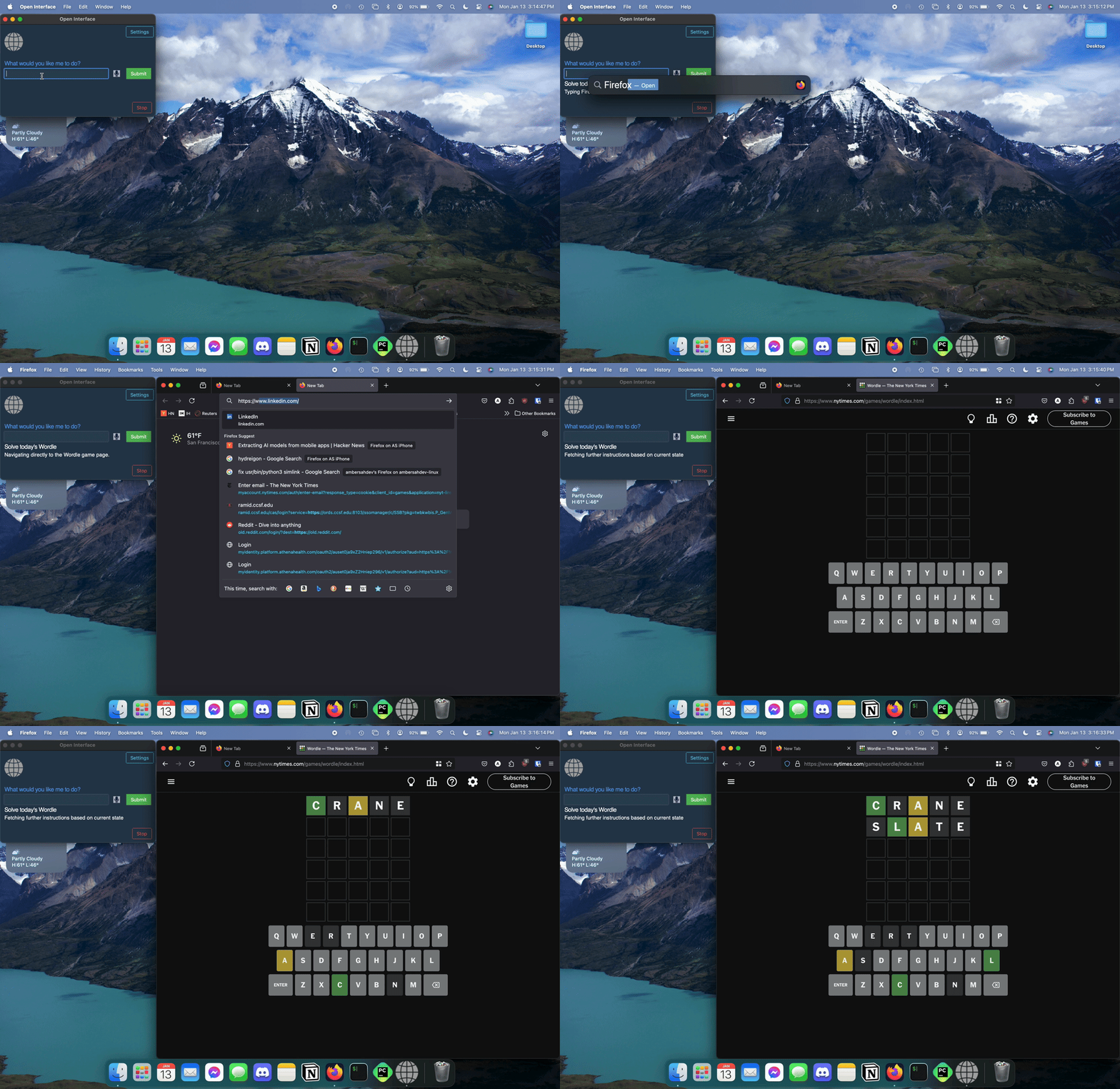 <br>
<br>
clipped, 2x
<ins>Install</ins> 💽
<details> <summary><img src="https://upload.wikimedia.org/wikipedia/commons/thumb/8/84/Apple_Computer_Logo_rainbow.svg/960px-Apple_Computer_Logo_rainbow.svg.png?20250629104313" alt="MacOS Logo" width="13" height="15"> <b>MacOS</b></summary> <ul> <li>Download the MacOS binary from the latest <a href="https://github.com/AmberSahdev/Open-Interface/releases/latest">release</a>.</li> <li>Unzip the file and move Open Interface to the Applications Folder.<br><br> <img src="assets/macos_unzip_move_to_applications.png" width="350" style="border-radius: 10px; border: 3px solid black;"> </li> </ul> <details> <summary><b>Apple Silicon M-Series Macs</b></summary> <ul> <li> Open Interface will ask you for Accessibility access to operate your keyboard and mouse for you, and Screen Recording access to take screenshots to assess its progress.<br> </li> <li> In case it doesn't, manually add these permission via <b>System Settings</b> -> <b>Privacy and Security</b> <br> <img src="assets/mac_m3_accessibility.png" width="400" style="margin: 5px; border-radius: 10px; border: 3px solid black;"><br> <img src="assets/mac_m3_screenrecording.png" width="400" style="margin: 5px; border-radius: 10px; border: 3px solid black;"> </li> </ul> </details> <details> <summary><b>Intel Macs</b></summary> <ul> <li> Launch the app from the Applications folder.<br> You might face the standard Mac <i>"Open Interface cannot be opened" error</i>.<br><br> <img src="assets/macos_unverified_developer.png" width="200" style="border-radius: 10px; border: 3px solid black;"><br> In that case, press <b><i><ins>"Cancel"</ins></i></b>.<br> Then go to <b>System Preferences -> Security and Privacy -> Open Anyway.</b><br><br> <img src="assets/macos_system_preferences.png" width="100" style="border-radius: 10px; border: 3px solid black;"> <img src="assets/macos_security.png" width="100" style="border-radius: 10px; border: 3px solid black;"> <img src="assets/macos_open_anyway.png" width="400" style="border-radius: 10px; border: 3px solid black;"> </li> <br> <li> Open Interface will also need Accessibility access to operate your keyboard and mouse for you, and Screen Recording access to take screenshots to assess its progress.<br><br> <img src="assets/macos_accessibility.png" width="400" style="margin: 5px; border-radius: 10px; border: 3px solid black;"><br> <img src="assets/macos_screen_recording.png" width="400" style="margin: 5px; border-radius: 10px; border: 3px solid black;"> </li> </ul> </details> <ul> <li>Lastly, checkout the <a href="#setup">Setup</a> section to connect Open Interface to LLMs (OpenAI GPT-4V)</li> </ul> </details> <details> <summary><img src="https://upload.wikimedia.org/wikipedia/commons/a/af/Tux.png" alt="Linux Logo" width="18" height="18"> <b>Linux</b></summary> <ul> <li>Linux binary has been tested on Ubuntu 20.04 so far.</li> <li>Download the Linux zip file from the latest <a href="https://github.com/AmberSahdev/Open-Interface/releases/latest">release</a>.</li> <li> Extract the executable and checkout the <a href="https://github.com/AmberSahdev/Open-Interface?tab=readme-ov-file#setup">Setup</a> section to connect Open Interface to LLMs, such as OpenAI GPT-4V.</li> </ul> </details> <details> <summary><img src="https://upload.wikimedia.org/wikipedia/commons/5/5f/Windows_logo_-_2012.svg" alt="Linux Logo" width="15" height="15"> <b>Windows</b></summary> <ul> <li>Windows binary has been tested on Windows 10.</li> <li>Download the Windows zip file from the latest <a href="https://github.com/AmberSahdev/Open-Interface/releases/latest">release</a>.</li> <li>Unzip the folder, move the exe to the desired location, double click to open, and voila.</li> <li>Checkout the <a href="https://github.com/AmberSahdev/Open-Interface?tab=readme-ov-file#setup">Setup</a> section to connect Open Interface to LLMs (OpenAI GPT-4V)</li> </ul> </details> <details> <summary><img src="https://upload.wikimedia.org/wikipedia/commons/thumb/c/c3/Python-logo-notext.svg/120px-Python-logo-notext.svg.png?20250701090410" alt="Python Logo" width="15" height="15"> <b>Run as a Script</b></summary> <ul> <li>Clone the repo <code>git clone https://github.com/AmberSahdev/Open-Interface.git</code></li> <li>Enter the directory <code>cd Open-Interface</code></li> <li><b>Optionally</b> use a Python virtual environment <ul> <li>Note: pyenv handles tkinter installation weirdly so you may have to debug for your own system yourself.</li> <li><code>pyenv local 3.12.2</code></li> <li><code>python -m venv .venv</code></li> <li><code>source .venv/bin/activate</code></li> </ul> </li> <li>Install dependencies <code>pip install -r requirements.txt</code></li> <li>Run the app using <code>python app/app.py</code></li> </ul> </details><ins id="setup">Setup</ins> 🛠️
<details> <summary><b>Set up the OpenAI API key</b></summary>-
Get your OpenAI API key
- Open Interface needs access to GPT-4o to perform user requests. GPT-4o keys can be downloaded from your OpenAI account at platform.openai.com/settings/organization/api-keys.
- Follow the steps here to add balance to your OpenAI account. To unlock GPT-4o a minimum payment of $5 is needed.
- More info
-
Save the API key in Open Interface settings
- In Open Interface, go to the Settings menu on the top right and enter the key you received from OpenAI into the text field like so: <br> <br>
-
After setting the API key for the first time you'll need to <b>restart the app</b>.
- Go to Settings -> Advanced Settings and select the Gemini model you wish to use.
- Get your Google Gemini API key from https://aistudio.google.com/app/apikey.
- Save the API key in Open Interface settings.
- Save the settings and <b>restart the app</b>.
- Open Interface supports using other OpenAI API style LLMs (such as Llava) as a backend and can be configured easily in the Advanced Settings window.
- Enter the custom base url and model name in the Advanced Settings window and the API key in the Settings window as needed.
- NOTE - If you're using Llama:
- You may need to enter a random string like "xxx" in the API key input box.
- You may need to append /v1/ to the base URL.
<br>
<picture>
<img src="assets/advanced_settings.png" align="middle" alt="Set API key in settings" width="400">
</picture><br>
<br>
- If your LLM does not support an OpenAI style API, you can use a library like this to convert it to one.
- You will need to restart the app after these changes.
<ins>Stuff It’s Error-Prone At, For Now</ins> 😬
- Accurate spatial-reasoning and hence clicking buttons.
- Keeping track of itself in tabular contexts, like Excel and Google Sheets, for similar reasons as stated above.
- Navigating complex GUI-rich applications like Counter-Strike, Spotify, Garage Band, etc due to heavy reliance on cursor actions.
<ins>The Future</ins> 🔮
(with better models trained on video walkthroughs like Youtube tutorials)
- "Create a couple of bass samples for me in Garage Band for my latest project."
- "Read this design document for a new feature, edit the code on Github, and submit it for review."
- "Find my friends' music taste from Spotify and create a party playlist for tonight's event."
- "Take the pictures from my Tahoe trip and make a White Lotus type montage in iMovie."
<ins>Notes</ins> 📝
- Cost Estimation: $0.0005 - $0.002 per LLM request depending on the model used.<br>
(User requests can require between two to a few dozen LLM backend calls depending on the request's complexity.) - You can interrupt the app anytime by pressing the Stop button, or by dragging your cursor to any of the screen corners.
- Open Interface can only see your primary display when using multiple monitors. Therefore, if the cursor/focus is on a secondary screen, it might keep retrying the same actions as it is unable to see its progress.
<ins>System Diagram</ins> 🖼️
+----------------------------------------------------+
| App                                                |
|                                                    |
|    +-------+                                       |
|    |  GUI  |                                       |
|    +-------+                                       |
|        ^                                           |
|        |                                           |
|        v                                           |
|  +-----------+  (Screenshot + Goal)  +-----------+ |
|  |           | --------------------> |           | |
|  |    Core   |                       |    LLM    | |
|  |           | <-------------------- |  (GPT-4o) | |
|  +-----------+    (Instructions)     +-----------+ |
|        |                                           |
|        v                                           |
|  +-------------+                                   |
|  | Interpreter |                                   |
|  +-------------+                                   |
|        |                                           |
|        v                                           |
|  +-------------+                                   |
|  |   Executer  |                                   |
|  +-------------+                                   |
+----------------------------------------------------+
<ins>Star History</ins> ⭐️
<picture> <img src="https://api.star-history.com/svg?repos=AmberSahdev/Open-Interface&type=Date" alt="Star History" width="720"> </picture><ins>Links</ins> 🔗
- Check out more of my projects at AmberSah.dev.
- Other demos and press kit can be found at MEDIA.md.
Contributors
Showing top 7 contributors by commit count.




Related Repositories

openclaw/openclaw
Your own personal AI assistant. Any OS. Any Platform. The lobster way. 🦞

chatboxai/chatbox
Powerful AI Client

LAION-AI/Open-Assistant
OpenAssistant is a chat-based assistant that understands tasks, can interact with third-party systems, and retrieve information dynamically to do so.

CopilotKit/CopilotKit
The Frontend Stack for Agents & Generative UI. React, Angular, Mobile, Slack, and more. Makers of the AG-UI Protocol

khoj-ai/khoj
Your AI second brain. Self-hostable. Get answers from the web or your docs. Build custom agents, schedule automations, do deep research. Turn any online or local LLM into your personal, autonomous AI (gpt, claude, gemini, llama, qwen, mistral). Get started - free.

lfnovo/open-notebook
An Open Source implementation of Notebook LM with more flexibility and features