

Qemu arm
QEMU for ARM in a Docker container.
[![Build]][build_url] [![Version]][tag_url] [![Size]][tag_url] [![Package]][pkg_url] [![Pulls]][hub_url] The project is written primarily in Shell, distributed under the MIT License license, first published in 2024. Key topics include: docker, docker-image, kvm, kvm-hypervisor, qemu.



Docker container for running ARM-based virtual machines using QEMU, for devices like the Raspberry Pi 5 and many others.
Features ✨
-
Web-based viewer to control the machine directly from your browser
-
Supports
.iso,.img,.qcow2,.vhd,.vhdx,.vdi,.vmdkand.rawdisk formats -
High-performance options (like KVM acceleration, kernel-mode networking, IO threading, etc.) to achieve near-native speed
Usage 🐳
Via Docker Compose:
yamlservices: qemu: container_name: qemu image: qemux/qemu-arm environment: BOOT: "ubuntu" devices: - /dev/kvm - /dev/net/tun cap_add: - NET_ADMIN ports: - 8006:8006 volumes: - ./qemu:/storage restart: always stop_grace_period: 2m
Via Docker CLI:
bashdocker run -it --rm --name qemu -e "BOOT=ubuntu" -p 8006:8006 --device=/dev/kvm --device=/dev/net/tun --cap-add NET_ADMIN -v "${PWD:-.}/qemu:/storage" --stop-timeout 120 docker.io/qemux/qemu-arm
Via Kubernetes:
shellkubectl apply -f https://raw.githubusercontent.com/qemus/qemu-arm/refs/heads/master/kubernetes.yml
Via Github Codespaces:

FAQ 💬
How do I use it?
Very simple! These are the steps:
-
Set the
BOOTvariable to the operating system you want to install. -
Start the container and connect to port 8006 using your web browser.
-
You will see the screen and can now install the OS of your choice using your keyboard and mouse.
Enjoy your brand new machine, and don't forget to star this repo!
How do I select the operating system?
You can use the BOOT environment variable in order to specify the operating system that will be downloaded:
yamlenvironment: BOOT: "ubuntu"
Select from the values below:
| Value | Operating System | Size |
|---|---|---|
alma | Alma Linux | 1.7 GB |
alpine | Alpine Linux | 60 MB |
cachy | CachyOS | 2.6 GB |
centos | CentOS | 6.4 GB |
debian | Debian | 3.7 GB |
fedora | Fedora | 2.9 GB |
gentoo | Gentoo | 1.3 GB |
kali | Kali Linux | 3.4 GB |
nixos | NixOS | 2.4 GB |
suse | OpenSUSE | 1.0 GB |
rocky | Rocky Linux | 1.9 GB |
ubuntu | Ubuntu Desktop | 3.3 GB |
ubuntus | Ubuntu Server | 2.7 GB |
How can I use my own image?
If you want to download an operating system that is not in the list above, you can set the BOOT variable to the URL of the image:
yamlenvironment: BOOT: "https://dl-cdn.alpinelinux.org/alpine/v3.19/releases/aarch64/alpine-virt-3.19.1-aarch64.iso"
The BOOT URL accepts files in any of the following formats:
| Extension | Format |
|---|---|
.img | Raw |
.raw | Raw |
.iso | Optical |
.qcow2 | QEMU |
.vmdk | VMware |
.vhd | VirtualPC |
.vhdx | Hyper-V |
.vdi | VirtualBox |
It will also accept files such as .img.gz, .qcow2.xz, .iso.zip and many more, because it will automatically extract compressed files.
Alternatively you can use a local image file directly, by binding it in your compose file:
yamlvolumes: - ./example.iso:/boot.iso
This way you can supply either a /boot.iso, /boot.img or a /boot.qcow2 file. The value of BOOT will be ignored in this case.
How do I change the storage location?
To change the storage location, include the following bind mount in your compose file:
yamlvolumes: - ./qemu:/storage
Replace the example path ./qemu with the desired storage folder or named volume.
How do I change the size of the disk?
To expand the default size of 64 GB, add the DISK_SIZE setting to your compose file and set it to your preferred capacity:
yamlenvironment: DISK_SIZE: "128G"
[!TIP]
This can also be used to resize the existing disk to a larger capacity without any data loss. However you will need to manually extend the disk partition afterwards inside your OS, since the added disk space will appear as unallocated.
How do I change the amount of CPU or RAM?
By default, the VM will be allowed to use 2 CPU cores and 2 GB of RAM.
If you want to adjust this, you can specify the desired amount using the following environment variables:
yamlenvironment: RAM_SIZE: "8G" CPU_CORES: "4"
How do I increase the display resolution?
For maximum compatibility, the display output will be a simple framebuffer by default. While this isn't the most optimal, it doesn't require any drivers.
If your guest OS bundles the virtio-gpu driver (as most Linux distributions do), you can add the following to your compose file:
yamlenvironment: VGA: "virtio-gpu"
to add a virtual graphics cards to your machine that allows for higher resolutions.
[!NOTE]
Using this method your screen will stay black during the boot process, until the point where the driver is actually loaded.
How do I boot Windows?
Use dockur/windows-arm instead, as it includes all the drivers required during installation, amongst many other features.
How do I boot x86/x64 images?
You can use the qemu container to run x86 and x64 images on ARM.
How do I verify if my system supports KVM?
First check if your software is compatible using this chart:
| Product | Linux | Win11 | Win10 | macOS |
|---|---|---|---|---|
| Docker CLI | ✅ | ✅ | ❌ | ❌ |
| Docker Desktop | ❌ | ✅ | ❌ | ❌ |
| Podman CLI | ✅ | ✅ | ❌ | ❌ |
| Podman Desktop | ✅ | ✅ | ❌ | ❌ |
After that you can run the following commands in Linux to check your system:
bashsudo apt install cpu-checker sudo kvm-ok
If you receive an error from kvm-ok indicating that KVM cannot be used, please check whether:
-
the virtualization extensions (
Intel VT-xorAMD SVM) are enabled in your BIOS. -
you enabled "nested virtualization" if you are running the container inside a virtual machine.
-
you are not using a cloud provider, as most of them do not allow nested virtualization for their VPS's.
If you did not receive any error from kvm-ok but the container still complains about a missing KVM device, it could help to add privileged: true to your compose file (or sudo to your docker command) to rule out any permission issue.
How do I expose network ports?
When using bridge networking, you can expose ports by adding them to your compose file. If you want to be able to connect to the SSH service of the machine for example, you would add it like this:
yamlports: - 2222:22
This will make port 2222 on your host redirect to port 22 of the virtual machine.
When using user-mode networking (for example when running under Podman), you will also need to add those ports to the USER_PORTS variable like this:
yamlenvironment: USER_PORTS: "22,80,443"
How do I assign an individual IP address to the container?
By default, the container uses bridge networking, which shares the IP address with the host.
If you want to assign an individual IP address to the container, you can create a macvlan network as follows:
bashdocker network create -d macvlan \ --subnet=192.168.0.0/24 \ --gateway=192.168.0.1 \ --ip-range=192.168.0.100/28 \ -o parent=eth0 vlan
Be sure to modify these values to match your local subnet.
Once you have created the network, change your compose file to look as follows:
yamlservices: qemu: container_name: qemu ..<snip>.. networks: vlan: ipv4_address: 192.168.0.100 networks: vlan: external: true
An added benefit of this approach is that you won't have to perform any port mapping anymore, since all ports will be exposed by default.
[!IMPORTANT]
This IP address won't be accessible from the Docker host due to the design of macvlan, which doesn't permit communication between the two. If this is a concern, you need to create a second macvlan as a workaround.
How can the VM acquire an IP address from my router?
After configuring the container for macvlan, it is possible for the VM to become part of your home network by requesting an IP from your router, just like a real PC.
To enable this mode, in which the container and the VM will have separate IP addresses, add the following lines to your compose file:
yamlenvironment: DHCP: "Y" devices: - /dev/vhost-net device_cgroup_rules: - 'c *:* rwm'
How do I add multiple disks?
To create additional disks, modify your compose file like this:
yamlenvironment: DISK2_SIZE: "32G" DISK3_SIZE: "64G" volumes: - ./example2:/storage2 - ./example3:/storage3
How do I pass-through a disk?
It is possible to pass-through disk devices or partitions directly by adding them to your compose file in this way:
yamldevices: - /dev/sdb:/disk1 - /dev/sdc1:/disk2
Use /disk1 if you want it to become your main drive, and use /disk2 and higher to add them as secondary drives.
How do I pass-through a USB device?
To pass-through a USB device, first lookup its vendor and product id via the lsusb command, then add them to your compose file like this:
yamlenvironment: ARGUMENTS: "-device usb-host,vendorid=0x1234,productid=0x1234" devices: - /dev/bus/usb
How do I share files with the host?
To share files with the host, first ensure that your guest OS has 9pfs support compiled in or available as a kernel module. If so, add the following volume to your compose file:
yamlvolumes: - ./example:/shared
Then start the container and execute the following command in the guest:
shellmount -t 9p -o trans=virtio shared /mnt/example
Now the ./example directory on the host will be available as /mnt/example in the guest.
How do I enable dynamic memory allocation?
By default, the VM is allocated the full amount of RAM configured via RAM_SIZE for its entire lifetime.
However, you can enable memory ballooning if you want the container to dynamically reclaim unused guest RAM based on host memory pressure.
How can I provide custom arguments to QEMU?
You can create the ARGUMENTS environment variable to provide additional arguments to QEMU at runtime:
yamlenvironment: ARGUMENTS: "-device usb-tablet"
If you want to see the full command-line arguments used, you can set:
yamlenvironment: DEBUG: "Y"
Can I also run Proxmox as a container?
Yes, if you prefer a web-based management interface, or some advanced features that this container may not offer, you can try out dockur/proxmox.
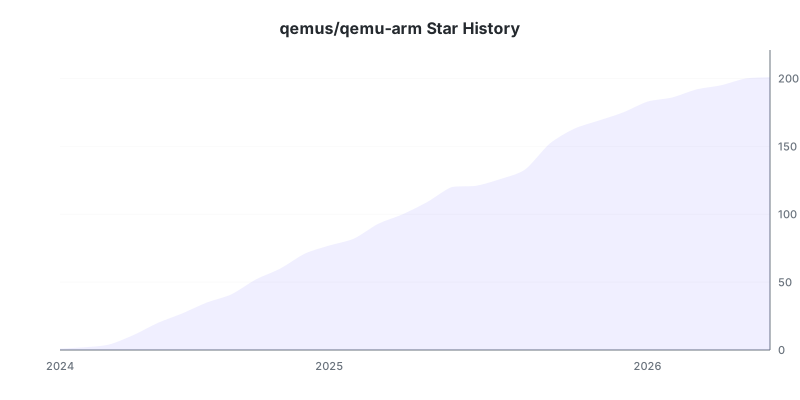
Stars 🌟
Contributors
Showing top 8 contributors by commit count.


![renovate[bot]](https://avatars.githubusercontent.com/in/2740?v=4)

![dependabot[bot]](https://avatars.githubusercontent.com/in/29110?v=4)


Related Repositories

louislam/uptime-kuma
A fancy self-hosted monitoring tool

Stirling-Tools/Stirling-PDF
#1 PDF Application on GitHub that lets you edit PDFs on any device anywhere

macrozheng/mall
mall项目是一套电商系统,包括前台商城系统及后台管理系统,基于Spring Boot+MyBatis实现,采用Docker容器化部署。 前台商城系统包含首页门户、商品推荐、商品搜索、商品展示、购物车、订单流程、会员中心、客户服务、帮助中心等模块。 后台管理系统包含商品管理、订单管理、会员管理、促销管理、运营管理、内容管理、统计报表、财务管理、权限管理、设置等模块。

bregman-arie/devops-exercises
Linux, Jenkins, AWS, SRE, Prometheus, Docker, Python, Ansible, Git, Kubernetes, Terraform, OpenStack, SQL, NoSQL, Azure, GCP, DNS, Elastic, Network, Virtualization. DevOps Interview Questions

netdata/netdata
The fastest path to AI-powered full stack observability, even for lean teams.

moby/moby
The Moby Project - a collaborative project for the container ecosystem to assemble container-based systems